> For the complete documentation index, see [llms.txt](https://help.clausebuddy.com/llms.txt). Markdown versions of documentation pages are available by appending `.md` to page URLs; this page is available as [Markdown](https://help.clausebuddy.com/bracketeer/how/in-depth/preparing-templates-for-bracketeer.md).
# Preparing templates for Bracketeer
## **Optional text parts**
Bracketeer was designed to work with the square-brackets and placeholders that are most commonly found in legal documents.
**Optional text parts** are represented by square brackets. For example, the text below can either be "each resigning existing Director" or "each Director":
Options can also be **nested** within each other, typically two or three levels deep. For example, the following bullet is completely optional, because it is surrounded by square brackets. When the end-user would choose to keep this bullet, she can choose between (a) one or multiple resignation letters; and (b) "each Director" versus "each resigning existing Director".
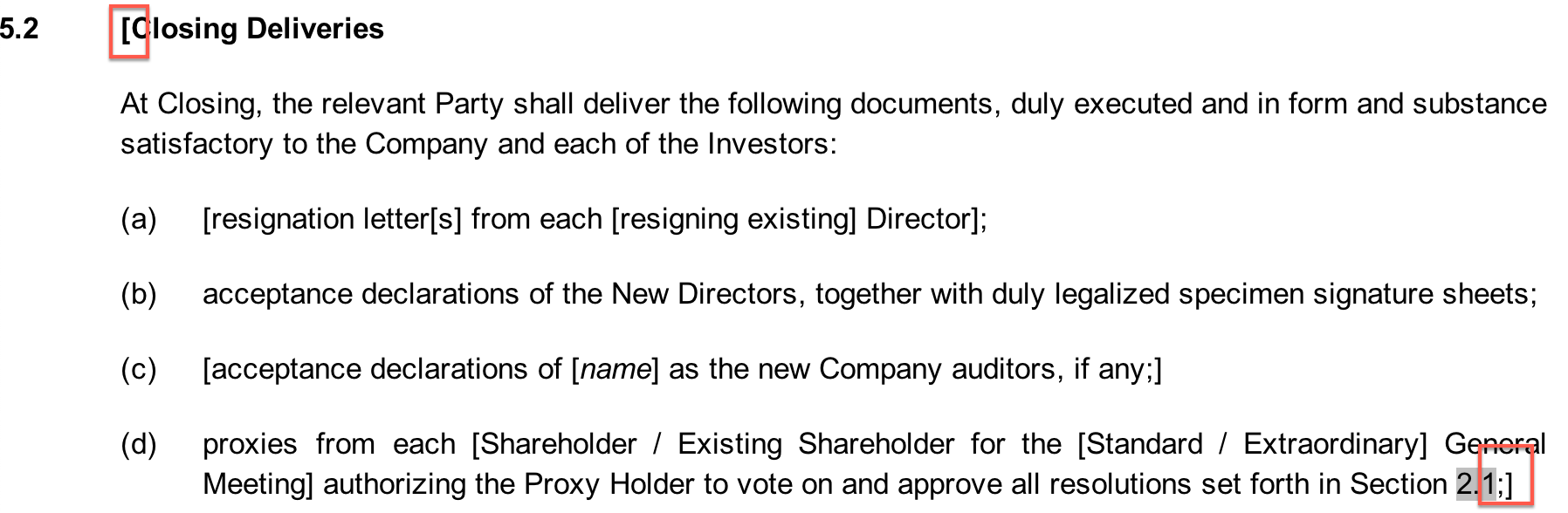
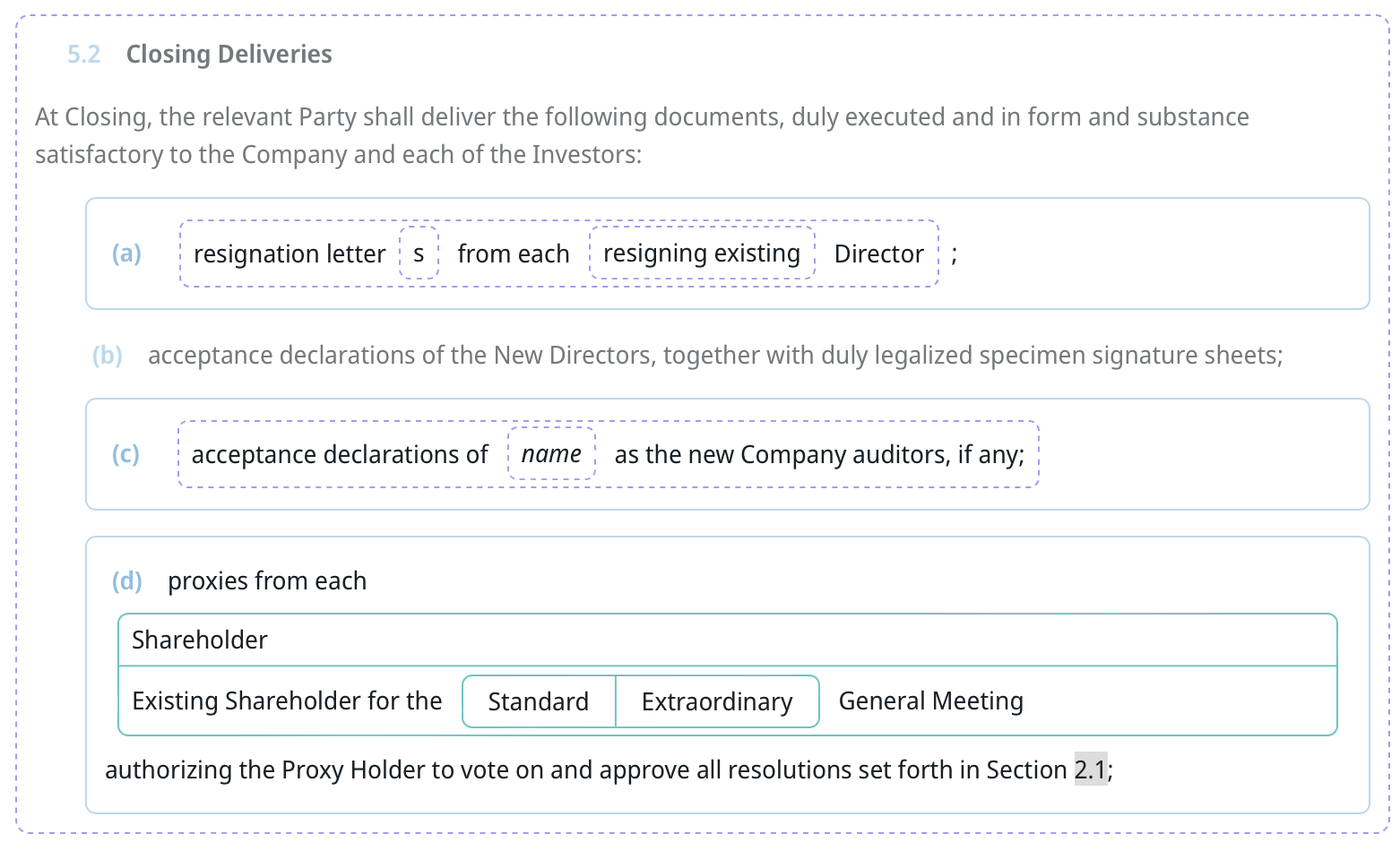
Options can even **span across paragraphs**, to indicate that entire blocks of text are optional. For example, the author of the following template designated the entire section 5.2 as optional through the opening square bracket at the very beginning of the first paragraph, and the closing square bracket at the very end:
{% hint style="danger" %}
Be careful when nesting square brackets, especially when spanning them across paragraphs. In practice, we very often see that beyond 2 or 3 levels, humans start making mistakes when keeping track of deeply embedded square brackets.
{% endhint %}
Bracketeer tries to be "forgiving" when missing a closing bracket, but nevertheless it will show you an error when it cannot make sense of a certain set of nested square brackets.
Bracketeer presents these optional parts in a user-friendly visual manner, through dotted lines.
***
## **Alternative text parts**
Alternatives can be expressed in two ways: either through neighbouring square brackets, or by using slashes within square brackets.
**Slashes** within square brackets:
**Adjacent square** brackets:
{% hint style="info" %}
Note that no **spaces are allowed between the adjacent bracket sets**. Otherwise, Bracketeer — and many humans! — would interpret each as three *optional text parts* instead of *three alternatives from which only one must be chosen*.
{% endhint %}
A third option is to use **slahes between the square bracket sets**:
Whichever method you choose, will Bracketeer presents the alternatives in a visual manner, inviting you to select one of three:
***
## **Placeholders**
Placeholders are generic labels, which are intended to be replaced by concrete text. Placeholders can be inserted by highlighting text:
Any highlighting colour will work, although yellow is most common.
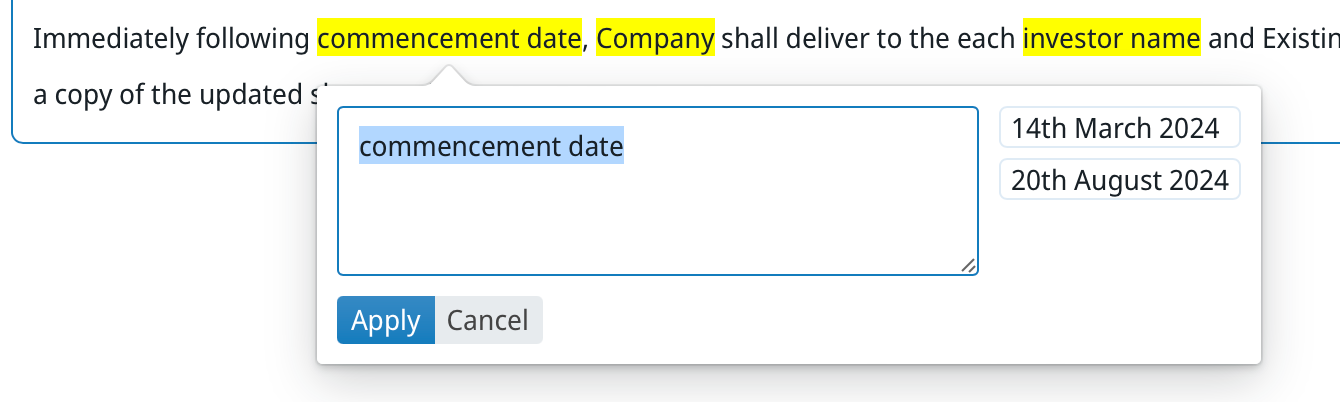
Bracketeer will always show placeholders in yellow
By simply clicking on a placeholder, end-users can replace the placeholder with an actual value. Bracketeer will remember your selections (in the screen below the dates in March & August), so you can quickly choose values by simply clicking with the mouse.
{% hint style="info" %}
Note that a commonly found style in legal templates is to use both square brackets and highlighted text. Bracketeer will treat such situations as mere placeholders, i.e. not as options (as would be the case when only square brackets but no highlights would be used).
{% endhint %}
---
# Agent Instructions
This documentation is published with GitBook. GitBook is the documentation platform designed so that both humans and AI agents can read, navigate, and reason over technical content effectively. Learn more at gitbook.com.
## Querying This Documentation
If you need additional information that is not directly available in this page, you can query the documentation by asking a question.
Perform an HTTP GET request on the following URL with the `ask` and `goal` query parameters:
```
GET https://help.clausebuddy.com/bracketeer/how/in-depth/preparing-templates-for-bracketeer.md?ask=&goal=
```
`ask` is the immediate question: it should be specific, self-contained, and written in natural language.
`goal` is what the user is ultimately trying to achieve, the reason they need the answer. Sharing it helps GitBook give you a better, more relevant answer. A goal is most helpful when it describes the outcome the user wants rather than restating the question. For example, with `ask=how do I create an API token`, a goal like `automate deployments from our CI pipeline` lets GitBook tailor the answer to that use case.
The response will contain a direct answer to the question and relevant excerpts and sources from the documentation.
Use this mechanism when the answer is not explicitly present in the current page, you need clarification or additional context, or you want to retrieve related documentation sections.









 {% endhint %}
---
# Agent Instructions
This documentation is published with GitBook. GitBook is the documentation platform designed so that both humans and AI agents can read, navigate, and reason over technical content effectively. Learn more at gitbook.com.
## Querying This Documentation
If you need additional information that is not directly available in this page, you can query the documentation by asking a question.
Perform an HTTP GET request on the following URL with the `ask` and `goal` query parameters:
```
GET https://help.clausebuddy.com/bracketeer/how/in-depth/preparing-templates-for-bracketeer.md?ask=
{% endhint %}
---
# Agent Instructions
This documentation is published with GitBook. GitBook is the documentation platform designed so that both humans and AI agents can read, navigate, and reason over technical content effectively. Learn more at gitbook.com.
## Querying This Documentation
If you need additional information that is not directly available in this page, you can query the documentation by asking a question.
Perform an HTTP GET request on the following URL with the `ask` and `goal` query parameters:
```
GET https://help.clausebuddy.com/bracketeer/how/in-depth/preparing-templates-for-bracketeer.md?ask=