> For the complete documentation index, see [llms.txt](https://help.clausebuddy.com/llms.txt). Markdown versions of documentation pages are available by appending `.md` to page URLs; this page is available as [Markdown](https://help.clausebuddy.com/quality-library/how/in-depth/custom-styling/template-detection-pane.md).
# Template detection pane
Once a style scheme is configured, you can optionally assign a "detector", that will apply that style scheme if the associated template is detected.
{% hint style="info" %}
You can assign multiple detectors for the same style scheme; ClauseBuddy will try them in the order they are listed, and apply the style scheme as soon as one of the detectors leads to a match. When multiple style schemes are available, then ClauseBuddy will try their detectors in the order of the alphabetical listing of the style scheme name.
{% endhint %}
The detector uses the information within the metadata of a DOCX file, i.e. the information available in the file's Properties.
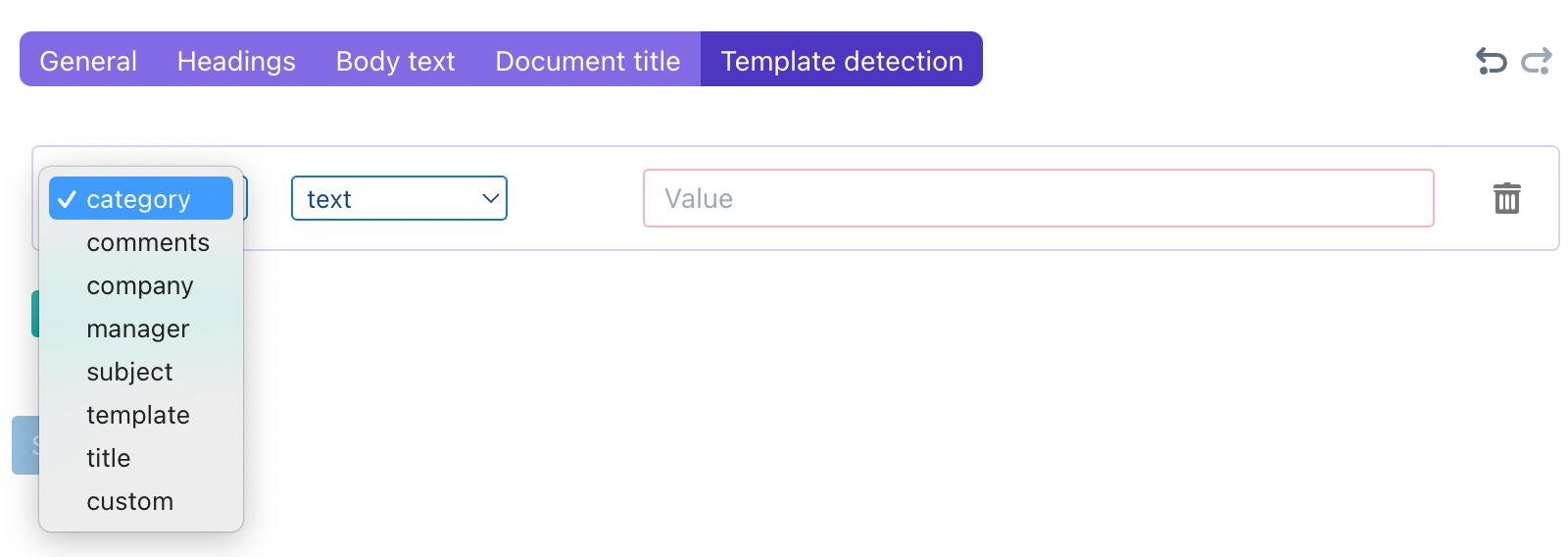
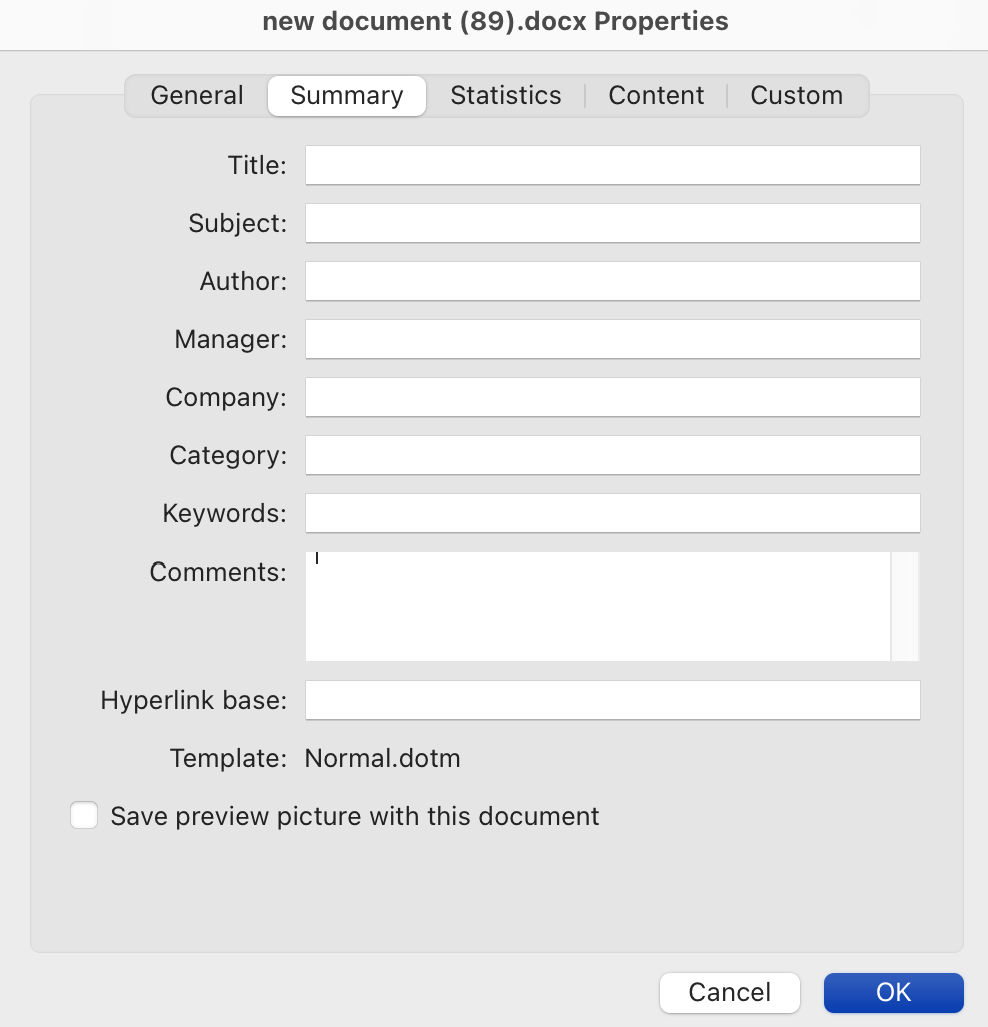
In the first dropdown list, you choose the metadata type. Except for "custom" (discussed below), those fields correspond to the fields availble in the "Summary" pane within the MS Word properties dialog box:
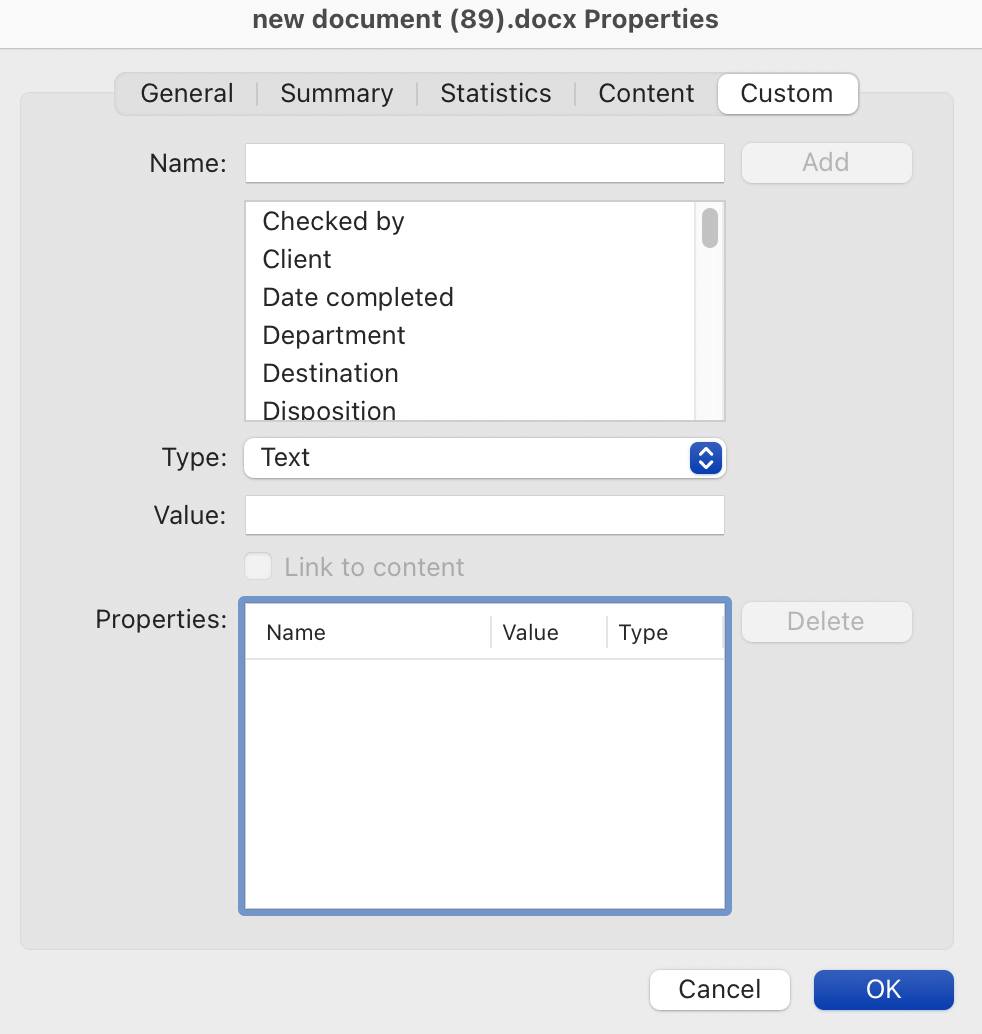
The **custom** option corresponds to the contents of the "Custom" pane of the same dialog box.
{% hint style="info" %}
While MS Word allows you to define different types of values (Text / Date / Number / Yes or No), currently only text-based custom fields are supported by ClauseBuddy.
{% endhint %}
For example, documents generated with Clause9 contain property "SX-version", with some text indicating the current version (usually "101").
In the second dropdown list, you can specify how the text should be recognised:
* If you choose **text**, you will match the value specified on the right side with the entire contents of the text field. For example, if you would specify "Alpha Beta" as the text value for the "Subject" field, then ClauseBuddy will select the style scheme if a DOCX file contains "Alpha Beta" in its metadata subject field. Conversely, if a DOCX file would contain "Alpha Beta Gamma" or "XXX Alpha Beta", it would not match. (Leading/trailing spaces and capitalisation are, however, ignored.)
* If you choose **partial text**, then there will be a match as soon as the text value specified is found as part of the value in the DOCX metadata. For example, value "Alpha" would match DOCX metadata "Alpha Beta Gamma" or "xxAlphayy".
* If you choose **regex**, then there will be a match based on so-called regular expressions, while **partial regex** would perform a partial match with such regular expressions.
{% hint style="info" %}
Regular expressions are very powerful validations, that allow you to perform advanced matches, e.g. "match text that starts with "x", is then followed by at least three different letters, is then not followed by a number or by a slash, and ends with at least two underscores".They are written in a standard mini programming language that defines what a piece of text should look like. There are many websites online that allow you to learn about, and interactively experiment with, these regular expressions. A good example is (the regex “dialect” used by Clause9 is the JavaScript Regex). Many introduction tutorials exist — see, for example, .
{% endhint %}
---
# Agent Instructions
This documentation is published with GitBook. GitBook is the documentation platform designed so that both humans and AI agents can read, navigate, and reason over technical content effectively. Learn more at gitbook.com.
## Querying This Documentation
If you need additional information that is not directly available in this page, you can query the documentation by asking a question.
Perform an HTTP GET request on the following URL with the `ask` and `goal` query parameters:
```
GET https://help.clausebuddy.com/quality-library/how/in-depth/custom-styling/template-detection-pane.md?ask=&goal=
```
`ask` is the immediate question: it should be specific, self-contained, and written in natural language.
`goal` is what the user is ultimately trying to achieve, the reason they need the answer. Sharing it helps GitBook give you a better, more relevant answer. A goal is most helpful when it describes the outcome the user wants rather than restating the question. For example, with `ask=how do I create an API token`, a goal like `automate deployments from our CI pipeline` lets GitBook tailor the answer to that use case.
The response will contain a direct answer to the question and relevant excerpts and sources from the documentation.
Use this mechanism when the answer is not explicitly present in the current page, you need clarification or additional context, or you want to retrieve related documentation sections.