> For the complete documentation index, see [llms.txt](https://help.clausebuddy.com/llms.txt). Markdown versions of documentation pages are available by appending `.md` to page URLs; this page is available as [Markdown](https://help.clausebuddy.com/quality-library/how/in-depth/searching-clauses/filtering-clauses.md).
# Filtering clauses
When you are presented with a list of search results — either through folder browsing, keyword search, or similarity search — you can filter clauses to quickly find a small subset of interesting results. You can do so by using the filtering pane at the right side of ClauseBuddy.
{% hint style="info" %}
When the right pane is not shown, then you have either found clauses for which no attributes were included, or you may have accidentally hidden the filtering pane. Click on the stacking-icon in the top-right corner to make it visible again.
{% endhint %}
## When to use
The filtering pane primarily shows all the [attributes](https://help.clausebuddy.com/admin/managing-attributes) that you associated with the clauses you found — such as the length of a clause, its level of formality, the industry sector it is written for, the party position (e.g., favouring the customer, or instead favouring the supplier), and so on.
The filtering pane also allows you to filter on the **search folder** where each clause is found. For example, in a law firm's general library, you may have search folders per legal department (corporate, employment, IT/IP, ...) and you may want to narrow down your searches to specific search folders.
If none of the clauses you found are tagged with such attributes, and all the clauses are found in the same search folder, then the filtering pane will not be shown.
{% hint style="info" %}
Note that this filtering pane **uses curated legal knowledge**, i.e. it shows what you (or your colleague, knowledge manager, ...) manually associated with a clause. This is the most reliable way to build high-quality clause libraries, but there is a second option using AI.
When searching in Clause mode, you will also see a brain-like button that allows you to filter your clauses using Artificial Intelligence. This mode of operation is [separately discussed](https://help.clausebuddy.com/truffle-hunt/how/in-depth/process-results-with-ai).
{% endhint %}
## How to use
In the filtering pane, ClauseBuddy shows you all the search folders and legal attributes it found in your initial search results. For example, if you searched on keyword *distributor,* then it will take all the clauses containing that keyword, and present you with a list of all the search folders and legal attributes found in any of those clauses. In the example below, you can see 357 results, which is probably way too much to scroll through.
You can then filter your search results by clicking on any of the checkboxes in front of a search folder or attribute value. For example, when you only want to search for mutual clauses that highly favour the distributor, you can see that ClauseBuddy returns a manageable number of results (3).
If you happen to make an impossible combination — e.g. clauses that are both mutual and very long — you may end up with no results:
You can then either remove the filter (by clicking on the small **x** in the top corner), or go back in time by clicking on the leftpointing triangle at the right side.
## What are those small dots?
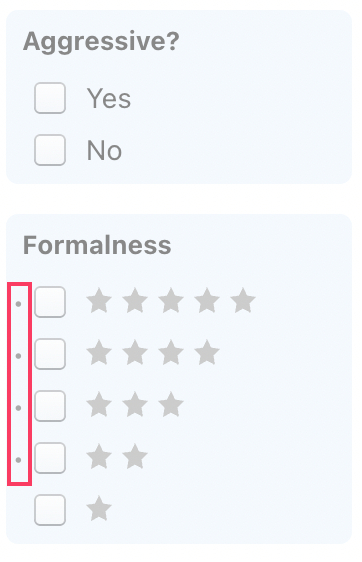
You will notice that often, small dots appear at the left side of the checkboxes.
Those dots indicate that, within the currently fetched list of clauses, there is at least one clause (but possibly multiple) that meet the filtering criterion. In other words, when clicking on this filter, you will be certain that the resulting list will not be empty.
Please note that the omission of a dot does not mean that there are no clauses in the database that meet that criterion. A dot may simply be missing because not all the clauses have been loaded; by simply altering your search criteria, you may very well arrive at a clause that meets that filter's criteria.
---
# Agent Instructions
This documentation is published with GitBook. GitBook is the documentation platform designed so that both humans and AI agents can read, navigate, and reason over technical content effectively. Learn more at gitbook.com.
## Querying This Documentation
If you need additional information that is not directly available in this page, you can query the documentation by asking a question.
Perform an HTTP GET request on the following URL with the `ask` and `goal` query parameters:
```
GET https://help.clausebuddy.com/quality-library/how/in-depth/searching-clauses/filtering-clauses.md?ask=&goal=
```
`ask` is the immediate question: it should be specific, self-contained, and written in natural language.
`goal` is what the user is ultimately trying to achieve, the reason they need the answer. Sharing it helps GitBook give you a better, more relevant answer. A goal is most helpful when it describes the outcome the user wants rather than restating the question. For example, with `ask=how do I create an API token`, a goal like `automate deployments from our CI pipeline` lets GitBook tailor the answer to that use case.
The response will contain a direct answer to the question and relevant excerpts and sources from the documentation.
Use this mechanism when the answer is not explicitly present in the current page, you need clarification or additional context, or you want to retrieve related documentation sections.

 {% endhint %}
## When to use
The filtering pane primarily shows all the [attributes](https://help.clausebuddy.com/admin/managing-attributes) that you associated with the clauses you found — such as the length of a clause, its level of formality, the industry sector it is written for, the party position (e.g., favouring the customer, or instead favouring the supplier), and so on.
The filtering pane also allows you to filter on the **search folder** where each clause is found. For example, in a law firm's general library, you may have search folders per legal department (corporate, employment, IT/IP, ...) and you may want to narrow down your searches to specific search folders.
If none of the clauses you found are tagged with such attributes, and all the clauses are found in the same search folder, then the filtering pane will not be shown.
{% hint style="info" %}
Note that this filtering pane **uses curated legal knowledge**, i.e. it shows what you (or your colleague, knowledge manager, ...) manually associated with a clause. This is the most reliable way to build high-quality clause libraries, but there is a second option using AI.
When searching in Clause mode, you will also see a brain-like button
{% endhint %}
## When to use
The filtering pane primarily shows all the [attributes](https://help.clausebuddy.com/admin/managing-attributes) that you associated with the clauses you found — such as the length of a clause, its level of formality, the industry sector it is written for, the party position (e.g., favouring the customer, or instead favouring the supplier), and so on.
The filtering pane also allows you to filter on the **search folder** where each clause is found. For example, in a law firm's general library, you may have search folders per legal department (corporate, employment, IT/IP, ...) and you may want to narrow down your searches to specific search folders.
If none of the clauses you found are tagged with such attributes, and all the clauses are found in the same search folder, then the filtering pane will not be shown.
{% hint style="info" %}
Note that this filtering pane **uses curated legal knowledge**, i.e. it shows what you (or your colleague, knowledge manager, ...) manually associated with a clause. This is the most reliable way to build high-quality clause libraries, but there is a second option using AI.
When searching in Clause mode, you will also see a brain-like button  that allows you to filter your clauses using Artificial Intelligence. This mode of operation is [separately discussed](https://help.clausebuddy.com/truffle-hunt/how/in-depth/process-results-with-ai).
{% endhint %}
## How to use
In the filtering pane, ClauseBuddy shows you all the search folders and legal attributes it found in your initial search results. For example, if you searched on keyword *distributor,* then it will take all the clauses containing that keyword, and present you with a list of all the search folders and legal attributes found in any of those clauses. In the example below, you can see 357 results, which is probably way too much to scroll through.
that allows you to filter your clauses using Artificial Intelligence. This mode of operation is [separately discussed](https://help.clausebuddy.com/truffle-hunt/how/in-depth/process-results-with-ai).
{% endhint %}
## How to use
In the filtering pane, ClauseBuddy shows you all the search folders and legal attributes it found in your initial search results. For example, if you searched on keyword *distributor,* then it will take all the clauses containing that keyword, and present you with a list of all the search folders and legal attributes found in any of those clauses. In the example below, you can see 357 results, which is probably way too much to scroll through.