> For the complete documentation index, see [llms.txt](https://help.clausebuddy.com/llms.txt). Markdown versions of documentation pages are available by appending `.md` to page URLs; this page is available as [Markdown](https://help.clausebuddy.com/smart-templates/how/in-depth/smart-templates-in-depth/conditional-text.md).
# Conditional text
## General structure of a condition
In order to create a condition, you specify a **conditional** **expression**, followed by a colon (`:`).
For example, in the following screenshot, the text *", acting reasonably and taking into account the best interests of Customer, "* will only be inserted when the condition `extensive wording` is met.
Instead of a simple comparison (*Is the extensive wording option activated?*), conditional expressions can also consist of easy or complex **formulas**. For example, in the following screenshot, the word "high" is only inserted when the answer to some number-question is greater than 220.
## Conditional text within a paragraph
### **Single conditional text part**
To subject text within a paragraph to a condition, you highlight the conditional expression, the colon and the conditional text itself in cyan.
For example, in the following screenshot, the conditional text *"a company car"* will only be inserted into the final document when the condition `car assigned` is effectively met. When that condition is not met, the conditional text is skipped (i.e., removed from the final document).
### **Multiple conditional text parts**
In legal documents, you are often juggling with alternative text parts, from which exactly only one needs to be inserted into the final document. In ClauseBuddy, you can line up all these alternatives, together with their condition, by inserting vertical pipe symbols between them.
For example, in the following screenshot, one of several delivery companies will get inserted, depending on the country of destination:
When the alternatives consist of simple equality comparisons (using `=` ), you can drop the first and second part of the comparison. So the previous example can be rewritten more concisely as:
Internally, ClauseBuddy will check each condition, and — as soon as it finds a match — stop searching any further and insert the associated text.
Note that this means that, depending on the complexity of your logic and the ordering of your alternatives, you may end up with text parts that may never get selected. In the following screenshot, for example, the additional cost of 10 EUR will never get selected, because any deal value beyond 500 EUR will cause the first condition to be met, resulting in an additional cost of 20 EUR.
(The solution is, obviously, to put the 500 EUR condition first, instead of last.)
Often you will want to insert a "catch all" part, that will become applicable when none of the previous conditions were met. The delivery companies example could for example specify that *AlphaTrans Ltd.* will take care of the transport for any other country, simply by including a final `else:`
## Conditional paragraphs
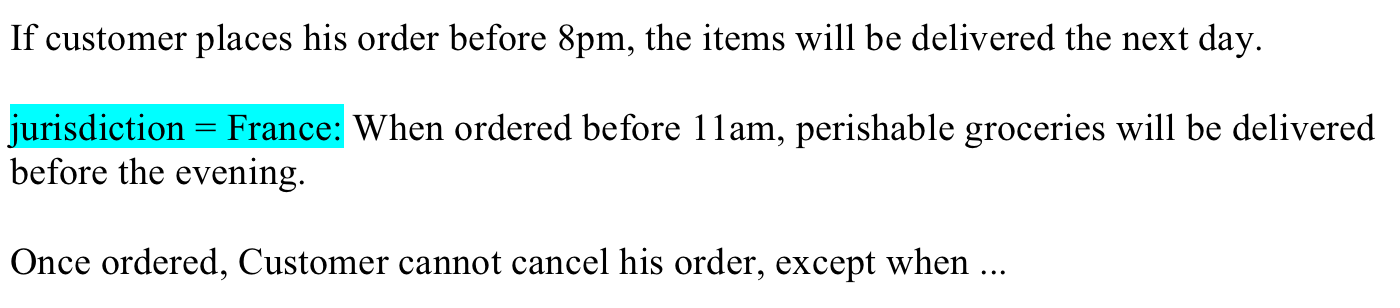
You can also subject entire paragraphs to a condition, by position the conditional expression at the very start of the paragraph. Accordingly, it is not necessary to highlight the entire paragraph in cyan.
For example, in the following screenshot, the middle paragraph will only be included when France was chosen as the jurisdiction.
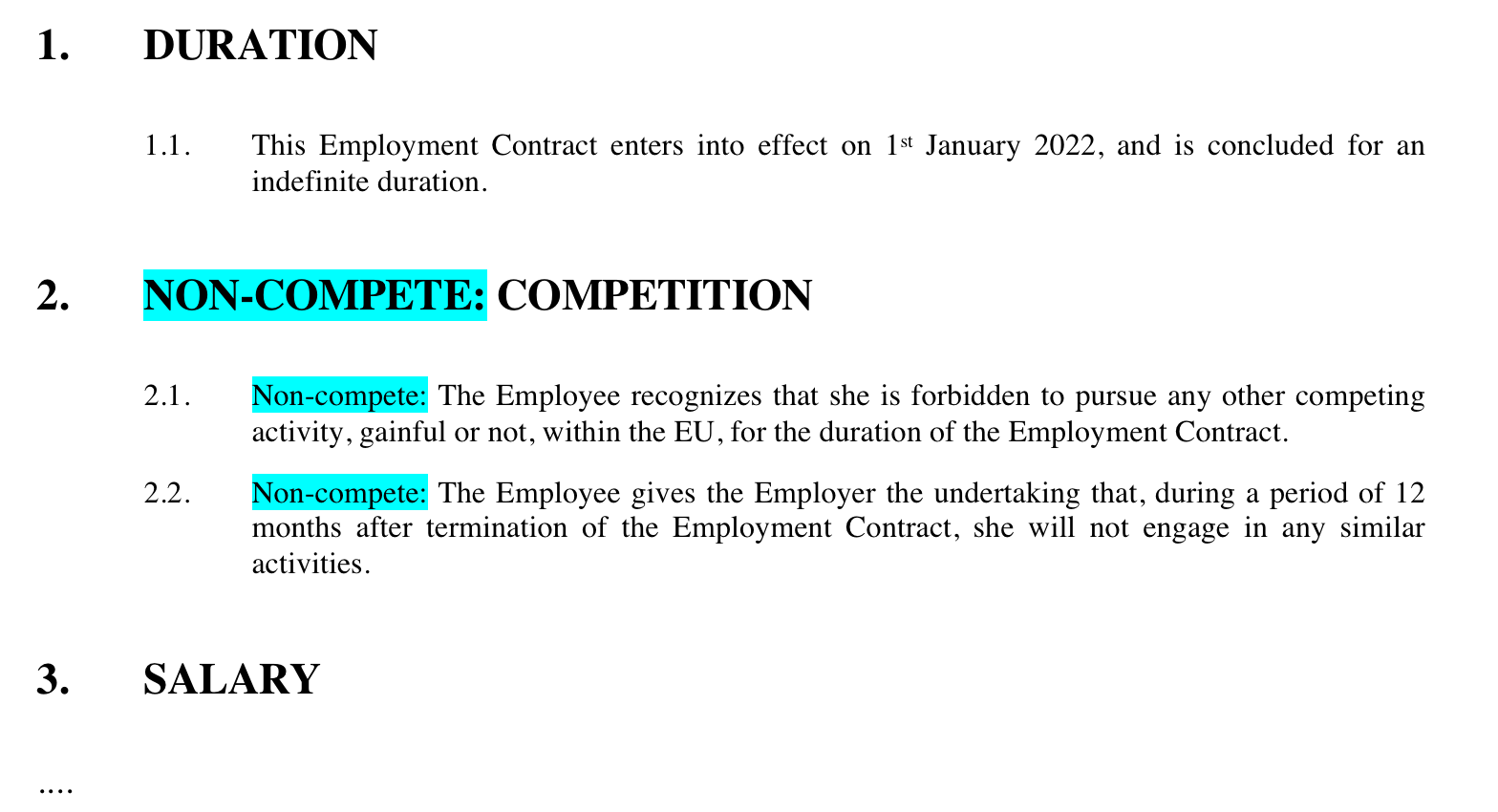
Note that when you want to make subsequent paragraphs conditional, you must repeat the same condition at the start of every paragraph. In the following screenshot, for example, the entire second article is made conditional upon condition `non-compete` being satisfied.
{% hint style="info" %}
When the applicability of the non-compete obligation gets fairly complicated — e.g., it applies when the employee earns at least 4000 EUR per month, except when she works for the French entity, in which case the condition is to work in the sales department and earn at least 5000 EUR — you are strongly advised to create a shared condition, and refer to that shared condition, instead of repeating that condition over and over again.
{% endhint %}
## Conditional expressions
A conditional expression essentially consists of a combination of *symbolic names*, an *operator symbol* and an *explicit value* to compare with. Let's
### **Symbolic names**
In the examples above, we did not explain what symbolic names actually refer to. For example, in the following screenshot:
... the symbolic name `extensive wording` can actually refer to multiple things:
* It can refer to a yes/no **question** entitled "extensive wording". If this question is visible (i.e., not disabled by some condition attached to the question or to the question's card), then the condition is met.
* It can refer to an **identifier** "extensive wording" assigned to some yes/no-question. If that question is visible (i.e., not disabled by some condition attached to the question or to the question's card), then the condition is met.
* It can refer to a **shared condition** called "extensive wording", which may on its turn refer to a (potentially very complex) combination of many other questions and answers.
* If none of the above apply, then the software will assume the symbolic name actually refers to **simple text**, i.e. as the text "extensive wording". The advantage is that it allows you to write things such as `jurisdiction = France : ...`: the software will try to find a question/identifier/condition called "France", but if it finds none, it will treat it as the literal word "France".
{% hint style="warning" %}
Usually, this fallback to simple text is exactly what you want. However, it will sometimes lead to weird surprises. For example, with an expression such as `product price > 3` , if there is no question/identifier/condition called *product price*, then the software will treat the left part as the literal text *"product price",* and compare this text to the number 3. Obviously, text cannot be compared to a number, so this will result in an error.
You can resolve this issue either by making sure there is a question/identifier/condition called *"product price"*, or by using `@product-price > 3` or `@answer("product-price") > 3` instead. Such expression will never be converted into a text as the last fallback.
{% endhint %}
### **Explicit values**
In a comparison, you can insert values to explicitly compare to. Those values are written as follows:
* **True/false** values can be written as, simply, `true` and `false`
* **Text** values are preferably quoted to avoid ambiguity — e.g. `"the Netherlands"`
* **Numbers** are written using a dot as a decimal separator — e.g. `3.141592`
* **Currencies** are written using the currency's abbreviation — e.g. `35 EUR`, `23.14 USD` or `456.789 GBP`
* **Dates** should be written as *"year underscore month underscore day".* For example, `2022_3_14` refers to 14 March 2022
* **Durations** are expressed as a whole number followed by `year`, `month`, `week`, `day` or `quarter` (in singular or plural). For example `2 years`, `3 months`, `1 week`, `28 days` or `3 quarters`.
### **Operator symbol**
The comparison symbols that can be used depend on the data type of the symbolic name:
* **True/false** data types can be checked for equality (`=`) and inequality (`!=`)
* **Text** data types can be checked for equality (`=`) and inequality (`!=`). If multiple answers can be provided at once, then you can also check whether the answer includes (`in`) or does not include (`!in`) a certain text value.
* **Number-like** data types can be checked for equality (`=`), inequality (`!=`), greater than (`>`), greater than or equal to (`>=`), smaller than (`<`) and smaller than or equal to (`<=`).\
The same comparisons can be performed on **dates** and **durations,** you should interpret "greater" and "smaller" as later/earlier and longer/shorter instead.
Examples:
* `commencement date > 2022_03_21` means "is the commencement date later than 21 March 2022?"
* `term > 3 months` means "is the term longer than 3 months?"
* `term != 2 days` means "is the term not equal to 2 days?"
### **Concise notation**
When you leave out the middle and right part of a comparison, the software will assume that you want to say `= true`. For example, `extensive wording: alpha beta gamma` means exactly the same as `extensive wording = true: alpha beta gamma` .
### **Dealing with missing answers**
Any type of question can be compared with `true` or `false`. This may sound weird, but actually allows you to check whether some answer has been provided.
For example, when you write `jurisdiction: alpha beta` and `jurisdiction` refers to a question with that title or identifier, "alpha beta" will be inserted into the document when that question has indeed been answered. Similarly, writing `jurisdiction = false: gamma` would insert gamma when the question with title/identifier "jurisdiction" has not yet been answered.
Furthermore, unanswered number and currency questions will also be considered false when their value is equal to zero.
### **Complex conditions**
In the examples above, we used very simple (singular) conditions, such as `extensive wording = true` and `deal value > 500 EUR`.
You can also combine conditions to cover logic of almost any complexity you want.
You may think that this is something that you will not frequently encounter as a legal expert, but the opposite is actually true — legislation and contractual documents can easily involve logical reasoning many levels deep.
Such combinations can be expressed through two different approaches:
* visually, through a shared condition
* within the document itself, highlighted in cyan
In what follows, we first explain how each approach works, and then apply it to create a condition for a special liability cap paragraph when all of the following elements simultaneously apply:
* product X or product Y is being ordered;
* the order value is maximum 5000 EUR
* no prior approval was given by some compliance committee
### **Combining conditions through shared conditions**
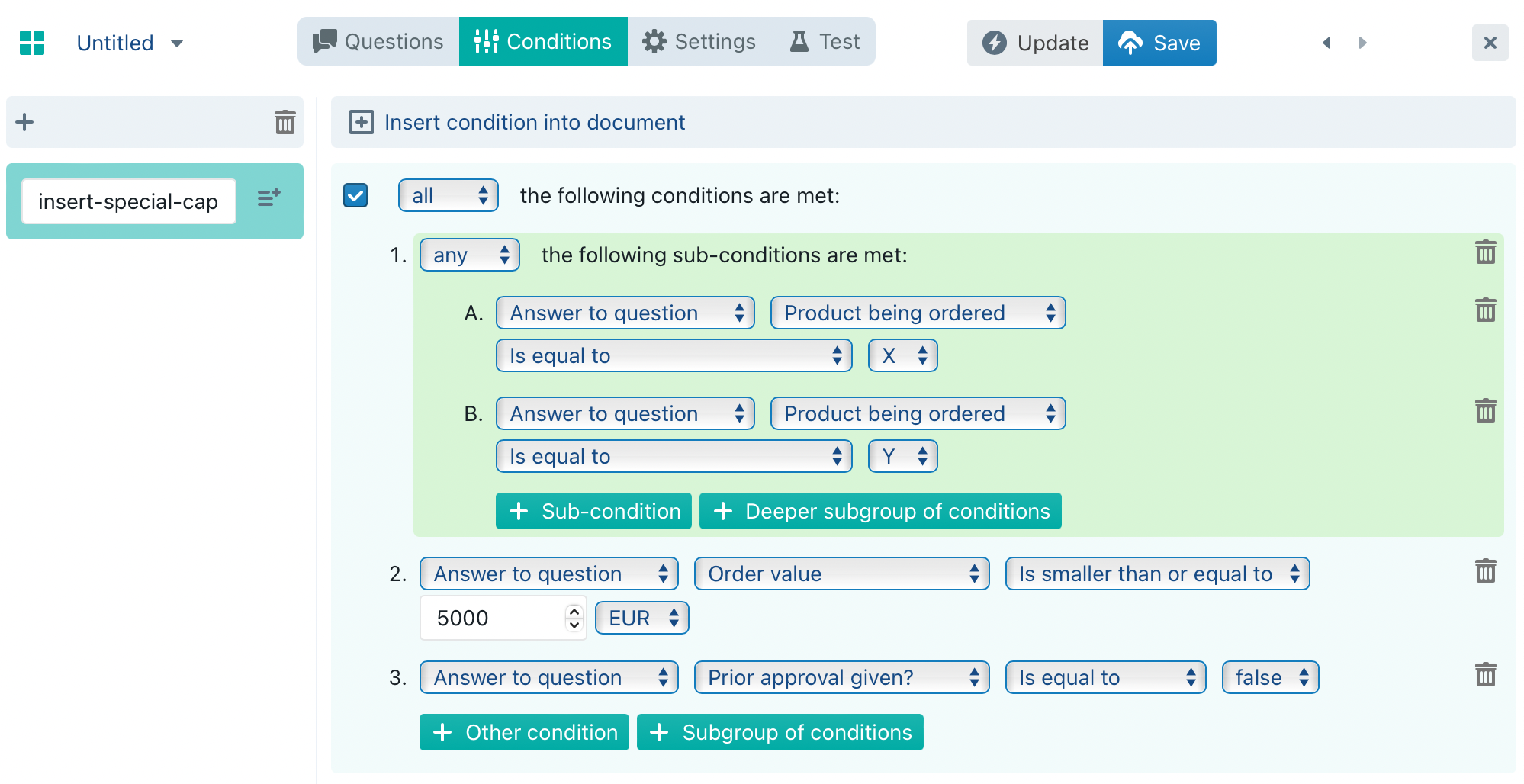
In this approach, you refer to a shared condition within the cyan-highlighted condition in the Word-document. You then construct a shared condition, combining all the different conditions in a visual manner.
Notice the structure of this condition:
* ALL of the following conditions are met:
* product being ordered: ANY of the following
* product X
* product Y
* max. order value of 5000 EUR
* no prior approval
Within the Word-document itself, you then "guard" the optional paragraph by referring to the shared condition:
### **Combining conditions within the document**
In the non-visual approach, you directly insert the combination of conditions into the Word-document, concatenating individual parts through AND/OR/NOT and parentheses where necessary:
{% hint style="danger" %}
When combining conditions, you are no longer allowed to simply refer to a question or shared-condition through its title (because this can lead to ambiguity due to the spaces in a title).
Instead, you need to refer to answers and shared conditions through the special notation of @ + identifier.
{% endhint %}
{% hint style="info" %}
The non-visual approach is much more powerful than the visual approach. For example, you can perform various kinds of calculations with numbers, dates and durations, and you can manipulate text in interesting ways.
However, we are fully aware that writing this "code" can be daunting for beginning users. We therefore do not explain it any further in this document, and refer to the extensive [documentation of Clause9 about writing conditions](https://help.clause9.com/clauses/writing-conditions).
{% endhint %}
---
# Agent Instructions
This documentation is published with GitBook. GitBook is the documentation platform designed so that both humans and AI agents can read, navigate, and reason over technical content effectively. Learn more at gitbook.com.
## Querying This Documentation
If you need additional information that is not directly available in this page, you can query the documentation by asking a question.
Perform an HTTP GET request on the following URL with the `ask` and `goal` query parameters:
```
GET https://help.clausebuddy.com/smart-templates/how/in-depth/smart-templates-in-depth/conditional-text.md?ask=&goal=
```
`ask` is the immediate question: it should be specific, self-contained, and written in natural language.
`goal` is what the user is ultimately trying to achieve, the reason they need the answer. Sharing it helps GitBook give you a better, more relevant answer. A goal is most helpful when it describes the outcome the user wants rather than restating the question. For example, with `ask=how do I create an API token`, a goal like `automate deployments from our CI pipeline` lets GitBook tailor the answer to that use case.
The response will contain a direct answer to the question and relevant excerpts and sources from the documentation.
Use this mechanism when the answer is not explicitly present in the current page, you need clarification or additional context, or you want to retrieve related documentation sections.