







# Highlighting Word documents

Creating templates in ClauseBuddy starts with highlighting words in an existing DOCX (Word) document. While very easy to get started with, there are few details you may want to be aware of.

{% hint style="success" %}
If you are using ClauseBuddy from within ClauseBuddy, you may not have enough space on your screen if you do not have a large monitor. If so, you may want to put Microsoft Word in **Web Layout View** instead of the default Print Layout. You can do so by visiting the View tab in Word's ribbon, or by clicking on the relevant button in Word's status bar at the bottom of the window.

You can then make your document panel at the left side smaller, and Word will wrap the document's text in the available window. This allows you to make more room for ClauseBuddy.
{% endhint %}

## Highlighting in cyan <a href="#highlighting_in_cyan" id="highlighting_in_cyan"></a>

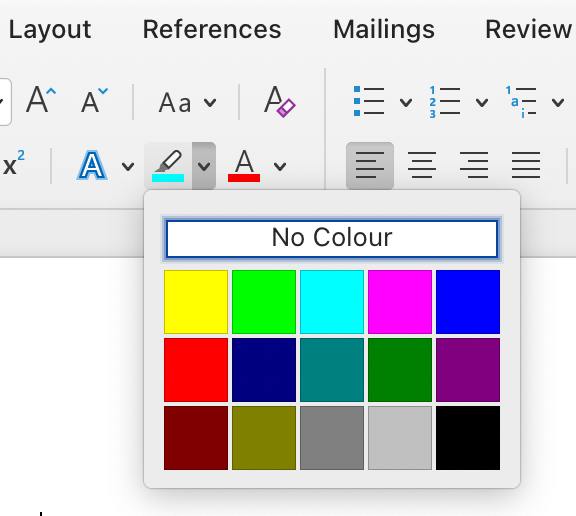
In ClauseBuddy, placeholders must be **highlighted in** **cyan** (light blue).

{% hint style="info" %}
This color was deliberately selected, because most legal experts tend to already use yellow for various purposes (such as internal comments, temporary internal notes, and — admittedly — also placeholders).
{% endhint %}

You can switch to cyan highlighting by clicking the down-triangle within the Microsoft Word toolbar:

<figure><img src="https://files.helpdocs.io/f86qgdbm02/articles/ef9t7bpsvq/1662495807719/image.png" alt="" width="375"><figcaption></figcaption></figure>

### **Speeding up the highlighting process**

Microsoft Word contains many advanced search-and-replace options that can help you speed up the highlighting process. You may want to read [all the details](https://wordmvp.com/FAQs/General/UsingWildcards.htm) ([alternative, somewhat lighter explanation](https://www.customguide.com/word/how-to-use-wildcards-in-word)), but let's recap the most important parts below.

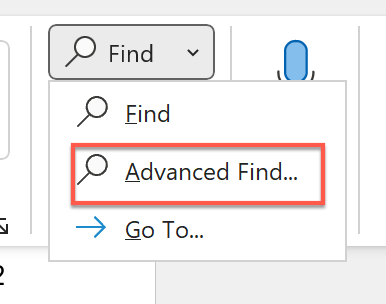
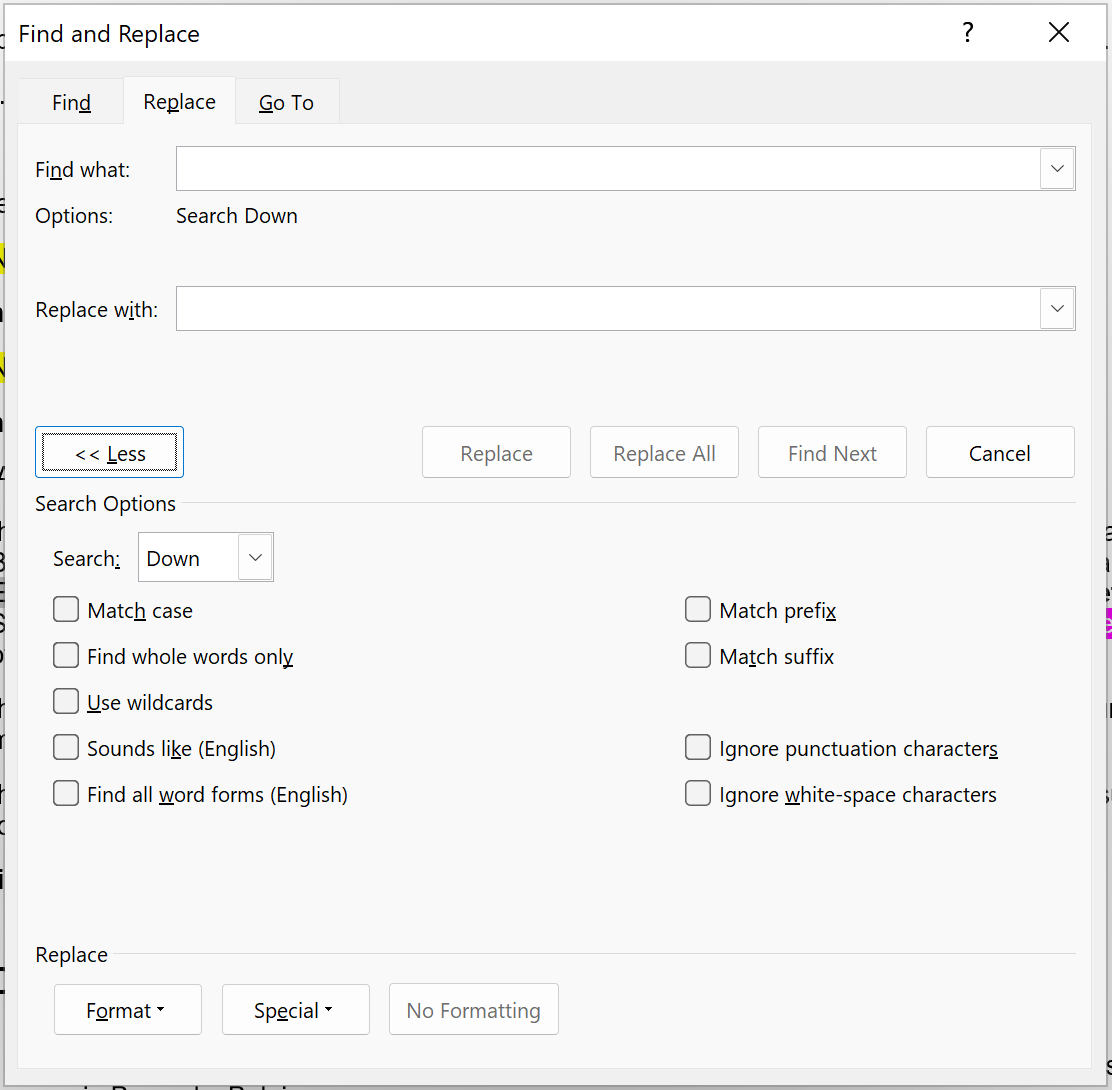
First off: you want to open the *Advanced Find* dialog box through Word's toolbar, navigate to the *Replace* part, and clock on *>> More* to show the entire dialog box.

<figure><img src="https://files.helpdocs.io/f86qgdbm02/articles/ef9t7bpsvq/1679147123681/image.png" alt="" width="375"><figcaption></figcaption></figure>

<figure><img src="https://files.helpdocs.io/f86qgdbm02/articles/ef9t7bpsvq/1679147175832/image.png" alt=""><figcaption></figcaption></figure>

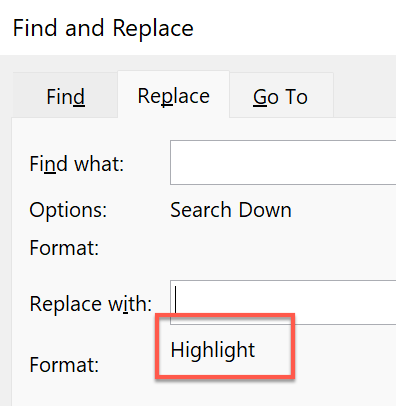
Next, you probably want to assign a cyan highlight to whatever you find. To make this happen, you have to insert your cursor on the *Replace with* part, click on the *Format* button at the bottom of the dialog box and activate *Highlight*. Your dialog box will then indicate that the highlighting is activated:

<figure><img src="https://files.helpdocs.io/f86qgdbm02/articles/ef9t7bpsvq/1679147304931/image.png" alt="" width="375"><figcaption></figcaption></figure>

{% hint style="info" %}
Unfortunately, Word does not allow you to choose the highlighting color during these replacement operations. You therefore need to make sure that you applied a cyan highlight as the last highlighting color before performing any replacement operations.
{% endhint %}

{% hint style="success" %}
You can also narrow down your searches by assigning the *Highlight* format to your *Find what* box. For example, if you would like to automatically replace all yellow highlights with cyan highlights, you can simply assign *Highlight* to both the *Find what* and the *Replace with* boxes — this way, Word will limit its searches to text containing highlighting, and replacing it with exactly the same text, containing the highlighting color that you last used (i.e., presumably cyan).
{% endhint %}

The next part is a bit more difficult: learning the special "wildcard" codes that Word makes available. With these special wildcards, you can find text with variable parts — e.g., to find all text between square brackets.

You first have to active the wildcard-mode by enabling the *Use wildcards* option in the bottom part of the dialog box.

There are many types of wildcards, e.g. to search for parts of word, specific characters, and so on. Furthermore, you can search for special special characters — e.g. page breaks or tab characters, by clicking on the *Special* button at the bottom of the dialog box.

However, specifically for our highlighting purposes, let's look at the most interesting ones:

### **Highlighting text between square brackets**

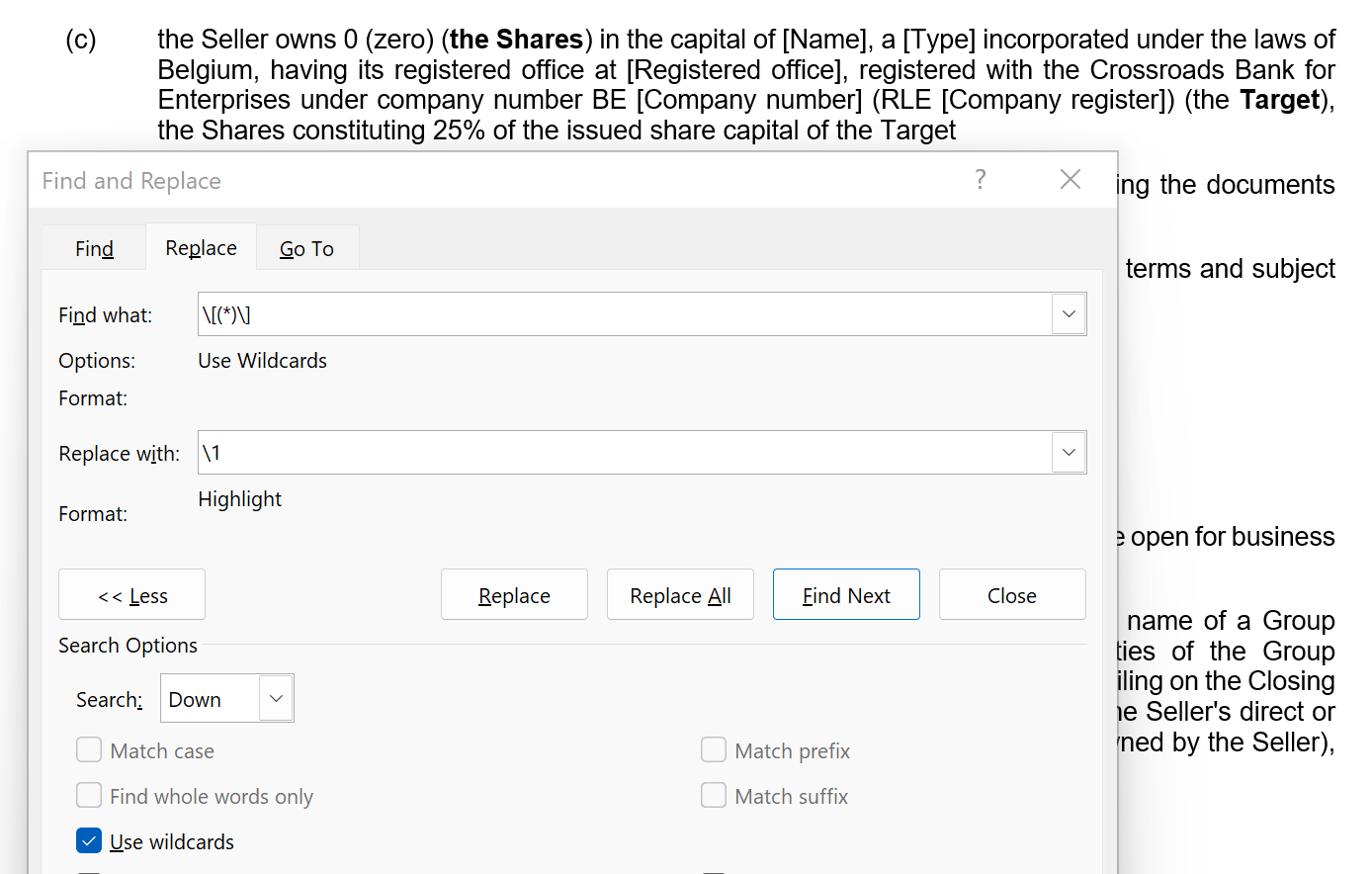
| Find what:    | **\\\[(\*)\\]** |
| ------------- | --------------- |
| Replace with: | **\1**          |

Yes, this looks like gibberish, but let's break it down step by step.

* In the *Find what* part, you are looking for any kind of text between square brackets. The asterisk symbol \* represents this "any kind" of text".
* By using parentheses (round brackets), you tell word that you want to remember a certain part, so that you can reuse it during the replacement operation. You therefore have to wrap the asterisk in round brackets.
* Finally, you want to only find stuff between square brackets. You therefore have to insert square brackets. But there's a catch: within the *Find what* box, the square brackets have a special meaning to Word (they allow you to search for character ranges, e.g. lowercase letters a-z), while we want to literally search for square brackets. You therefore have to prefix the square bracket with a backspace.
* Note the **\1** part in the *Replace with* box: this means *"I actually want to insert the characters you remembered in the first pair of round brackets"*. (If you would happen to have multiple parts between round brackets in your *Find what* box, then you can recall them by using \1 and then \2 and \3 and so on.)
* Also note that we did not insert any square brackets in the *Replace with*: part. For ClauseBuddy, you do not need anything to be surrounded with square brackets.

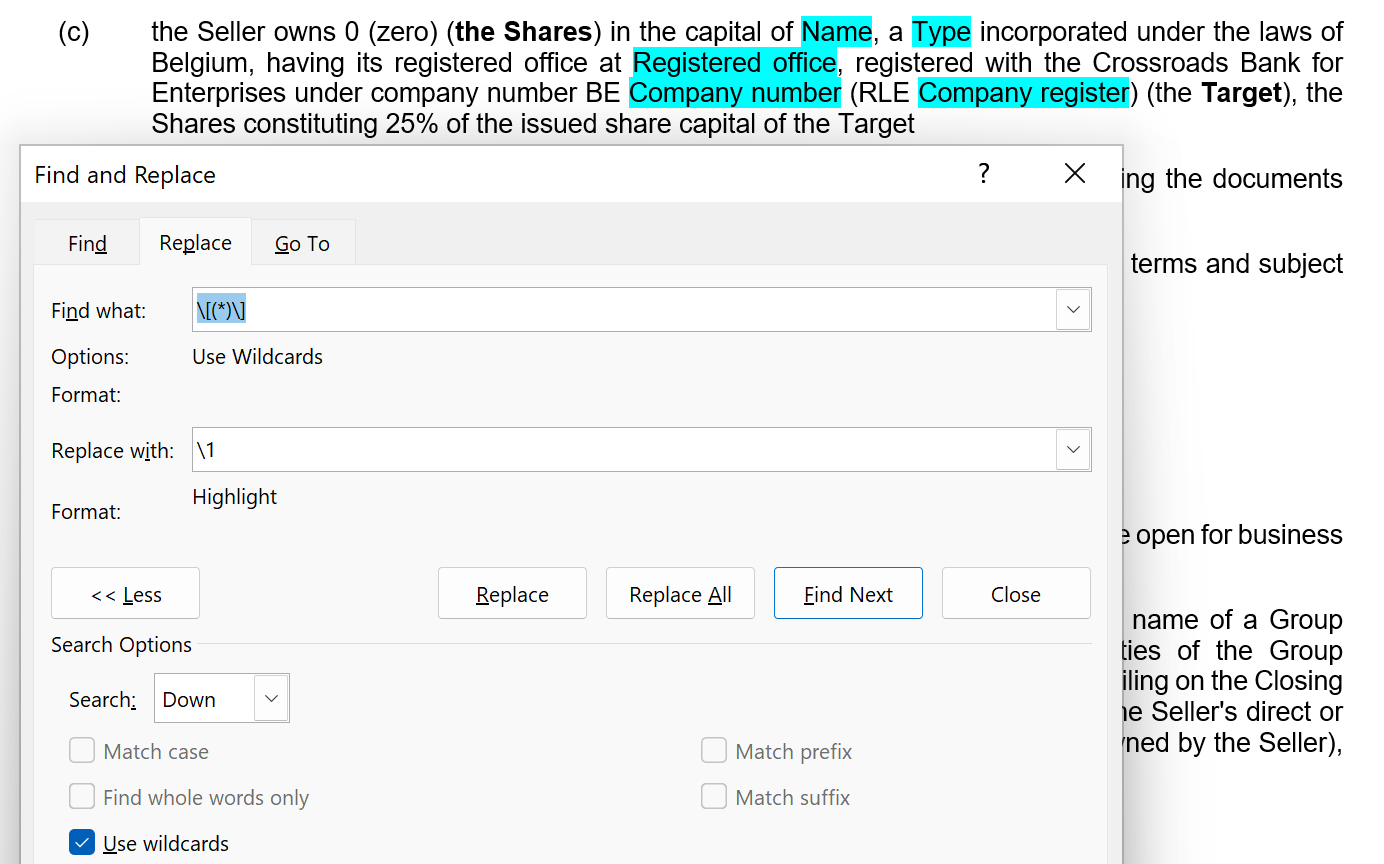
Example:

<figure><img src="https://files.helpdocs.io/f86qgdbm02/articles/ef9t7bpsvq/1679149284392/image.png" alt=""><figcaption></figcaption></figure>

becomes the following when pressing *Replace All* (or multiple *Replace* operations):

<figure><img src="https://files.helpdocs.io/f86qgdbm02/articles/ef9t7bpsvq/1679149318114/image.png" alt=""><figcaption></figcaption></figure>

{% hint style="info" %}
You probably want to use the *Find next* and *Replace* operations, instead of doing a *Replace All*. This way, for each found result, you can judge whether you indeed want to perform the replacement, or whether you want to skip it or manually change it. Time and again we see that a Replace All leads to unexpected results with users.
{% endhint %}

### **Highlighting text between double curly braces**

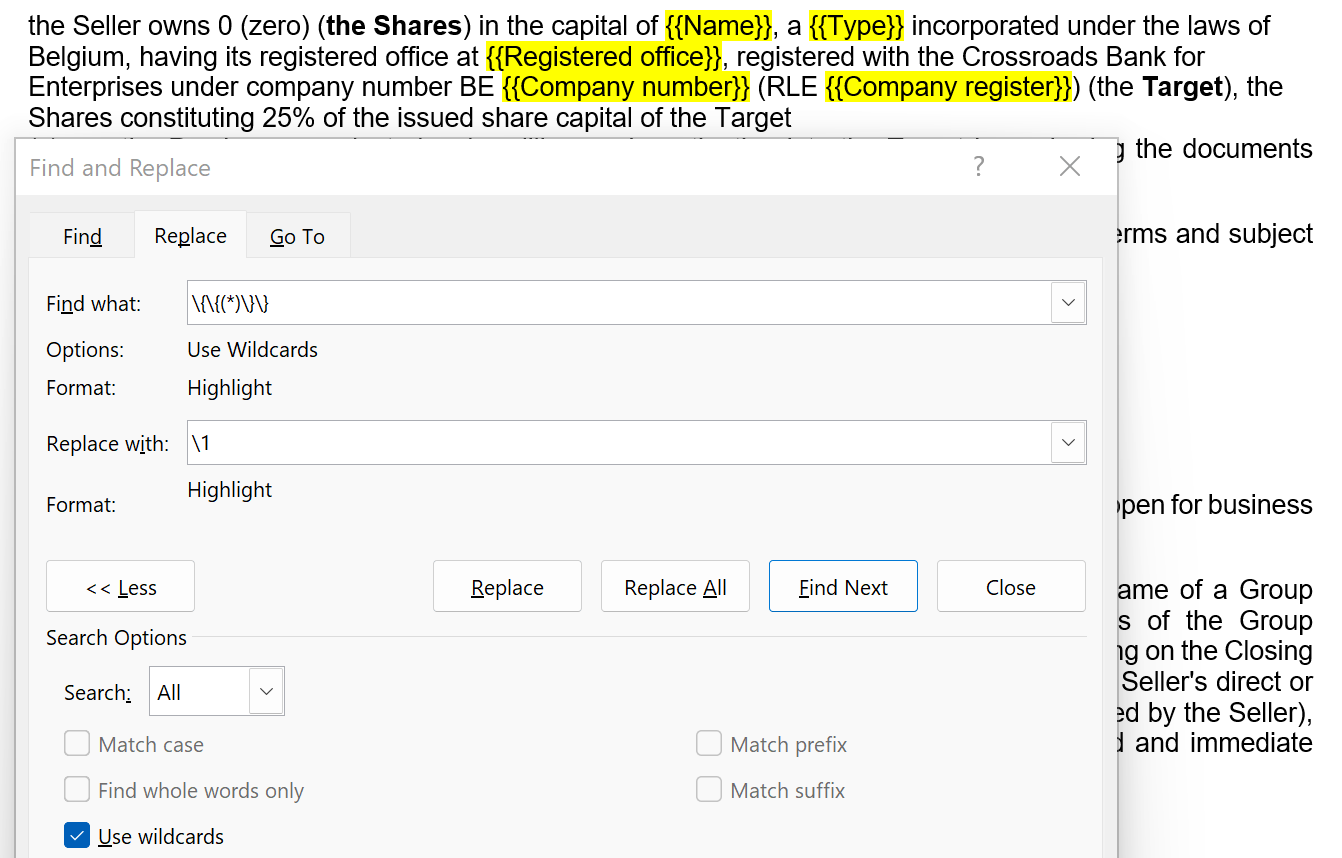
Some templates use double curly braces `{{text}}` to indicate variable parts:

| Find what:    | \\{\\{(\*)\\}\\} |
| ------------- | ---------------- |
| Replace with: | \1               |

This probably looks even funnier due to all the backslashes, but the principle is the same:

* find all text (asterisk) between curly braces
* precede each opening/closing curly brace with a backslash, because — similar to the square brackets — the curly braces have a special meaning
* remember the stuff that was found by putting \1 between round parentheses

For example:

<figure><img src="https://files.helpdocs.io/f86qgdbm02/articles/ef9t7bpsvq/1679149610294/image.png" alt=""><figcaption></figcaption></figure>

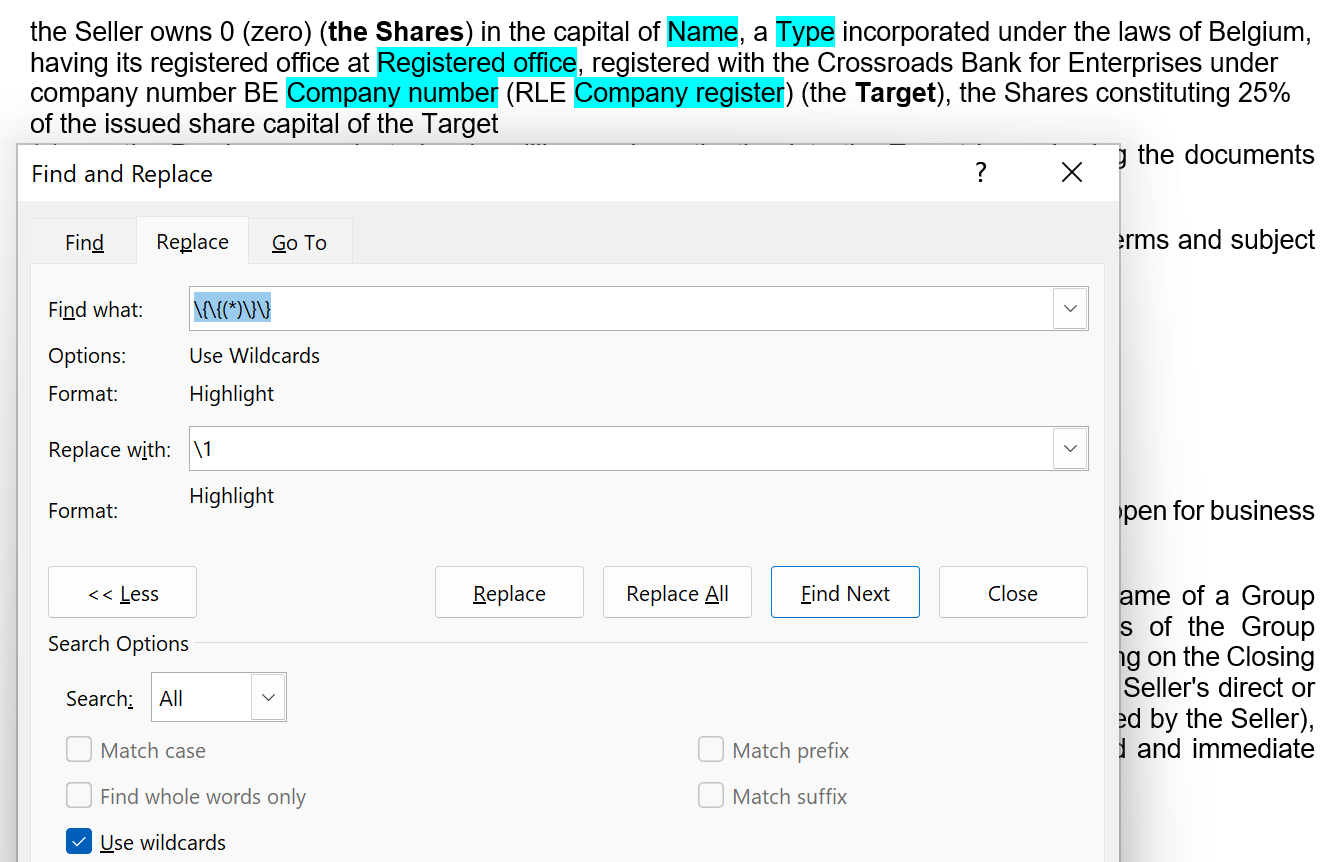
becomes:

<figure><img src="https://files.helpdocs.io/f86qgdbm02/articles/ef9t7bpsvq/1679149628524/image.png" alt=""><figcaption></figcaption></figure>

Note that in the above example we actually limited our search to only text that was already highlighted. This was probably not strictly necessary (because in the example the text between double curly braces was always highlighted), but mostly for educational purposes.

### **Highlighting text between parentheses and some blob**

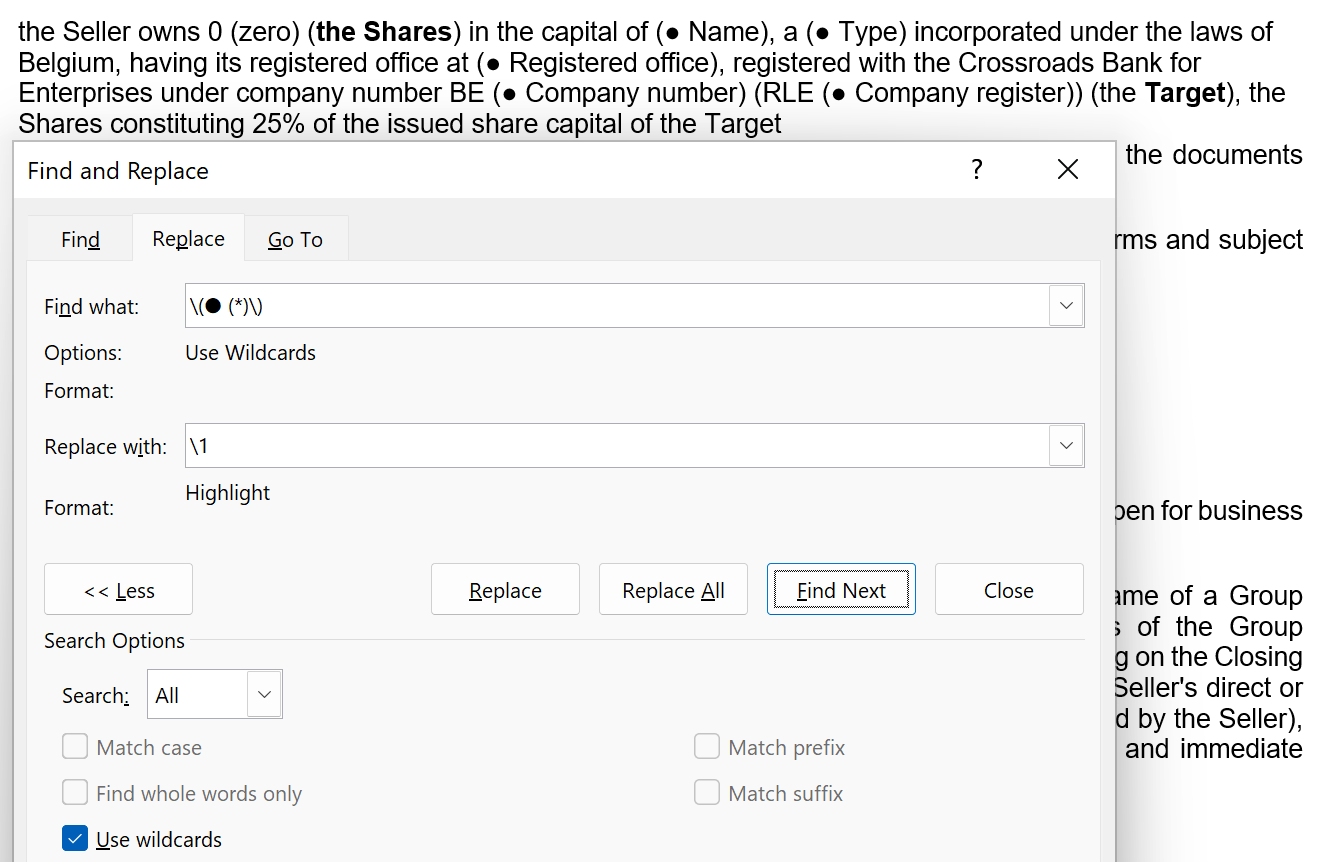
As a final example, let's look at templates that happen to use `(● text)` to indicate variable parts.

| Find what:    | \\(● (\*)\\) |
| ------------- | ------------ |
| Replace with: | \1           |

Once again: backspaces before a character with special meaning to Word (i.e., the outer round brackets), round brackets around text you want to remember, and an asterisk to indicate "any text".

Example:

<figure><img src="https://files.helpdocs.io/f86qgdbm02/articles/ef9t7bpsvq/1679150313768/image.png" alt=""><figcaption></figcaption></figure>

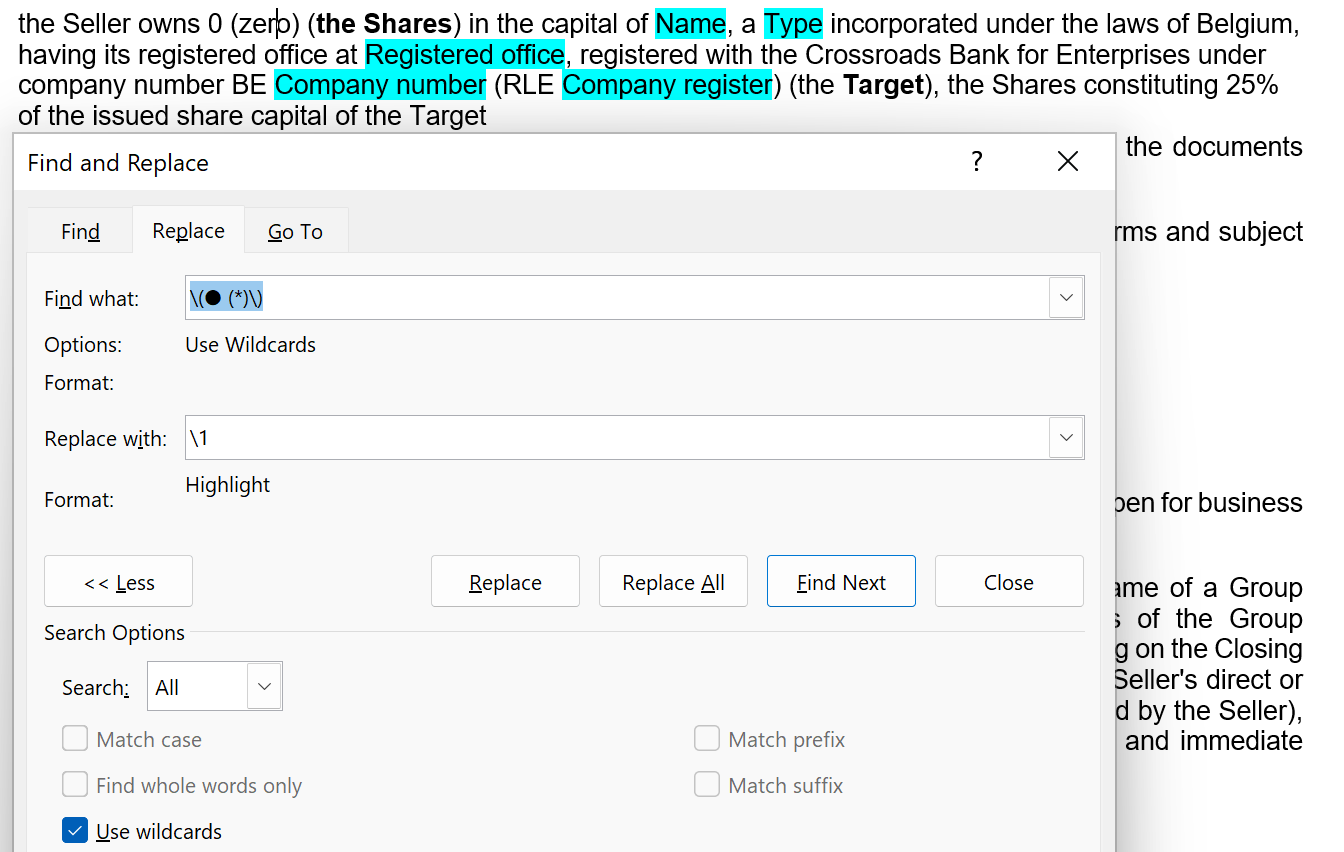
Becomes:

<figure><img src="https://files.helpdocs.io/f86qgdbm02/articles/ef9t7bpsvq/1679150356795/image.png" alt=""><figcaption></figcaption></figure>

## **Use keyboard shortcuts!**

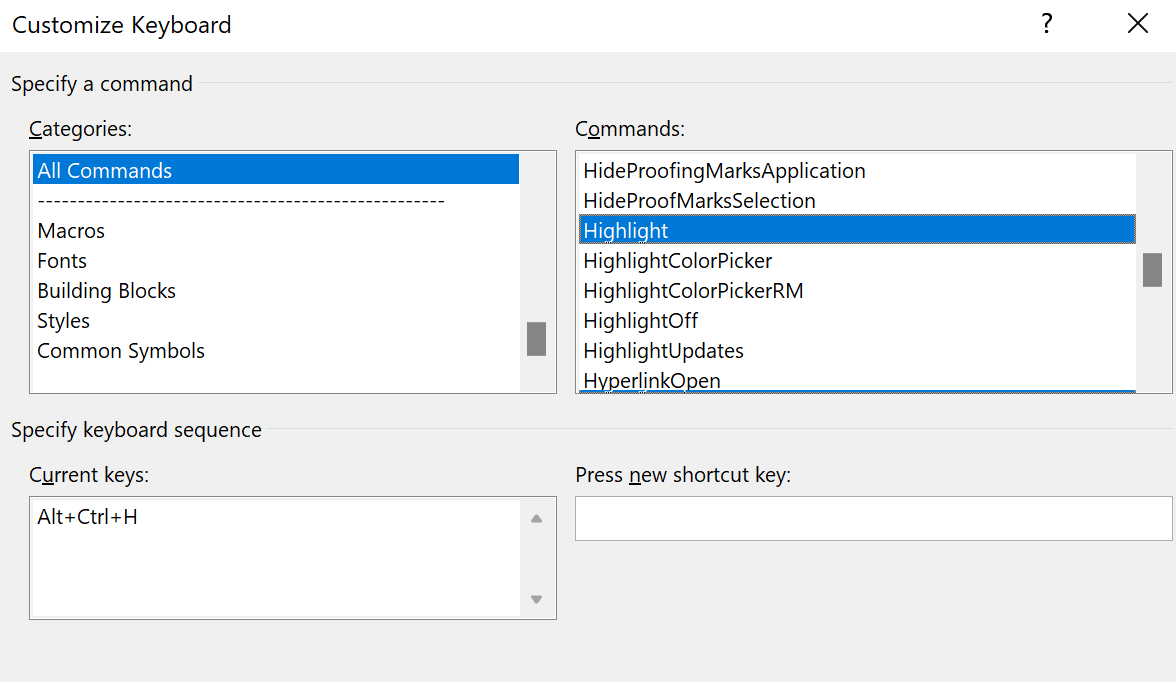
Another very helpful way to speed up the highlighting process, is by assigning keyboard shortcuts to the *add highlight* and *remove highlight* operations in MS Word. You can do so as follows:

* Go to *File > Options > Customize Ribbon*
* At the bottom of the *Customize the Ribbon and keyboard shortcuts* pan&#x65;**,** click on the *Customize* butto&#x6E;**.**
* In the upper left box, navigate to *All Commands*.
* In the upper right box, navigate to the *Highlight* command.
* Position your cursor within *Press new shortcut key* and press a relevant shortcut — e.g., *Ctrl + Alt + H*, and next press the *Assign* button.
* Do the same with the *HighlightOff* command, e.g. assign it shortcut *Ctrl+Alt+Shift+H,* or any other that works for you.
* Close the dialog boxes and go back to your document.

<figure><img src="https://files.helpdocs.io/f86qgdbm02/articles/ef9t7bpsvq/1679151308626/image.png" alt=""><figcaption></figcaption></figure>

Now, when you select text, you can press the relevant shortcut to add or remove highlighting.

{% hint style="info" %}
MS Word will use the last highlighting color you manually used. So if you previously highlighted something in yellow, make sure your first manually highlight in cyan before invoking the shortcuts.
{% endhint %}

For more details, see [Microsoft's web page](https://support.microsoft.com/en-us/office/customize-keyboard-shortcuts-9a92343e-a781-4d5a-92f1-0f32e3ba5b4d).

## Conditional text <a href="#conditional_text" id="conditional_text"></a>

**Conditional text** is created by highlighting a condition + colon + conditional text. In the following example, the text *"taking into account Customer's preferred delivery schedule"* will only be shown when condition "softened" is met.

<figure><img src="https://files.helpdocs.io/f86qgdbm02/articles/ef9t7bpsvq/1662496431788/image.png" alt=""><figcaption></figcaption></figure>

You can "chain" multiple conditions by inserting the vertical pipe symbol. For example, instead of writing

<figure><img src="https://files.helpdocs.io/f86qgdbm02/articles/ef9t7bpsvq/1662539122216/image.png" alt=""><figcaption></figcaption></figure>

...you can also write the following, which more clearly expresses the author's intent that one of several options will need to be chosen. ClauseBuddy will then insert the first text for which the associated condition is met:

<figure><img src="https://files.helpdocs.io/f86qgdbm02/articles/ef9t7bpsvq/1662539180501/image.png" alt=""><figcaption></figcaption></figure>

If each of the conditions has a structure similar "x = y", you can also write this more concisely:

<figure><img src="https://files.helpdocs.io/f86qgdbm02/articles/ef9t7bpsvq/1662539294168/image.png" alt=""><figcaption></figcaption></figure>

Another advantage of using the pipe operator is that you can easily insert a final "catch all" part — using *else: —* which will apply when none of the previous conditions was met.

<figure><img src="https://files.helpdocs.io/f86qgdbm02/articles/ef9t7bpsvq/1662539387384/image.png" alt=""><figcaption></figcaption></figure>

## Conditional paragraphs <a href="#conditional_paragraphs" id="conditional_paragraphs"></a>

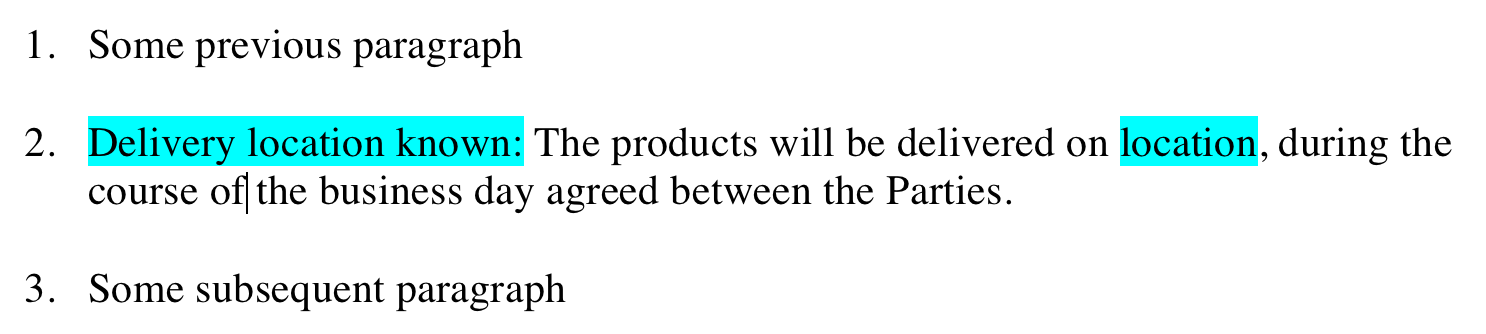
An entire paragraph can be subjected to a condition by positioning that condition at the start of the paragraph. For example, the following paragraph will only be shown when the delivery location is known (also note the *"location"* placeholder, which will be replaced by the actual location, as answered by the end-user):

<figure><img src="https://files.helpdocs.io/f86qgdbm02/articles/ef9t7bpsvq/1662496846777/image.png" alt=""><figcaption></figcaption></figure>

There are many different ways to express conditions, as further explained in the separate article on conditions.

## Dealing with automatic numbering <a href="#dealing_with_automatic_numbering" id="dealing_with_automatic_numbering"></a>

The question arises what happens to the numbering of subsequent paragraphs when an entire paragraph is dropped because some condition is not met.

For example, assume that the delivery location is *not* known, so that the second paragraph will get dropped in the next example. When the end-user creates a PDF or DOCX file, ClauseBuddy will automatically update the numbering, so that the last paragraph (*"Some subsequent paragraph"*) will get number 2.

<figure><img src="https://files.helpdocs.io/f86qgdbm02/articles/ef9t7bpsvq/1662496951493/image.png" alt=""><figcaption></figcaption></figure>

However, this only functions correctly when you are properly using Microsoft Word's automatic numbering features. When, instead, you would "hardcode" numbers — i.e., explicitly type in the number of each paragraph — your document will get stuck on incorrect numbering.

{% hint style="info" %}
This is yet another reason to use automatic numbering and MS Word "styles" to format your documents. We are aware that "in the wild" many legal documents do not yet use automatic numbering (or, even worse, use a mix of automatic and manual numbering).

However, there are countless benefits (e.g., automatic TOCs, automatically updating cross-references, easy layouts, etc.) to learning and applying such automatic numbering.
{% endhint %}

Do note that — due to the complexity involved — the automatic changes in the numbering will not be shown interactively on the screen. You can rest assured, however, that everything will be correct when you ask ClauseBuddy to create a DOCX or PDF file.

## Spaces <a href="#spaces" id="spaces"></a>

ClauseBuddy will automatically remove multiple consecutive spaces that happen to get inserted due to conditional text.

In the following example, the condition *"softened"* will cause softening language to get inserted. If that condition is not met (so that the *", acting reasonably,"* gets removed), you would end up with two consecutive spaces (one space exists after *Supplier* and one exists before *will*). In such scenarios, ClauseBuddy will automatically remove the double space.

<figure><img src="https://files.helpdocs.io/f86qgdbm02/articles/ef9t7bpsvq/1662539717009/image.png" alt=""><figcaption></figcaption></figure>

{% hint style="info" %}
Note that ClauseBuddy will never insert additional spacing: it will only remove multiple consecutive spaces caused by conditional text.
{% endhint %}

***

## Placeholders <a href="#placeholders" id="placeholders"></a>

A **placeholder** is a piece of text that will get replaced by an answer to an associated question within the questionnaire. For example, in the following sentence, the order amount and the delivery date are placeholders, highlighted in cyan.

<figure><img src="https://files.helpdocs.io/f86qgdbm02/articles/hgr7qz8zum/1662484744749/image.png" alt=""><figcaption></figcaption></figure>

When you then create two questions corresponding to those placeholders, ClauseBuddy will automatically replace the cyan words with placeholders. When you click on the blue placeholder at the right, you will automatically select the corresponding question at the left.

<figure><img src="https://3419152551-files.gitbook.io/~/files/v0/b/gitbook-x-prod.appspot.com/o/spaces%2FYGsvJviMTNnfjOWV7Kpb%2Fuploads%2FjiQAMD6Y1iIDQ4qAXOcc%2Fimage.png?alt=media&#x26;token=9b0905d7-0eec-4be3-b840-a8ae9f811b3c" alt=""><figcaption></figcaption></figure>

When the answer to the question is filled, the placeholders will instead be replaced by the relevant value:&#x20;

<figure><img src="https://3419152551-files.gitbook.io/~/files/v0/b/gitbook-x-prod.appspot.com/o/spaces%2FYGsvJviMTNnfjOWV7Kpb%2Fuploads%2FrNitaSNDJgNTOmlLAcVX%2Fimage.png?alt=media&#x26;token=cd03df8c-5a80-4bdf-b4b5-d2af9228aca7" alt=""><figcaption></figcaption></figure>

This seems simple as a start, but there several other possibilities you need to be aware of.&#x20;

First, it is possible to put the placeholder within a conditional **body**. For example:&#x20;

<figure><img src="https://3419152551-files.gitbook.io/~/files/v0/b/gitbook-x-prod.appspot.com/o/spaces%2FYGsvJviMTNnfjOWV7Kpb%2Fuploads%2FhiVpqD8uIh4Ei4vN2uc6%2Fimage.png?alt=media&#x26;token=e53b9588-047f-4a87-b54c-507372082233" alt=""><figcaption></figcaption></figure>

It is also possible to put the placeholder among mere body text, but you then need to be careful to prefix the answer with an @, otherwise it will not be recognised by ClauseBuddy.

<figure><img src="https://3419152551-files.gitbook.io/~/files/v0/b/gitbook-x-prod.appspot.com/o/spaces%2FYGsvJviMTNnfjOWV7Kpb%2Fuploads%2FgndjT8OjczOvSNgadnAz%2Fimage.png?alt=media&#x26;token=62d2158a-4150-44cc-94bb-3f675586c923" alt=""><figcaption></figcaption></figure>

When you use the answer inside the condition itself (i.e., before the colon), then no placeholder will be shown.&#x20;

<figure><img src="https://3419152551-files.gitbook.io/~/files/v0/b/gitbook-x-prod.appspot.com/o/spaces%2FYGsvJviMTNnfjOWV7Kpb%2Fuploads%2FLvFyHh89DCE31c8KZAS4%2Fimage.png?alt=media&#x26;token=80807171-ab0a-457c-b4fd-66c91d848b45" alt=""><figcaption></figcaption></figure>

The reason is that, within a condition, you often deliberately want to check whether a certain question is answered or not, and then show different answers depending on the situation. For example:&#x20;

<figure><img src="https://3419152551-files.gitbook.io/~/files/v0/b/gitbook-x-prod.appspot.com/o/spaces%2FYGsvJviMTNnfjOWV7Kpb%2Fuploads%2FFgIb54PFozozjN2pGQ9D%2Fimage.png?alt=media&#x26;token=12d6c29c-f863-438c-8a00-ebb076ccf0d5" alt=""><figcaption></figcaption></figure>

If you refer to the answer inside of a [special function](https://help.clausebuddy.com/smart-templates/how/in-depth/smart-templates-in-depth/advanced-drafting-techniques) (either within the body, or a priori within the condition), then no placeholder will be shown either.&#x20;

The summary is that **a placeholder will (only) be shown if some cyan-highlighted directly embedded within the body refers to an unanswered question**. If you instead refer to an unanswered question in a condition or inside a special function, then the value will be considered undefined. Refer to the [Clause9 help pages](https://help.clause9.com/clauses/writing-conditions#conversion-of-undefined-values) to understand how these undefined values will be treated.

If you want to prevent a placeholder from appearing inside the body text, then refer to the question from within a special function, e.g. [`@if-value`](https://help.clause9.com/special-functions/conditions#if-1).&#x20;

### Examples using placeholders and conditions

Show the name, address, city and country. Require each value to be filled in, otherwise a placeholder will be shown:

<figure><img src="https://3419152551-files.gitbook.io/~/files/v0/b/gitbook-x-prod.appspot.com/o/spaces%2FYGsvJviMTNnfjOWV7Kpb%2Fuploads%2FvGFjgZPudjGy4oGtXFAI%2Fimage.png?alt=media&#x26;token=d4cfb20c-e93b-4055-afd8-b91185dff459" alt=""><figcaption></figcaption></figure>

Alternatively, you can also highlight the entire line (instead of having separate highlights) and use @-prefixes:&#x20;

<figure><img src="https://3419152551-files.gitbook.io/~/files/v0/b/gitbook-x-prod.appspot.com/o/spaces%2FYGsvJviMTNnfjOWV7Kpb%2Fuploads%2FHZpAAGn9gB0XvsjPDHJs%2Fimage.png?alt=media&#x26;token=9c439bc9-ad7b-4cb7-a543-a3697d460d11" alt=""><figcaption><p>Note that you must use @-prefixes, otherwise the "name", "address", "city" and "country" would be shown as-is, i.e. as literal text instead of having their answers filled in (or placeholders being shown).</p></figcaption></figure>

Suppose the country is optional, because most of the companies will be situated in France anyway. Accordingly, you want to show France when the country is not filled in:&#x20;

<figure><img src="https://3419152551-files.gitbook.io/~/files/v0/b/gitbook-x-prod.appspot.com/o/spaces%2FYGsvJviMTNnfjOWV7Kpb%2Fuploads%2FrdU6JrCcpkeDiX67lujS%2Fimage.png?alt=media&#x26;token=d0097f04-79b9-4b7c-bc7e-1d1eb018ee7d" alt=""><figcaption><p>This makes use of the { if : ... | else: ... } structure for conditions.</p></figcaption></figure>

Suppose you want to only show the country when it's filled in (not replace it by some default value such as France), and not show a placeholder when the country is missing:&#x20;

<figure><img src="https://3419152551-files.gitbook.io/~/files/v0/b/gitbook-x-prod.appspot.com/o/spaces%2FYGsvJviMTNnfjOWV7Kpb%2Fuploads%2F5FiIHAUhkWdjYrYaiDtU%2Fimage.png?alt=media&#x26;token=46838fbd-716a-4cc1-9eea-d6be9befb8a3" alt=""><figcaption><p>The @country:, @country could also have been wrapped in curly braces.</p></figcaption></figure>

Suppose you want to show all the effectively filled in parts of an address, separated by spaces, and don't want to show placeholders:&#x20;

<figure><img src="https://3419152551-files.gitbook.io/~/files/v0/b/gitbook-x-prod.appspot.com/o/spaces%2FYGsvJviMTNnfjOWV7Kpb%2Fuploads%2Fsepuy5aJf8e9VRzuAnJa%2Fimage.png?alt=media&#x26;token=6278c786-56a0-4e2b-b7b0-1c8299579768" alt=""><figcaption></figcaption></figure>

If you want to separate them by comma's:

<figure><img src="https://3419152551-files.gitbook.io/~/files/v0/b/gitbook-x-prod.appspot.com/o/spaces%2FYGsvJviMTNnfjOWV7Kpb%2Fuploads%2FXajUsJA0eJE1pU8xVnO8%2Fimage.png?alt=media&#x26;token=cb1b1856-9636-4068-a628-a04650817180" alt=""><figcaption><p>The @enumerate special function takes any number of parameters, and puts comma's in between the values that are filled in. If some answer is not folled in (as is the case with the city in the screenshot), it is simply skipped.</p></figcaption></figure>

If you want to automatically use "and" before the penultimate item:&#x20;

<figure><img src="https://3419152551-files.gitbook.io/~/files/v0/b/gitbook-x-prod.appspot.com/o/spaces%2FYGsvJviMTNnfjOWV7Kpb%2Fuploads%2FjUVh3uigNsWDnPqroiOf%2Fimage.png?alt=media&#x26;token=0fd22d41-90f1-4d67-88c6-2cf42bdfef8b" alt=""><figcaption></figcaption></figure>

If you want to show a warning towards the end-user when the city would be missing:&#x20;

<figure><img src="https://3419152551-files.gitbook.io/~/files/v0/b/gitbook-x-prod.appspot.com/o/spaces%2FYGsvJviMTNnfjOWV7Kpb%2Fuploads%2F9suZstKOVqCcQbhs6AjI%2Fimage.png?alt=media&#x26;token=9f3490a9-fa0e-4654-99fe-503b0dd95148" alt=""><figcaption><p>The @cascade special function will use the first parameter that is not undefined. In the screenshot, the answer for <em>city</em> is missing, so the highlight special-function will instead be used</p></figcaption></figure>

If you want to invite the end-user to click on the missing value on the right side to go to the city-question at the left side:&#x20;

<figure><img src="https://3419152551-files.gitbook.io/~/files/v0/b/gitbook-x-prod.appspot.com/o/spaces%2FYGsvJviMTNnfjOWV7Kpb%2Fuploads%2FAP9dXKci4bE5HTGLHrfa%2Fimage.png?alt=media&#x26;token=fd358356-c502-4c9f-97c4-b604bc8db080" alt=""><figcaption></figcaption></figure>

If you want to show the name of the entity in uppercase, but invite the user to click on the name box when it's missing:&#x20;

<figure><img src="https://3419152551-files.gitbook.io/~/files/v0/b/gitbook-x-prod.appspot.com/o/spaces%2FYGsvJviMTNnfjOWV7Kpb%2Fuploads%2FklgnhBCnZmVCB3jWU8nR%2Fimage.png?alt=media&#x26;token=c80f83ca-d789-4a8d-acac-cee89958ddbd" alt=""><figcaption><p>The @if special function has three parameters: the first parameter is the condition (in this case: "is the name filled in?"), the second parameter is what should be used when the condition is met, the third parameter is what shoud be used when the condition is not met.</p></figcaption></figure>

Alternatively, you can also use an "if this - then that - else" structure between curly braces. Note that the `@name` does not need to be put inside a `@placeholder`, because the part after the `else:` is considered body text.

<figure><img src="https://3419152551-files.gitbook.io/~/files/v0/b/gitbook-x-prod.appspot.com/o/spaces%2FYGsvJviMTNnfjOWV7Kpb%2Fuploads%2Fc8eopi6wAtAZYVrXGED2%2Fimage.png?alt=media&#x26;token=5c5525c6-3a79-4684-913c-6a5f18ad8e39" alt=""><figcaption></figcaption></figure>

If you want to show the name of the entity in uppercase when it's filled in, and otherwise the text "MISSING NAME":&#x20;

<figure><img src="https://3419152551-files.gitbook.io/~/files/v0/b/gitbook-x-prod.appspot.com/o/spaces%2FYGsvJviMTNnfjOWV7Kpb%2Fuploads%2F4O9nk8S6vg7cB5xz9GpI%2FScreenshot%202025-08-12%20at%2014.58.28.png?alt=media&#x26;token=f8217fb3-6a15-42c6-aef1-262092cdf590" alt="" width="563"><figcaption></figcaption></figure>
