# Welcome

Here you'll get an overview of all the amazing features ClauseBuddy offers to help you draft, review and refine your legal documents!

<table data-view="cards"><thead><tr><th></th><th></th><th></th><th></th><th></th></tr></thead><tbody><tr><td><strong>Clauses</strong></td><td><img src="https://1957521657-files.gitbook.io/~/files/v0/b/gitbook-x-prod.appspot.com/o/spaces%2F9qUnI2Z291mCmNyrAxsZ%2Fuploads%2FmcPvzuu233kyaUqhTvHz%2Fimage.png?alt=media&amp;token=47129fc7-1b7c-4f4d-b69a-6cc1bbaecb4f" alt="" data-size="line"> <a href="/quality-library#what-is-the-quality-library">Quality Library</a></td><td><img src="https://1957521657-files.gitbook.io/~/files/v0/b/gitbook-x-prod.appspot.com/o/spaces%2F9qUnI2Z291mCmNyrAxsZ%2Fuploads%2FSFUHORQbi6oud1xGrNDW%2Fimage.png?alt=media&amp;token=3e3dcc0f-2857-4e89-8813-716888440732" alt="" data-size="line"> <a href="/truffle-hunt#what-is-the-truffle-hunt">Truffle Hunt</a></td><td><img src="https://1957521657-files.gitbook.io/~/files/v0/b/gitbook-x-prod.appspot.com/o/spaces%2F9qUnI2Z291mCmNyrAxsZ%2Fuploads%2Fxa65D7IQdQJkhcsEMUMp%2Fimage.png?alt=media&amp;token=57de6c6e-bba5-4304-b8a2-ec1f0c54db99" alt="" data-size="line"> <a href="/samples-hunt#what-is-samples-hunt">Samples Hunt</a></td><td><img src="https://1957521657-files.gitbook.io/~/files/v0/b/gitbook-x-prod.appspot.com/o/spaces%2F9qUnI2Z291mCmNyrAxsZ%2Fuploads%2FT7P8DWuCzeQjkKyKfJT1%2FScreenshot%202025-11-20%20at%2016.48.48.png?alt=media&amp;token=7f2c16f4-1750-4cb6-bf88-4a55c6d7ea4a" alt="" data-size="line"> <a href="https://help.clausebuddy.com/autosuggest/">Similar Clauses</a></td></tr><tr><td><strong>Templates</strong></td><td><img src="https://1957521657-files.gitbook.io/~/files/v0/b/gitbook-x-prod.appspot.com/o/spaces%2F9qUnI2Z291mCmNyrAxsZ%2Fuploads%2FHTM7gZVT4vixxhoWrl5A%2Fimage.png?alt=media&amp;token=74125d53-1e05-45db-8ec3-19be5e1881c4" alt="" data-size="line"> <a href="/smart-templates#what-are-smart-templates">Smart Templates</a></td><td><img src="https://1957521657-files.gitbook.io/~/files/v0/b/gitbook-x-prod.appspot.com/o/spaces%2F9qUnI2Z291mCmNyrAxsZ%2Fuploads%2FixPNW1jFTIqphJo2qYqW%2FScreenshot%202025-11-20%20at%2016.53.35.png?alt=media&amp;token=177240fe-b236-4c9f-98f4-5e96e1882425" alt="" data-size="line"> <a href="/compose-document">Compose Document</a></td><td></td><td></td></tr><tr><td><strong>Draft</strong></td><td><img src="https://1957521657-files.gitbook.io/~/files/v0/b/gitbook-x-prod.appspot.com/o/spaces%2F9qUnI2Z291mCmNyrAxsZ%2Fuploads%2FxguhTs5mFXJJ9GvreqrY%2Fimage.png?alt=media&amp;token=0195a76d-bea9-47e0-ac46-4bbd68c4a73b" alt="" data-size="line"> <a href="/draft-new-text#what-is-draft-new-text">Draft &#x26; Rewrite</a></td><td><img src="https://1957521657-files.gitbook.io/~/files/v0/b/gitbook-x-prod.appspot.com/o/spaces%2F9qUnI2Z291mCmNyrAxsZ%2Fuploads%2FO5pyBRsC28h9UQQewMhr%2Fimage.png?alt=media&amp;token=b3358e9e-76b9-4cd5-b3dd-a0e001ae88d2" alt="" data-size="line"> <a href="/summarise#what-is-summarise">Summarise</a></td><td><img src="https://1957521657-files.gitbook.io/~/files/v0/b/gitbook-x-prod.appspot.com/o/spaces%2F9qUnI2Z291mCmNyrAxsZ%2Fuploads%2F92z28wLMgtMRdjf43u3z%2Fimage.png?alt=media&amp;token=37ae6c55-46b7-45f9-9af3-47b5fedc3a00" alt="" data-size="line"> <a href="/definitions#what-is-the-definitions-feature">Definitions</a></td><td><img src="https://1957521657-files.gitbook.io/~/files/v0/b/gitbook-x-prod.appspot.com/o/spaces%2F9qUnI2Z291mCmNyrAxsZ%2Fuploads%2F9NdPDuJLuaT1BQdEcyD2%2FScreenshot%202025-11-20%20at%2016.55.06.png?alt=media&amp;token=7c458015-5ea8-4834-9684-96471fcc3cc3" alt="" data-size="line">  <a href="/polish-text">Polish Text</a></td></tr><tr><td><strong>Compare</strong></td><td><img src="https://1957521657-files.gitbook.io/~/files/v0/b/gitbook-x-prod.appspot.com/o/spaces%2F9qUnI2Z291mCmNyrAxsZ%2Fuploads%2FEAvX3PzXEXhK4zNCZRZy%2Fimage.png?alt=media&amp;token=274ced75-7488-456c-a120-4e6bf4725ca7" alt="" data-size="line"> <a href="/text-compare">Text Compare</a></td><td><img src="https://1957521657-files.gitbook.io/~/files/v0/b/gitbook-x-prod.appspot.com/o/spaces%2F9qUnI2Z291mCmNyrAxsZ%2Fuploads%2F6pzKcvme5X7pLlta1zL1%2Fimage.png?alt=media&amp;token=b89f59dc-6cd3-40d8-af1e-3dd21d0dd3cb" alt="" data-size="line"> <a href="/bulk-compare">Bulk Compare</a></td><td><img src="https://1957521657-files.gitbook.io/~/files/v0/b/gitbook-x-prod.appspot.com/o/spaces%2F9qUnI2Z291mCmNyrAxsZ%2Fuploads%2Fd2jYmg8YGJdZDDSTG5dV%2Fimage.png?alt=media&amp;token=c2b43b27-8ff3-44af-9c6c-e3ced790a7ad" alt="" data-size="line"> <a href="https://help.clausebuddy.com/summarise-changes/">Summarise Changes</a></td><td></td></tr><tr><td><strong>Analyse</strong></td><td><img src="https://1957521657-files.gitbook.io/~/files/v0/b/gitbook-x-prod.appspot.com/o/spaces%2F9qUnI2Z291mCmNyrAxsZ%2Fuploads%2FtwNkJy3aVOz32UHI82eH%2Fimage.png?alt=media&amp;token=cde64b20-bd07-4db5-a8e6-127d2711ecf6" alt="" data-size="line"> <a href="/doc-chat">Doc Chat</a></td><td><img src="https://1957521657-files.gitbook.io/~/files/v0/b/gitbook-x-prod.appspot.com/o/spaces%2F9qUnI2Z291mCmNyrAxsZ%2Fuploads%2F0IVs8xclX8kDg6jMa9f8%2Fimage.png?alt=media&amp;token=6d0097bf-3436-4369-b6bf-d517f5454c70" alt="" data-size="line"> <a href="/multi-document-table">Multi-document Table</a></td><td><img src="https://1957521657-files.gitbook.io/~/files/v0/b/gitbook-x-prod.appspot.com/o/spaces%2F9qUnI2Z291mCmNyrAxsZ%2Fuploads%2FGTWpaX08FL57KR5aLlVx%2Fimage.png?alt=media&amp;token=1c7a2ed6-29ba-42c8-9cbf-4b7e311ba358" alt="" data-size="line"> <a href="/playbooks">Review Document</a></td><td><img src="https://1957521657-files.gitbook.io/~/files/v0/b/gitbook-x-prod.appspot.com/o/spaces%2F9qUnI2Z291mCmNyrAxsZ%2Fuploads%2FFg2uiLHMX7xfzWIpaCN0%2Fimage.png?alt=media&amp;token=cecf1b99-a35a-4e9e-9c1c-0de72ad9ccc9" alt="" data-size="line"> <a href="/checklists">Checklists</a></td></tr><tr><td><strong>Finalise</strong></td><td><img src="https://1957521657-files.gitbook.io/~/files/v0/b/gitbook-x-prod.appspot.com/o/spaces%2F9qUnI2Z291mCmNyrAxsZ%2Fuploads%2F8uVqE3Q6iBg4JG1LsS8R%2Fimage.png?alt=media&amp;token=12befc84-1b89-4924-bf2f-784de16076b1" alt="" data-size="line"> <a href="/proofreading">Proofreading</a></td><td><img src="https://1957521657-files.gitbook.io/~/files/v0/b/gitbook-x-prod.appspot.com/o/spaces%2F9qUnI2Z291mCmNyrAxsZ%2Fuploads%2Fb4xdJrkkor8f3RHQLpOB%2Fimage.png?alt=media&amp;token=da52f58f-eb4c-4f5b-b5a9-e7266116db71" alt="" data-size="line"> <a href="/document-cleanup">Document Cleanup</a></td><td><img src="https://1957521657-files.gitbook.io/~/files/v0/b/gitbook-x-prod.appspot.com/o/spaces%2F9qUnI2Z291mCmNyrAxsZ%2Fuploads%2F6EEiZWezVbKmEr2TQr7E%2Fimage.png?alt=media&amp;token=fb6ed444-3a47-4025-b29f-c6fa924da3c3" alt="" data-size="line"> <a href="/bulk-operations">Bulk Operations</a></td><td></td></tr></tbody></table>


# Quick Start Videos

ClauseBuddy is an add-in  for Microsoft Word and Outlook. It is an all-in-one legal "toolbox" that covers all your drafting, reviewing and comparison requirements as a legal professional.&#x20;

You can get started in just a few minutes by watching the videos below. You can read about the nitty gritty details in this extensive manual, but for most users this will not be necessary.

***

## Quality library

### Searching clauses in the Quality Library

{% embed url="<https://www.youtube.com/watch?embeds_referring_euri=https://help.clausebuddy.com/&v=wR1clJEwsZM>" %}

### **Using clauses from the Quality Library**

{% embed url="<https://www.youtube.com/watch?embeds_referring_euri=https://help.clausebuddy.com/&v=QA4cOV0Fv7A>" %}

### **Adding clauses to the Quality Library**

{% embed url="<https://www.youtube.com/watch?embeds_referring_euri=https://help.clausebuddy.com/&v=0G7wR-wkjTs>" %}

### **Managing folders**

{% embed url="<https://www.youtube.com/watch?embeds_referring_euri=https://help.clausebuddy.com/&v=dC7H4Swr75c>" %}

***

## **Inspiration**

### **Using Samples Hunt & Truffle Hunt**

{% embed url="<https://www.youtube.com/watch?embeds_referring_euri=https://help.clausebuddy.com/&v=lfTHG6ZgyJ4>" %}

### **Managing Truffle Hunt**

{% embed url="<https://www.youtube.com/watch?embeds_referring_euri=https://help.clausebuddy.com/&v=GH3LsDswdgA>" %}

## **Similar Clauses**

{% embed url="<https://www.youtube.com/watch?embeds_referring_euri=https://help.clausebuddy.com/&t=2&v=UUAVkdXtCHI>" %}

***

## Generative AI

## Write & Rewrite

{% embed url="<https://youtu.be/tJJFgirGGGE>" %}

## Compose Document

{% embed url="<https://www.youtube.com/watch?v=7rQVSNGJ9Do>" %}

***

## **Proofreading & reviewing**

### **Definitions**

{% embed url="<https://www.youtube.com/watch?embeds_referring_euri=https://help.clausebuddy.com/&v=s9SOY7Yz5f4>" %}

### **Proofreading**

{% embed url="<https://www.youtube.com/watch?embeds_referring_euri=https://help.clausebuddy.com/&v=9fWLgNe19eE>" %}

## Reviewing

{% embed url="<https://youtu.be/M9QUybKU-bo>" %}

***

## **Compare**

### Text Compare

{% embed url="<https://youtu.be/RqgYopeApyI>" %}

### Bulk Compare

{% embed url="<https://youtu.be/0qLOqextfdI>" %}

***

## **Smart templates**

{% embed url="<https://www.youtube.com/watch?embeds_referring_euri=https://help.clausebuddy.com/&v=-JVSs0_-mE0>" %}

The sample document shown can be downloaded from <http://app.clausebuddy.com/sample-guide.docx>


# System Requirements

## System requirements <a href="#system_requirements" id="system_requirements"></a>

All you need is a recent version of Microsoft Word for Windows or Mac, or Microsoft Word Online in a browser.&#x20;

* Office 365 is ideal because most versions use modern web browsing technology, and are continually upgraded.
* Some separately purchased versions of Office (i.e., non-Office 365 versions such as Word 2016) may also be fine, as long as they use "WebView2" (Chromium-based) browsing technology for the add-ins, instead of the ancient Internet Explorer or the old Microsoft Edge. It may be possible to [separately install WebView2](https://developer.microsoft.com/en-us/microsoft-edge/webview2).\
  Please check [Microsoft's overview table](https://github.com/OfficeDev/office-js-docs-pr/blob/main/docs/concepts/browsers-used-by-office-web-add-ins.md) to make sure you have the right combination of Windows and Word. You may also want to check [Microsoft's website](https://docs.microsoft.com/en-us/office/dev/add-ins/reference/requirement-sets/word-api-requirement-sets) for detailed information about specific version numbers.
* Even when WebView2 is installed, you should be careful with Word 2016, because it is missing certain features. ClauseBuddy may work on this version of Word, but some advanced features (mostly related to layout and metadata) will be disabled.
* Also note that as of October 2023, MS Word 2019 has been out of support on Mac. As a result, ClauseBuddy will not work properly. You may also encounter compatibility and security issues, especially when updating to a newer macOS. We recommend upgrading to a supported version of Word for the best experience.\
  \
  More information via: [https://support.microsoft.com/en-gb/office/end-of-support-for-office-2019-for-mac-f2cbba0a-0773-4b2c-b417-b20b5bb2c757<br>](<https://support.microsoft.com/en-gb/office/end-of-support-for-office-2019-for-mac-f2cbba0a-0773-4b2c-b417-b20b5bb2c757&#xA;>)

{% hint style="info" %}
Background: The new generation of add-ins for Word and Outlook relies on modern internet technology. Those versions of Word that still use the ancient Internet Explorer browser (or the outdated version of the Microsoft Edge browser) cannot be used for ClauseBuddy.&#x20;

Not only are those browsers missing important web technologies, but they are also very insecure and extremely slow. For those reasons, Microsoft has phased out the use of this browser for many years already — and even [strongly warns users to not use it anymore](https://techcommunity.microsoft.com/t5/windows-it-pro-blog/internet-explorer-11-desktop-app-retirement-faq/ba-p/2366549). Unfortunately, for Word/Outlook add-ins, Microsoft will not upgrade old versions of Word to make use of the new technology.
{% endhint %}

## Blank screen <a href="#blank_screen" id="blank_screen"></a>

If you get a blank ClauseBuddy screen in Word, then you unfortunately have an unsupported combination of Windows and/or Word.

* Try to install [WebView2 from the Microsoft site](https://developer.microsoft.com/en-us/microsoft-edge/webview2). Often, this immediately resolves the problem.
* Upgrade your version of Microsoft Office. As pointed out above, Office 365 works best.
* It very infrequently happens that your corporate security layers (e.g., malware scanners) block items. Check with your IT department.
* Use ClauseBuddy in a browser. Except with ancient browsers like Internet Explorer — which you should not use for many other reasons — this will always work.


# Installation

## Installing in MS Word

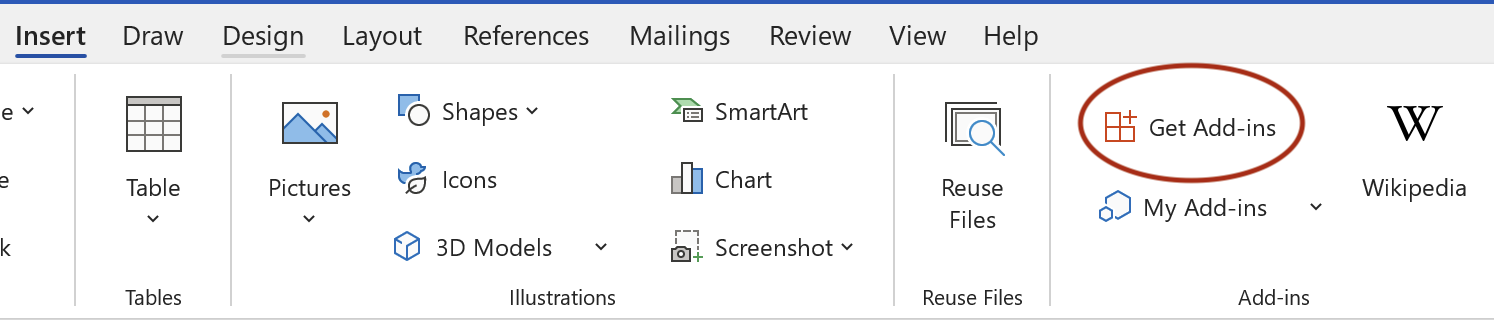
Installing ClauseBuddy is usually very easy in any recent version of Microsoft Word, on Windows or macOS. Assuming your IT department has not disabled this possibility (in which case you should look at our [Enterprise deployment page](/enterprise-deployment)), simply go the **Insert** tab in your toolbar, and click on **Get add-in.**&#x20;

<figure><img src="https://files.helpdocs.io/f86qgdbm02/articles/3brsqi1oez/1662372899855/62154-d-747-b-0-af-6809-af-3271-d-image-2022-02-22-215409.png" alt=""><figcaption></figcaption></figure>

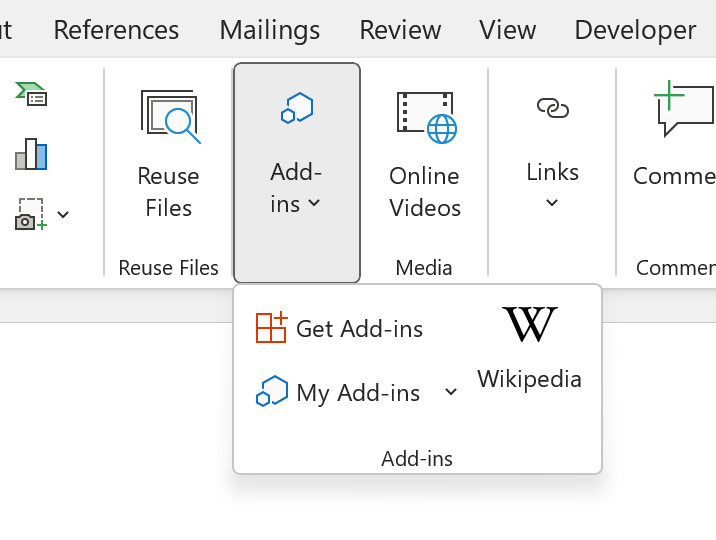
Note that on smaller screens, this button may got folded into another button:

<figure><img src="https://files.helpdocs.io/f86qgdbm02/articles/3brsqi1oez/1662372907819/629-dcbfef-840067071-b-96-f-84-image-2022-06-06-114221830.png" alt="" width="375"><figcaption></figcaption></figure>

Similarly, on older versions of Word, it may be called **Add-ins**, located in the **Home** tab of the toolbar.

<figure><img src="https://files.helpdocs.io/f86qgdbm02/articles/3brsqi1oez/1699691689317/image.png" alt=""><figcaption></figcaption></figure>

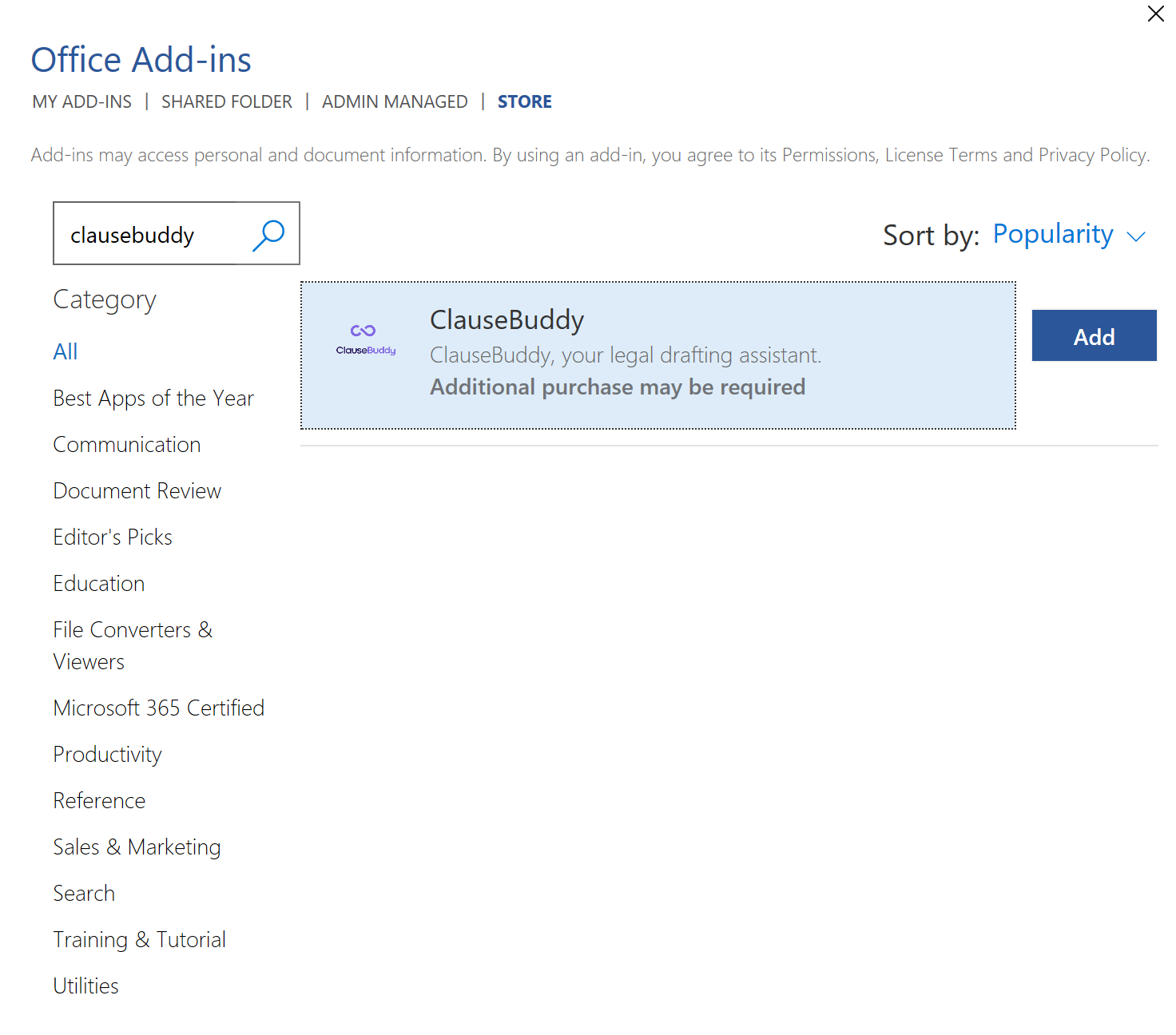
In the dialog box that appears, search for **ClauseBuddy** and click on the **Add** button.

<figure><img src="https://files.helpdocs.io/f86qgdbm02/articles/3brsqi1oez/1662372913306/629-dcca-46-a-8-d-870-ab-640-f-944-image-2022-06-06-114507920.png" alt=""><figcaption></figcaption></figure>

After installation, you will see an icon for ClauseBuddy at the right side in your **Home** tab.

<figure><img src="https://uploads-ssl.webflow.com/61ee86060364ed9b6afc9056/629dcd43e5542bdd228f61b8_image_2022-06-06_114747728.png" alt=""><figcaption></figcaption></figure>

## Installing in MS Word for Mac <a href="#installing_in_ms_outlook" id="installing_in_ms_outlook"></a>

The procedure is roughly the same as for Windows, but the button is different:&#x20;

<figure><img src="https://1957521657-files.gitbook.io/~/files/v0/b/gitbook-x-prod.appspot.com/o/spaces%2F9qUnI2Z291mCmNyrAxsZ%2Fuploads%2F1EZvlsFlEUCZpLTFsvzc%2Fimage.png?alt=media&amp;token=54f529ef-819f-4eb3-ae5f-756d637d77fe" alt=""><figcaption></figcaption></figure>

## Installing in MS Outlook (versions before 2024) <a href="#installing_in_ms_outlook" id="installing_in_ms_outlook"></a>

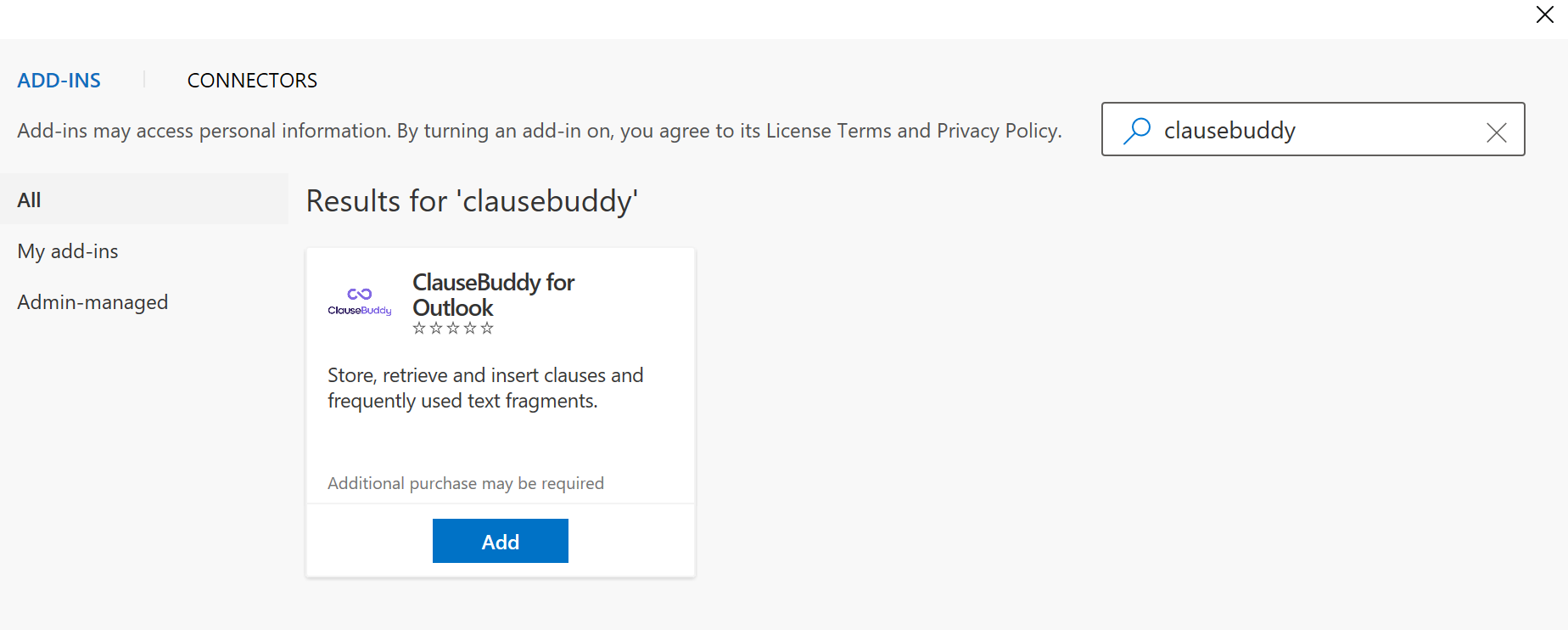
The installation is very similar to Microsoft Word: click on the **Get Add-Ins** button in your toolbar. &#x20;

<figure><img src="https://files.helpdocs.io/f86qgdbm02/articles/3brsqi1oez/1662372918155/629-dcaa-7-aed-3-b-2909-fc-303-df-image-2022-06-06-113639354.png" alt=""><figcaption></figcaption></figure>

In the dialog box that appears, search for **ClauseBuddy for Outlook**, and click on **Add**.

<figure><img src="https://files.helpdocs.io/f86qgdbm02/articles/3brsqi1oez/1662372921496/629-dcaf-739-b-6-d-15749-c-46-a-45-image-2022-06-06-113759438.png" alt=""><figcaption></figcaption></figure>

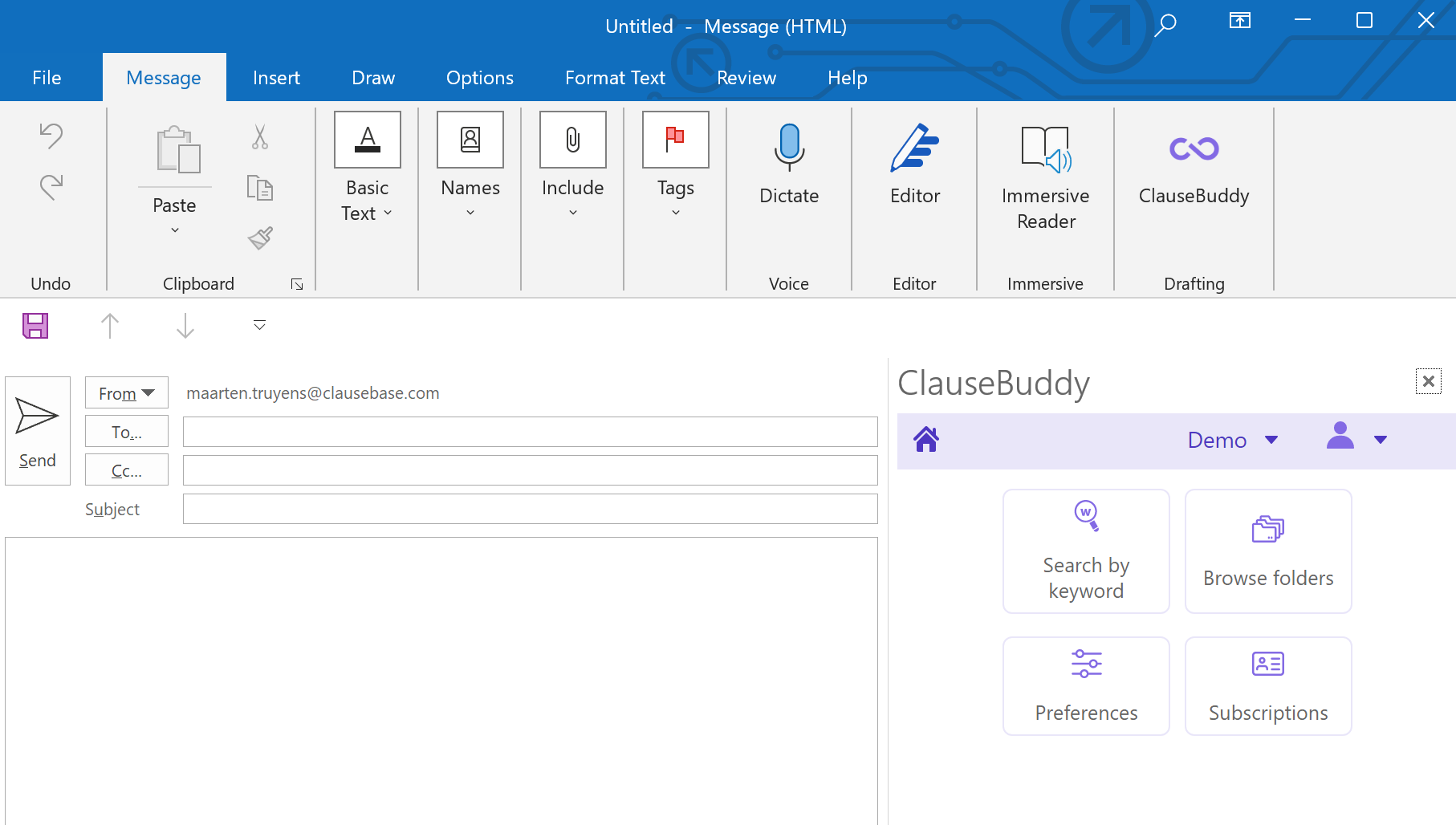
ClauseBuddy will then be available by clicking on the button in your "Messages" toolbar when you **draft a new email**:

<figure><img src="https://files.helpdocs.io/f86qgdbm02/articles/3brsqi1oez/1662372927140/629-dcb-70-ddd-0-b-22179-e-78-a-28-image-2022-06-06-114000644.png" alt=""><figcaption></figcaption></figure>

## Microsoft Outlook (newest version for Windows) <a href="#getting_a_blank_screen" id="getting_a_blank_screen"></a>

In the new version of Microsoft Outlook for Windows, the "Apps" button is located in a different part of the Ribbon at the top.

<figure><img src="https://1957521657-files.gitbook.io/~/files/v0/b/gitbook-x-prod.appspot.com/o/spaces%2F9qUnI2Z291mCmNyrAxsZ%2Fuploads%2F9t1GKIqLxcwBuOjHakou%2Fimage.png?alt=media&amp;token=735d90b2-faa9-409d-9622-d8489df5b615" alt="" width="563"><figcaption></figcaption></figure>

Next, you search for "ClauseBuddy" in the store, and click on ClauseBuddy when you see it:

<figure><img src="https://1957521657-files.gitbook.io/~/files/v0/b/gitbook-x-prod.appspot.com/o/spaces%2F9qUnI2Z291mCmNyrAxsZ%2Fuploads%2FAIikVESI7Twe8Oa7v3x0%2Fimage.png?alt=media&amp;token=ae5e1808-e29c-42b2-8caf-b228295e2a0c" alt=""><figcaption></figcaption></figure>

## Getting a blank screen? <a href="#getting_a_blank_screen" id="getting_a_blank_screen"></a>

If the ClauseBuddy panel is shown with a blank screen, then this means that you have an unsupported combination of Windows and/or Microsoft Office. Check our article on the [system requirements](/system-requirements#system_requirements).

## Using in a browser <a href="#using_in_a_browser" id="using_in_a_browser"></a>

You can even use ClauseBuddy when you do not have Microsoft Word or Outlook available (or you do not have the right to install it, e.g. because your IT-department disabled this possibility). When you use any modern browser — Chrome, Safari, Firefox, the new Microsoft Edge, Vivaldi, Brave, etc. — you can simply go to [https://app.clausebuddy.com.](https://app.clausebuddy.com/)

The advantage is that **you do not need to install anything**, but the downside is of course that there is no tight integration with Word or Outlook. This means that you will have to copy / paste everything from & to Word or Outlook, and that some features will simply not be available (e.g., comparing a clause you found with some clause you selected in MS Word, or enforcing your house style).&#x20;


# Accessing the app

## 1. Going to the login page

To navigate to ClauseBuddy's login page, you:

### In Microsoft Word for Windows

Click on the ClauseBuddy icon within the Home section of the top bar ("ribbon").

<figure><img src="https://1957521657-files.gitbook.io/~/files/v0/b/gitbook-x-prod.appspot.com/o/spaces%2F9qUnI2Z291mCmNyrAxsZ%2Fuploads%2Fm6wlVQkFX6poJ5U2Fi9j%2Fimage.png?alt=media&amp;token=7ef3cbd8-560d-44a8-aadd-85a9a77de4a0" alt=""><figcaption></figcaption></figure>

### In Microsoft Word for Mac

Similarly, click on the button in the Home section of the ribbon.

<figure><img src="https://1957521657-files.gitbook.io/~/files/v0/b/gitbook-x-prod.appspot.com/o/spaces%2F9qUnI2Z291mCmNyrAxsZ%2Fuploads%2FavXe8ZI9LXFetXXx41g5%2Fimage.png?alt=media&amp;token=e64b700c-4587-4c67-b9cd-f922aa4ede4e" alt=""><figcaption></figcaption></figure>

### In Microsoft Word Online

If you want to use ClauseBuddy inside of Microsoft Word Online (i.e., Word running inside of a browser), then click on the "..." button of the Home pane of the ribbon and choose "ClauseBuddy".

<figure><img src="https://1957521657-files.gitbook.io/~/files/v0/b/gitbook-x-prod.appspot.com/o/spaces%2F9qUnI2Z291mCmNyrAxsZ%2Fuploads%2F6lB2O9fEiwwmVHIrcLw5%2Fimage.png?alt=media&amp;token=b8abdda8-c92b-4620-a71b-8783ed9a33b4" alt=""><figcaption></figcaption></figure>

### In a browser

Go to <https://app.clausebuddy.com>

### In the traditional version of Microsoft Outlook for Windows

Click on the "..." button inside of a new email

<figure><img src="https://1957521657-files.gitbook.io/~/files/v0/b/gitbook-x-prod.appspot.com/o/spaces%2F9qUnI2Z291mCmNyrAxsZ%2Fuploads%2FGRCYDtp6gCSJfbjL2mDZ%2Fimage.png?alt=media&amp;token=2d2ad54d-9bf0-41c4-9194-1567d575eadc" alt=""><figcaption></figcaption></figure>

### In the new Microsoft Outlook for Windows

Click on *Apps* when drafting a new email, and then select ClauseBuddy from the list.

<figure><img src="https://1957521657-files.gitbook.io/~/files/v0/b/gitbook-x-prod.appspot.com/o/spaces%2F9qUnI2Z291mCmNyrAxsZ%2Fuploads%2FDXhJzLeklZWTWO5DIt4C%2Fimage.png?alt=media&amp;token=2796a9ed-7029-4c29-8c86-4a77d4a5f544" alt=""><figcaption></figcaption></figure>

### In Microsoft Outlook for Mac

Click on the "..." icon inside of a new email window, and select ClauseBuddy from the list.&#x20;

Tip: you may want to click on the *Customise toolbar* option inside of the "..." dropdown menu and drag ClauseBuddy to the toolbar, so that it is always visible there.

<figure><img src="https://1957521657-files.gitbook.io/~/files/v0/b/gitbook-x-prod.appspot.com/o/spaces%2F9qUnI2Z291mCmNyrAxsZ%2Fuploads%2Fzoe4bD9nXw86VWexTN26%2Fimage.png?alt=media&amp;token=256ee7a7-8671-43f7-b066-4516df3da832" alt=""><figcaption></figcaption></figure>

***

## 2. Logging in <a href="#login" id="login"></a>

Once navigated to ClauseBuddy — in Word for Windows, Outlook, browser, ... --  you need to effectively login if this is the first time you're using ClauseBuddy.

## Logging in with a security code <a href="#login" id="login"></a>

If you're using ClauseBuddy in a small team without a big IT-department, then you probably received a "**security code**" from ClauseBase or from your team leader.&#x20;

To effectively login with this security code, click on the top button "Sign in with a security code".&#x20;

<figure><img src="https://1957521657-files.gitbook.io/~/files/v0/b/gitbook-x-prod.appspot.com/o/spaces%2F9qUnI2Z291mCmNyrAxsZ%2Fuploads%2FGU3zaKM2Xqxlmhb5dHFZ%2Fimage.png?alt=media&amp;token=35c74c9b-df68-420d-a038-838f7c0b053e" alt="" width="375"><figcaption></figcaption></figure>

Next, enter the security code, or click on the bottom link to retrieve the security code with your email address.

<figure><img src="https://1957521657-files.gitbook.io/~/files/v0/b/gitbook-x-prod.appspot.com/o/spaces%2F9qUnI2Z291mCmNyrAxsZ%2Fuploads%2Fl5bPXicPtFqOhyZIlzuK%2Fimage.png?alt=media&amp;token=24863455-78c2-4c53-87ac-1bf48115a3df" alt="" width="363"><figcaption></figcaption></figure>

## Logging in with "Single Sign On" (SSO)

If you're using ClauseBuddy in a large organisation, then Single Sign On (SSO) was probably set up for you by your IT-department. In such a scenario, you don't get a security code; instead you login by passing through the security procedures of your own company.

To do so, click on the green button at the bottom:&#x20;

<figure><img src="https://1957521657-files.gitbook.io/~/files/v0/b/gitbook-x-prod.appspot.com/o/spaces%2F9qUnI2Z291mCmNyrAxsZ%2Fuploads%2FxGUVbGiED2pKEsKMdsuQ%2Fimage.png?alt=media&amp;token=6166071b-28ca-40f1-9b8c-ac91561f438a" alt="" width="375"><figcaption></figcaption></figure>

Next, enter your email address and click on the blue "Request login" button.

<figure><img src="https://1957521657-files.gitbook.io/~/files/v0/b/gitbook-x-prod.appspot.com/o/spaces%2F9qUnI2Z291mCmNyrAxsZ%2Fuploads%2FMLV20gkdAU7VB60l3HkA%2Fimage.png?alt=media&amp;token=6aa89e2b-fa31-4a68-952f-b2818b51ff8c" alt="" width="375"><figcaption></figcaption></figure>

You will then be forwarded to the login procedure of your own organisation, which will be shown in a popup-window if all goes well. This looks and behaves differently for every organisation (e.g., some organisations require the use of a token, some a fingerprint reader), but in the end you should arrive in the ClauseBuddy homepage:&#x20;

<figure><img src="https://1957521657-files.gitbook.io/~/files/v0/b/gitbook-x-prod.appspot.com/o/spaces%2F9qUnI2Z291mCmNyrAxsZ%2Fuploads%2FquAjOC3odgryG2OF9zYx%2FScreenshot%202025-08-12%20at%2017.51.37.png?alt=media&amp;token=adc79872-33cb-4e1a-abbe-65126f9666c0" alt="" width="563"><figcaption></figcaption></figure>


# Enterprise deployment

## Involving your IT-admin <a href="#involving_your_it_admin" id="involving_your_it_admin"></a>

Probably the most likely installation stumbling block for most users is that your firm/company has blocked you from installing add-ins in Microsoft Word or Outlook. In such case, you will notice that the "Get Add-ins" button is **greyed out**.&#x20;

If this is the case, then you will need to either switch to the browser-version of ClauseBuddy (see above — the downside is that you will have copy/paste between Word/Outlook), or alternatively involve your organisation's IT-expert ("administrator"), who has the required superpowers to grant you installation rights for the add-in.&#x20;

Be nice to this person, as he/she has a very good reason to block add-ins: the previous generation of add-ins had a *very* bad reputation of causing severe slowdowns and difficult-to-trace crashes. (We've all seen fast computers that take over a minute to load MS Word!)

If required, you can explain that [the new generation of add-ins does not suffer from this problem](https://www.kraftkennedy.com/wp-content/uploads/2020/08/Peer-to-Peer-Brian-Podolsky.pdf). Unlike the old generation of add-ins (which install their tentacles into the brains, guts and nerves of Word), next-gen add-ins such as ClauseBuddy are [forced by Microsoft to remain at the surface](https://docs.microsoft.com/en-us/office/dev/add-ins/overview/office-add-ins). They consist of so-called "JavaScript code" (instead of 32/64 bit executable files), and are executed by MS Word's internal web browser. This is also the reason why ClauseBuddy works in Word for Windows, Word for Mac and even Word Online.&#x20;

{% hint style="info" %}
Even if your Microsoft Windows version of Word blocks the installation of addins, you may be able to install ClauseBuddy in the online version of Microsoft Word, without requiring the help of your IT administrator.
{% endhint %}

## Deployment <a href="#deployment" id="deployment"></a>

Unlike traditional desktop-software or the old generation of COM/VSTO plugins, **there is no "installer" file, such as an .MSI file**. Instead, Enterprise-deployment happens through the Office 365 Admin center, which relies on Microsoft's "AppSource".&#x20;

The following AppSource URLs are relevant:

* &#x20;ClauseBuddy for **MS** **Word**: <https://appsource.microsoft.com/en-us/product/office/wa200003791?tab=overview>
* ClauseBuddy for **MS Outlook**: <https://appsource.microsoft.com/en-us/product/office/WA200004158?tab=Overview>
* If you would instead be asked for a MANIFEST.XML file:&#x20;
  * ClauseBuddy for MS Word: [MANIFEST.XML](https://cbo365-1443d.kxcdn.com/manifest.xml)
  * ClauseBuddy for MS Outlook: [MANIFEST.XML](https://cbo365-1443d.kxcdn.com/manifest_outlook.xml)

## No MSI

Let's repeat the previous information one more time, because almost every IT-admin will be surprised by this:

**There is NO installer file**, there is **NO .MSI file** and there is **NO .EXE file** that you can get from us.

As an IT-admin, you're now probably thinking that ClauseBuddy is being difficult or special here. But ClauseBuddy's deployment is in no way special: it acts like every other Office-plugin of the new generation. The only thing that's probably special, is that ClauseBase will be the first vendor of a new generation Office-plugin that you encounter.

Even though the "new" generation is almost a decade old (it was introduced in 2014), in practice, IT-admins are not frequently confronted with it, simply because the old-generation of COM/VSTO plugins are very difficult to convert to the new generation, due to a completely different approach. Most vendors that sell old-generation plugins will therefore deliberately stay silent about the difference between the old and the new generation, because they face such difficulties in rewriting their old plugins.

But it is a matter of time before the old style plugins will disappear. Already, the very newest version of Outlook for Windows no longer supports the old generation of plugins: see [Microsoft's presentation](https://redmondmag.com/articles/2023/09/12/new-outlook-for-windows.aspx). You can expect that newer versions of Word & Excel will suffer the same fate.

<figure><img src="https://1957521657-files.gitbook.io/~/files/v0/b/gitbook-x-prod.appspot.com/o/spaces%2F9qUnI2Z291mCmNyrAxsZ%2Fuploads%2FuLdrHrJTrXKZmwG96S8h%2Fimage.png?alt=media&amp;token=565c1d50-296c-44db-91a8-9ba2fed254ca" alt=""><figcaption></figcaption></figure>

## Additional Microsoft resources

The enterprise deployment of ClauseBuddy is in no way different than the deployment of any of the other new-style Microsoft Office plugins (often technically referred to as "Office.js" plugins, because it used the Microsoft Office.JS API for Javascript to communicate with the "host" applications such as Word and Outlook).

See Microsoft's resources:

* [Deployment through the Office 365 admin center](https://learn.microsoft.com/en-us/microsoft-365/admin/manage/manage-deployment-of-add-ins?view=o365-worldwide)
* Deployment through a [Sharepoint app catalog](https://learn.microsoft.com/en-us/office/dev/add-ins/publish/publish-task-pane-and-content-add-ins-to-an-add-in-catalog)
* As a fallback (e.g., because for some internal reason the access to the Microsoft Store needs to be blocked) some companies and law firms use the technique of "sideloading" as a fallback. [Learn more about this](https://learn.microsoft.com/en-us/office/dev/add-ins/testing/test-debug-office-add-ins#sideload-an-office-add-in-for-testing)

You may also check out [Stackoverflow](https://stackoverflow.com/search?q=%5Boffice-js%5D+deployment) for community-based questions.

## Other resources <a href="#other_resources" id="other_resources"></a>

* A somewhat older [video from Microsoft, explaining the deployment options](https://www.youtube.com/watch?v=p3aeO9muEI8)
* Other vendors explaining how to install their Office.js plugin (essentially equivalent to ClauseBuddy):
  * [iManage Outlook plugin](https://docs.imanage.com/wdm-install-help/10.4.1/en/Configuring_the_add-in_using_your_Microsoft_Office_365_account.html)
  * [CodeTwo Outlook add-in](https://www.codetwo.com/userguide/email-signatures-for-office-365/signatures-web-add-in-for-outlook-deployment.htm), including a very nice and detailed [video](https://www.youtube.com/watch?v=qYFzS4_6S80)
  * [Qlik.com Excel add-in](https://help.qlik.com/en-US/cloud-services/Subsystems/Hub/Content/Sense_Hub/Reporting/excel-add-in-install.htm), detailed instructions
  * [Verizon Outlook Add-in](https://support.bluejeans.com/s/article/Outlook-Add-in-for-Office-365-Admin-Installation-Guide#Installing)
  * [Infor.com Excel Add-in](https://docs.infor.com/depm/cloud/sv-se/depmolh_cloud/default.html?helpcontent=znl1570450485935.html)


# Logins

Most users will probably use only one login to ClauseBuddy. However, it may happen that multiple logins are useful in your situation.&#x20;

ClauseBuddy allows you to simultaneously subscribe to multiple libraries, and switch between them with the click of a button. Those libraries can even host different languages.&#x20;

Imagine, for example, that you are a corporate lawyer working at the Paris office of Smithers & Partners. You may have simultaneous access to:

* your own personal library (French)
* the library of the Corporate department in Paris (English & French)
* the library of the Employment department in Paris (French only)
* clauses published by an M\&A association you are affiliated with (French, German & Italian)

## Adding a subscription <a href="#adding_a_subscription" id="adding_a_subscription"></a>

You can add a new subscription at any time by clicking on the dropdown list in the top-right corner, and choosing *Add login*

<figure><img src="https://1957521657-files.gitbook.io/~/files/v0/b/gitbook-x-prod.appspot.com/o/spaces%2F9qUnI2Z291mCmNyrAxsZ%2Fuploads%2FL2G9k1TGYIuDzb9D2gfc%2Fimage.png?alt=media&amp;token=434eb1cc-00b7-4322-980c-875178d7ac20" alt="" width="367"><figcaption></figcaption></figure>

Alternatively, you can add a new subscription by going to the *Logins* settings.

<figure><img src="https://1957521657-files.gitbook.io/~/files/v0/b/gitbook-x-prod.appspot.com/o/spaces%2F9qUnI2Z291mCmNyrAxsZ%2Fuploads%2FsrdWiGuvTGMGDjmbdwcB%2Fimage.png?alt=media&amp;token=3023978b-4897-4f6f-9d3c-4e6e39af52dd" alt="" width="274"><figcaption></figcaption></figure>

There you can manage your logins, i.e. removing existing logins and adding new ones as well.&#x20;

<figure><img src="https://1957521657-files.gitbook.io/~/files/v0/b/gitbook-x-prod.appspot.com/o/spaces%2F9qUnI2Z291mCmNyrAxsZ%2Fuploads%2FNvzYxLIXQkILXV0RBP3V%2Fimage.png?alt=media&amp;token=64cbd6b4-eb0e-4ecb-a05a-8b4ee5f2ef51" alt=""><figcaption></figcaption></figure>

## Switching between different logins <a href="#switching_between_subscriptions" id="switching_between_subscriptions"></a>

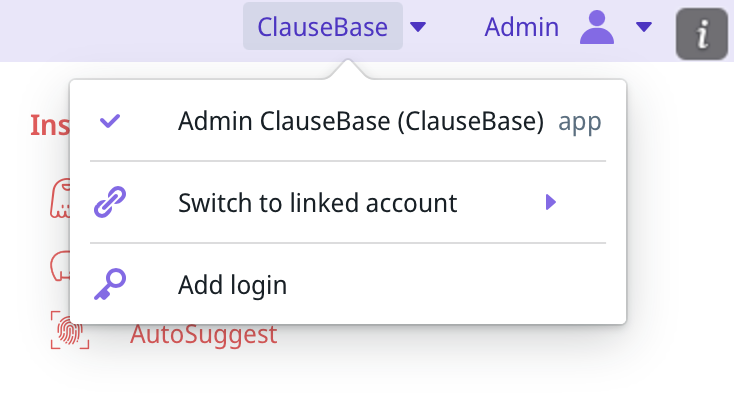
You can switch between logins by clicking on your current login's name in the top right corner.&#x20;

<figure><img src="https://1957521657-files.gitbook.io/~/files/v0/b/gitbook-x-prod.appspot.com/o/spaces%2F9qUnI2Z291mCmNyrAxsZ%2Fuploads%2FEwK1HOhB4MfHNgqE7VCV%2Fimage.png?alt=media&amp;token=2e089c06-9ea0-4ea3-8be5-e9851baa637f" alt=""><figcaption></figcaption></figure>

‍

## Login validity <a href="#subscription_validity" id="subscription_validity"></a>

Logins can have an expiry date. When a login has expired, ClauseBuddy will warn you that your access is blocked.

## Publishing your own library?  <a href="#publishing_your_own_library" id="publishing_your_own_library"></a>

Contact us if you are interested in publishing your own library, e.g. towards your clients if you are a law firm.


# Frequently Asked Questions

## **The ClauseBuddy icon is greyed out within Microsoft Word**

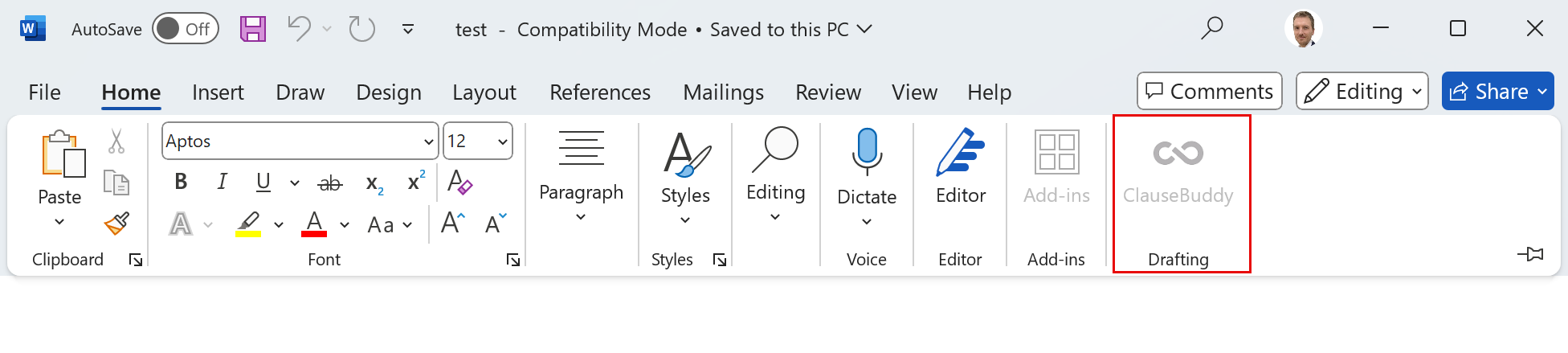
<figure><img src="https://1957521657-files.gitbook.io/~/files/v0/b/gitbook-x-prod.appspot.com/o/spaces%2F9qUnI2Z291mCmNyrAxsZ%2Fuploads%2FQPjTkmT01NXxAphjVX7g%2Fimage.png?alt=media&amp;token=156a86a7-b3ca-49a3-b1f1-d0672247b09e" alt=""><figcaption></figcaption></figure>

You have probably opened a .DOC file instead of a .DOCX file.

A .DOC-file is an outdated format, that is unfortunately not supported by Microsoft for the modern plugin architecture. The solution is to simply save the .DOC as a .DOCX file.

## **The ClauseBuddy icon disappears for an unknown reason!**

*Update February 2025: Microsoft seems to have solved this issue in newer versions of Word. But if you're still using an old version, it may be interesting to read the old explanation:*

Unfortunately, this problem is not limited to ClauseBuddy, as several other addins have the same problem. Microsoft is [investigating](https://github.com/OfficeDev/office-js/issues/2731) why this is [happening](https://github.com/OfficeDev/office-js/issues/2731) to some users at unpredictable moments. It seems to usually occur when certain Windows / Office updates are being installed, and it seems to affect Outlook more than Word.

If you can reliably reproduce this problem, you would do everyone a favour in letting us know!

## **Where can I get more help?**

Aside from emailing us, feel free to create an account on our [Discussion forum](https://discuss.clausebase.com/)! You will learn from other users, and are invited to ask any questions you feel like.


# Encountering problems?

## Close & reopen <a href="#close_reopen" id="close_reopen"></a>

The first thing you should try, is to close the ClauseBuddy panel and reopen it. Usually, any issue you encounter will be resolved by this. This effectively "reboots" the software — which, as usual, solves half of the technology problems you can ever run into.

## Clause title or body issues <a href="#clause_title_or_body_issues" id="clause_title_or_body_issues"></a>

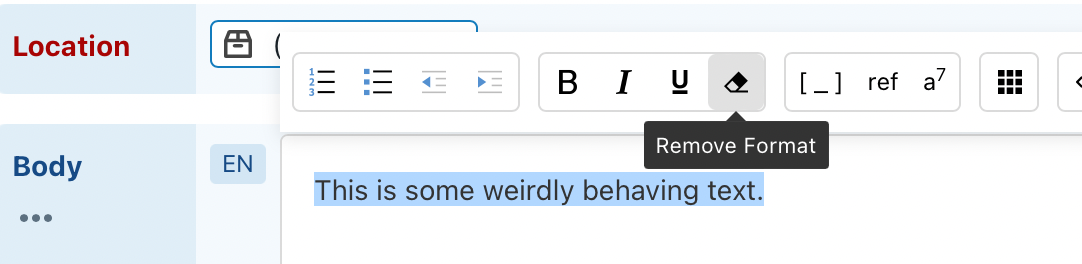
Microsoft Word sometimes performs weird stuff when copying text from its document (left side) to the ClauseBuddy boxes (right side). If the text is behaving strangely, then try to remove all text formatting by selecting all text and pressing the **eraser icon**.

<figure><img src="https://files.helpdocs.io/f86qgdbm02/articles/bv32qy91og/1662376089359/622-faf-4-faeef-109-eeb-627-e-3-b-image-2022-03-14-221039.png" alt="" width="375"><figcaption></figcaption></figure>

## Hard reset <a href="#hard_reset" id="hard_reset"></a>

When closing and reopening does not work, you can try to reset ClauseBuddy.&#x20;

Don't worry: this merely removes your locally stored settings, i.e. the configuration stored in your copy of Microsoft Word (or Outlook). Although you will have to login again using your security code(s), this will not affect any clauses that you have stored on the server.&#x20;

In Windows, you have to [remove a specific folder containing all plugin information](https://docs.microsoft.com/en-us/office/dev/add-ins/testing/clear-cache).

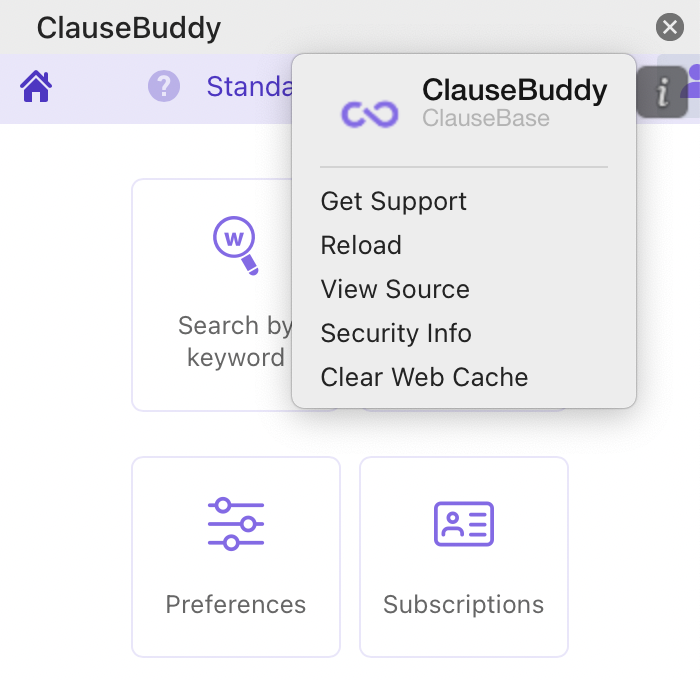
If you are using a Mac, click on the **"i**" icon in the top right corner, choose *Clear Web Cache*, and close & reopen ClauseBuddy.&#x20;

<figure><img src="https://files.helpdocs.io/f86qgdbm02/articles/bv32qy91og/1662376095944/62-a-24137-bdc-6-a-505689-cd-4-e-7-image-2022-06-09-205135704.png" alt="" width="375"><figcaption></figcaption></figure>

## If all else fails... <a href="#if_all_else_fails" id="if_all_else_fails"></a>

[Send us an email](mailto:hello@clausebuddy.com) and describe where you get stuck. We'll then try to un-stuck you.


# Help & Support Center

Need a helping hand? Below are some resources to help you get the most out of ClauseBuddy!

## Discussion Forum

Have a concrete question you can't find an answer to in this Help Center?&#x20;

Check out our [Discussion Forum](https://discuss.clausebase.com/c/clausebuddy/21), where you can receive free support for any question you may have and learn from the questions of other users!

## Tutorial videos&#x20;

We also offer bite-sized videos to get you up to speed with different functionalities:

* [General Tips & Tricks](https://www.youtube.com/playlist?list=PLMMYaeH2XffIYirh_w0z3R58n2K-_qeW9)
* [Tutorial videos](https://youtube.com/playlist?list=PLMMYaeH2XffJdI-OcSQFvjBvE5lf4XL4-\&feature=shared)

## Webinars

We offer regular deep dive webinars on the different modules in ClauseBuddy.  Sign up for a slot that works for you below!

Can't attend any of the sessions? Just sign up! We'll send over the recording to anyone who registered.

<table data-view="cards" data-full-width="false"><thead><tr><th align="center"></th><th align="center"></th><th data-hidden data-card-cover data-type="files"></th><th data-hidden data-card-target data-type="content-ref"></th></tr></thead><tbody><tr><td align="center">Inspiration module Deep Dive</td><td align="center"><a href="https://clausebase.webinargeek.com/clausebuddy-deep-dive-inspiration?cst=helpcenter">Sign up</a></td><td><a href="https://1957521657-files.gitbook.io/~/files/v0/b/gitbook-x-prod.appspot.com/o/spaces%2F9qUnI2Z291mCmNyrAxsZ%2Fuploads%2F9S5qBDNMFNBD7Wh8K7fE%2FScreenshot%202025-03-25%20at%2010.26.36.png?alt=media&amp;token=94603342-3767-453b-9e83-c353b9a2fc41">Screenshot 2025-03-25 at 10.26.36.png</a></td><td></td></tr><tr><td align="center">Generative AI module Deep Dive</td><td align="center"><a href="https://clausebase.webinargeek.com/clausebuddy-deep-dive-generative-ai?cst=helpcenter">Sign up</a></td><td><a href="https://1957521657-files.gitbook.io/~/files/v0/b/gitbook-x-prod.appspot.com/o/spaces%2F9qUnI2Z291mCmNyrAxsZ%2Fuploads%2FHQqbIobr2NIWW2MYq8v6%2FScreenshot%202025-03-25%20at%2010.28.59.png?alt=media&amp;token=bd574ca7-090b-4836-8982-db3753247d8f">Screenshot 2025-03-25 at 10.28.59.png</a></td><td><a href="https://clausebase.webinargeek.com/clausebuddy-deep-dive-generative-ai?cst=helpcenter">https://clausebase.webinargeek.com/clausebuddy-deep-dive-generative-ai?cst=helpcenter</a></td></tr><tr><td align="center">Document Analysis module Deep Dive</td><td align="center"><a href="https://clausebase.webinargeek.com/clausebuddy-deep-dive-document-analysis?cst=helpcenter">Sign up</a></td><td><a href="https://1957521657-files.gitbook.io/~/files/v0/b/gitbook-x-prod.appspot.com/o/spaces%2F9qUnI2Z291mCmNyrAxsZ%2Fuploads%2Fp0HPixBX8Hpu5OxhUSbq%2FScreenshot%202025-03-25%20at%2010.30.20.png?alt=media&amp;token=1ccbfad5-fd1c-4db2-875e-883e35290b97">Screenshot 2025-03-25 at 10.30.20.png</a></td><td><a href="https://clausebase.webinargeek.com/clausebuddy-deep-dive-document-analysis?cst=helpcenter">https://clausebase.webinargeek.com/clausebuddy-deep-dive-document-analysis?cst=helpcenter</a></td></tr><tr><td align="center">Smart Templates module Deep Dive</td><td align="center"><a href="https://clausebase.webinargeek.com/clausebuddy-deep-dive-smart-templates?cst=helpcenter">Sign up</a></td><td><a href="https://1957521657-files.gitbook.io/~/files/v0/b/gitbook-x-prod.appspot.com/o/spaces%2F9qUnI2Z291mCmNyrAxsZ%2Fuploads%2F3VXFI7jKCYwhFiVEEheD%2FScreenshot%202025-03-25%20at%2010.46.16.png?alt=media&amp;token=f3b866c0-ff13-4002-a24b-6671fcf24ba8">Screenshot 2025-03-25 at 10.46.16.png</a></td><td><a href="https://clausebase.webinargeek.com/clausebuddy-deep-dive-smart-templates?cst=helpcenter">https://clausebase.webinargeek.com/clausebuddy-deep-dive-smart-templates?cst=helpcenter</a></td></tr><tr><td align="center">Operations module Deep Dive</td><td align="center"><a href="https://clausebase.webinargeek.com/clausebuddy-deep-dive-operations?cst=helpcenter">Sign up</a></td><td><a href="https://1957521657-files.gitbook.io/~/files/v0/b/gitbook-x-prod.appspot.com/o/spaces%2F9qUnI2Z291mCmNyrAxsZ%2Fuploads%2FTHQwX1Owad6ji2PndPMp%2FScreenshot%202025-03-25%20at%2010.48.42.png?alt=media&amp;token=61903620-1546-45e3-a97d-e1fbf3ae9cd6">Screenshot 2025-03-25 at 10.48.42.png</a></td><td><a href="https://clausebase.webinargeek.com/clausebuddy-deep-dive-operations?cst=helpcenter">https://clausebase.webinargeek.com/clausebuddy-deep-dive-operations?cst=helpcenter</a></td></tr><tr><td align="center">Quality Library module Deep Dive</td><td align="center"><a href="https://clausebase.webinargeek.com/clausebuddy-deep-dive-quality-library?cst=helpcenter">Sign up</a></td><td><a href="https://1957521657-files.gitbook.io/~/files/v0/b/gitbook-x-prod.appspot.com/o/spaces%2F9qUnI2Z291mCmNyrAxsZ%2Fuploads%2F7ByjbMqANdCl2dlFNQEk%2FScreenshot%202025-03-25%20at%2010.42.05.png?alt=media&amp;token=33ddf896-f38b-4480-b746-0eec5e31d8a4">Screenshot 2025-03-25 at 10.42.05.png</a></td><td><a href="https://clausebase.webinargeek.com/clausebuddy-deep-dive-quality-library?cst=helpcenter">https://clausebase.webinargeek.com/clausebuddy-deep-dive-quality-library?cst=helpcenter</a></td></tr></tbody></table>


# General Tips & Tricks


# Using ClauseBuddy in a separate window for more screen space

Looking to get more screen real estate when working with features like the Multi-document Table in ClauseBuddy?&#x20;

You can **detach the ClauseBuddy add-in from Microsoft Word** by clicking and dragging the grey area at the top of the ClauseBuddy panel. This allows you to move it into its own floating window, which you can then resize to your liking.

{% hint style="info" %}
On Windows, this detached window can be resized freely. On Mac, resizing is somewhat more limited due to system constraints.
{% endhint %}

Check out the video below for a quick demonstration!

{% embed url="<https://files.gitbook.com/v0/b/gitbook-x-prod.appspot.com/o/spaces%2F9qUnI2Z291mCmNyrAxsZ%2Fuploads%2FCt6qHEKwYiigtt7k9yPv%2FEnlarging%20ClauseBuddy.mp4?alt=media&token=ebc793b7-695e-4e80-9caa-25b0d83fcdc9>" %}


# What?

### What is the Quality Library?

The Quality Library is a central place where your organization stores its most useful and reliable legal content. It contains clauses, contract fragments, notes and other reusable pieces of text that have been carefully selected and organized for future use.

Instead of searching through old documents or rewriting the same content repeatedly, the Quality Library provides a structured way to store and find the building blocks of legal documents. Everything is grouped into folders and can include helpful extras — such as titles, explanations, and tags — to make it easier to understand and use each clause.

You can browse through the folders or search by keywords to find content that is ready-to-use and easy to adapt.

There isn’t just one library: you can have a main library for the whole organization, separate libraries for different teams or departments and even a personal library for your own content.

The Quality Library is also connected to Clause9, so you can even use Clause9 content directly through ClauseBuddy.

<figure><img src="https://2189520742-files.gitbook.io/~/files/v0/b/gitbook-x-prod.appspot.com/o/spaces%2FmRnUl2jsv556oF2ZexdO%2Fuploads%2FZhxnJvGQBNS3QY5RDer5%2FScreenshot%202025-08-05%20at%2011.10.34.png?alt=media&amp;token=f64f0def-d30b-46b9-9809-3f5057f38466" alt=""><figcaption></figcaption></figure>


# Why?

### Why use the Quality Library?

The Quality Library helps you work faster, more consistently, and with more confidence.

#### ✅ When you *should* use it:

* **To save time**\
  No need to rewrite standard clauses or search through old contracts — reliable content is always within reach.
* **To improve consistency**\
  Everyone on your team can use the same approved wording, ensuring the appropriate versions are used and reducing the risk of errors or contradictions.
* **To capture and share knowledge**\
  Legal teams often develop high-quality wording over time. The Quality Library helps you store that knowledge and make it easy available to others within your organisation, especially junior colleagues.
* **To add structure to your content**\
  With folders, tags, comments, and metadata, your clauses are much easier to navigate and understand than in a shared Word file or document database.
* **To seamless integrate in your drafting**\
  Effortlessly add clauses from your library into your open draft, with the possibility to insert results exactly where you need them and formatted to match your current document layout.

***

#### ❌ When you *shouldn’t* use it:

* **If you just need to store full contracts or large documents**\
  This is not a document management system — it’s for reusable content, not whole files.
* **If you don’t have a plan to keep it clean**\
  A cluttered library filled with outdated or unclear clauses can slow you down instead of helping. It only works well if someone takes ownership of its quality and structure.


# How?


# Step-by-step


# How do I save a new clause?


# How do I create a new folder?


# How do I edit a clause?


# How do I insert a clause into my active document?


# How do I make a temporary change to my clause before inserting?


# How do I send a clause to a curator?


# In depth


# Searching clauses


# Overview

{% embed url="<https://www.youtube.com/watch?v=wR1clJEwsZM>" %}

In ClauseBuddy, you can search clauses in your Quality Library in two major ways: by entering **keywords**, or by browsing through **folders**. You can also use the [Similar Clauses feature](https://help.clausebuddy.com/autosuggest/) to search by similarity.

Each of the three search types has its own strengths and weaknesses:

* [Keyword search](/quality-library/how/in-depth/searching-clauses/searching-by-keywords) is what everybody is used to from everyday use in Google or other search engines. ClauseBuddy allows for both a smart search (more intelligent, wider cast) and a strict search (more literal).&#x20;
* Browsing folders perhaps sounds less interesting, but in our experience — both as former lawyers and from having witnessed other users — [searching through folders in a taxonomy](https://help.clausebuddy.com/quality-library/how/in-depth/searching-clauses/browsing-folders) (tree) aligns most closely to how most legal professionals want to search for clauses.&#x20;
* ​Similarity searches through Similar Clauses allow you to immediately get an overview of all the clauses that match a currently selected clause you have currently selected.&#x20;

## Colours in search results <a href="#colors_in_search_results" id="colors_in_search_results"></a>

Any search result will be shown either with a blue, green or purple background.&#x20;

* Clauses with a **purple background** do not contain any deeper intelligence — they merely contain text, placeholders, tables, footnotes, etc.
* Clauses with a **green background** are clauses that were prepared in Clause9. They contain interactive elements, such as dynamic legal terminology, calculations and conditional text.&#x20;
* Clauses with a **blue background** (and a cog icon) are the most interactive of all. They can be like sheer magic: by answering a few questions, the text of the clause will be changed — sometimes in subtle ways by hiding or altering a few words, sometimes very drastically by showing or hiding entire paragraphs.&#x20;

{% hint style="info" %}
The clauses with a green background can only be created with Clause9.&#x20;
{% endhint %}

## Undo & redo <a href="#undo_redo" id="undo_redo"></a>

The rightmost buttons in ClauseBuddy's toolbar allow you to go back and forth in time — essentially a kind of undo & redo that bring you back to earlier search results, before you started to modify keywords, filtered down your search results or modified the wording of the clauses. Do not underestimate the power of those buttons: they can make your search experience so much smoother!

<figure><img src="https://2189520742-files.gitbook.io/~/files/v0/b/gitbook-x-prod.appspot.com/o/spaces%2FmRnUl2jsv556oF2ZexdO%2Fuploads%2FMxpGij2VN25oxUZysDp5%2FScreenshot%202025-11-27%20at%2016.03.00.png?alt=media&amp;token=bbc73a31-ea85-4d26-ac18-6dfd8377e91a" alt=""><figcaption></figcaption></figure>


# Searching by keywords

Searching by keywords is probably the most "natural" way to search: it is similar to how you search in Google or Bing. Just enter a few words, and the software will go on a hunting mission inside your clause library.

{% hint style="info" %}
Entering keywords is probably just the start of your search journey. When you are presented with a list of clauses, you will probably want to perform some [filtering](/quality-library/how/in-depth/searching-clauses/filtering-clauses) to quickly narrow down your results.
{% endhint %}

## Two modes <a href="#tips" id="tips"></a>

When searching by keywords, you can choose between two different modes: **smart** and **strict**.

* The default search mode is **smart**. In this mode, ClauseBuddy uses an Artificial Intelligence layer to search for clauses that semantically  match what you type in. The search will not be literal, so that *descriptions* and *synonyms* will usually also result in the right clause being shown at the top.&#x20;
* You can also search in **strict** mode, by enabling the checkbox to the right of the search box. In strict mode, the search is performed in a literal way. Even though grammatical variations are allowed (e.g., searching for "claims" will also find clauses containing the singular "claim"), clauses that contain synonyms of your keywords will not be included in the search results. &#x20;

<figure><img src="https://2189520742-files.gitbook.io/~/files/v0/b/gitbook-x-prod.appspot.com/o/spaces%2FmRnUl2jsv556oF2ZexdO%2Fuploads%2FXbwNL0FecV4X1wuDDTNW%2Fimage.png?alt=media&amp;token=ad9e1100-49cf-4f9d-a6ae-48df487707a9" alt="" width="563"><figcaption></figcaption></figure>

## General Tips <a href="#tips" id="tips"></a>

* You can **quote keywords** if you want the keywords to appear next to each other. For example, *"holiday entitlement"* will only find clauses that contain the word *holiday* and the word *entitlement* (or linguistic variations of those words) next to each other.&#x20;
* You can **insert a hyphen before a keyword** to remove clauses containing that keyword from the search results. For example, when you want to find clauses containing the words "holiday" and "entitlement" but not the word "termination", you can enter *holiday entitlement -termination* in the search box.
* In an enriched clause library, you can also search for keywords found in the **filename**, **clause description** or **internal legal comment**. For example, when you want to search for a Texas shoot out clause in corporate law, you may want to search for the word *Texas,* even when that word would not literally appear in the actual clause title or body.&#x20;
* It's called keyword search, but you can actually also **search on a clause's internal number**. For example, instead of sending an entire clause to a colleague by email, you can tell the colleague to insert clause 123454121 — by entering that number as a keyword, the colleague will immediately find that particular clause.

{% hint style="success" %}
You can find the internal number of the clause through the "..." menu in the top-right corner of the clause, and then submenu *Additional information*
{% endhint %}

## Tips for smart mode

* Smart mode works best if you **submit several keywords at once** (e.g. *confidential information exclusions*), or even a **short description** (e.g. *liability limitation with a maximum equal to the invoiced amount*). Similar to how you would confuse humans when only giving one word (e.g. *confidentiality*), smart mode does not work so well if you provide only one word.
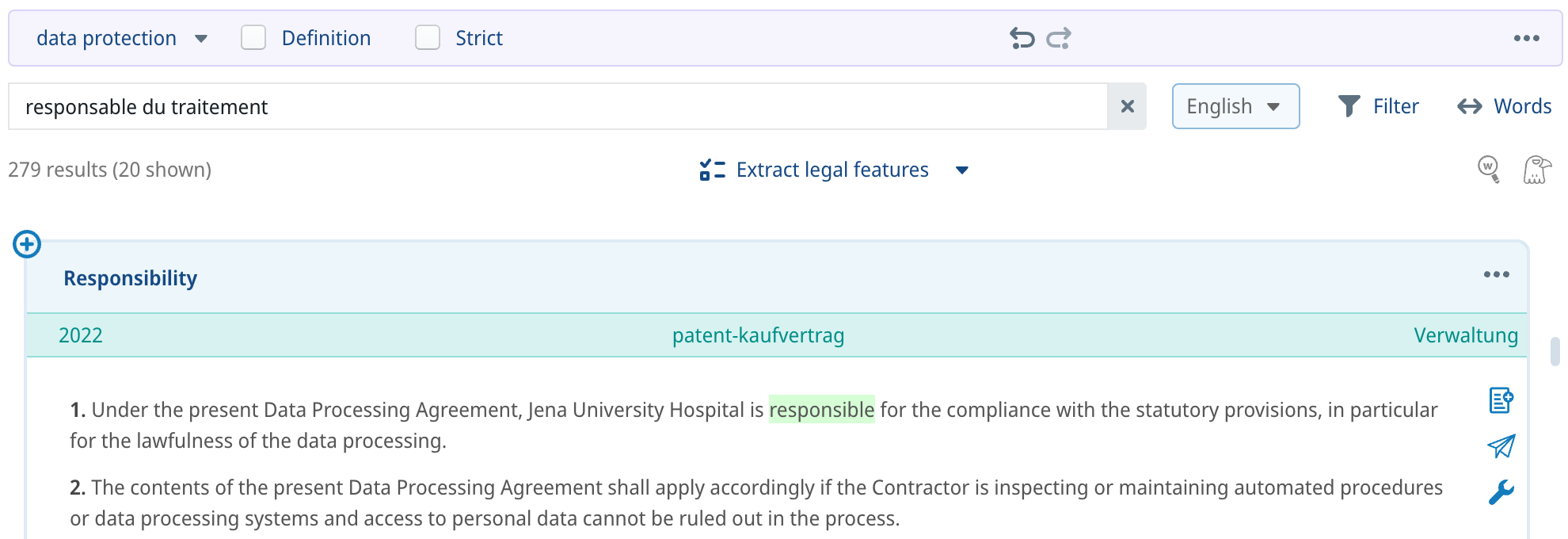
* If multiple languages are enabled then, even though the results will be in the language you selected in the dropdown list, you **can use keywords in any language you want**. For example, in the screenshot below, you can see that English was selected and that the search result was in English, but the keywords were actually in French.

<figure><img src="https://2189520742-files.gitbook.io/~/files/v0/b/gitbook-x-prod.appspot.com/o/spaces%2FmRnUl2jsv556oF2ZexdO%2Fuploads%2FrNRQg1Y0mpCYvpvQWiPB%2Fimage.png?alt=media&amp;token=5b0de398-5f05-461b-8e1a-8f5954cfd217" alt=""><figcaption></figcaption></figure>

## Tips for strict mode

* In strict mode, you can **combine multiple keywords** to narrow down your search. For example, if you are searching for employment clauses and enter *holiday entitlement*, ClauseBuddy will find clauses that contain both the word *holiday* and the word *entitlement* (or linguistic variations of those words). Note that both words do not need to be next to each other in the clause, in order to be found.&#x20;
* ClauseBuddy will ignore **stop words**, i.e. keywords that have no information value — e.g. words such as *the*, *that*, *if*, and so on (depending on the language).

## When to use keyword search <a href="#when_to_use_keyword_search" id="when_to_use_keyword_search"></a>

Many users will naturally gravitate towards keyword search, as everyone is very familiar with it. Even though the smart mode allows you to search with a level of intelligence, you should realise that keyword searches may not always be the best approach. The reason is that clauses tend to share popular legal keywords, such as *obligation, contract, property*, *liability* and so on.

You may not notice this when starting your ClauseBuddy journey, but once your library reaches a few hundreds clauses, you will notice that those keywords become less useful, as they will turn up many results.

* Keyword searches are ideal when the clause you are looking for contains a few **fairly specific words that are not found in too many other clauses** in the library. For example, when searching for intellectual property clauses in employment law, the keyword *trademark* may be a very good keyword, while that keyword would be a poor candidate when searching in an intellectual property clause library.&#x20;
* Keyword searches can also still work reasonably well when your clause library is **highly segmented**, into different search folders.&#x20;
* Keyword searches can also work well in **enriched libraries**, where clause curators include relevant keywords in the filename, description and/or legal comment.&#x20;

## Limiting results to a certain folder <a href="#limiting_results_to_a_certain_folder" id="limiting_results_to_a_certain_folder"></a>

To mitigate the downsides of keyword searches, ClauseBuddy will allow you to narrow down found clauses to specific folders.&#x20;

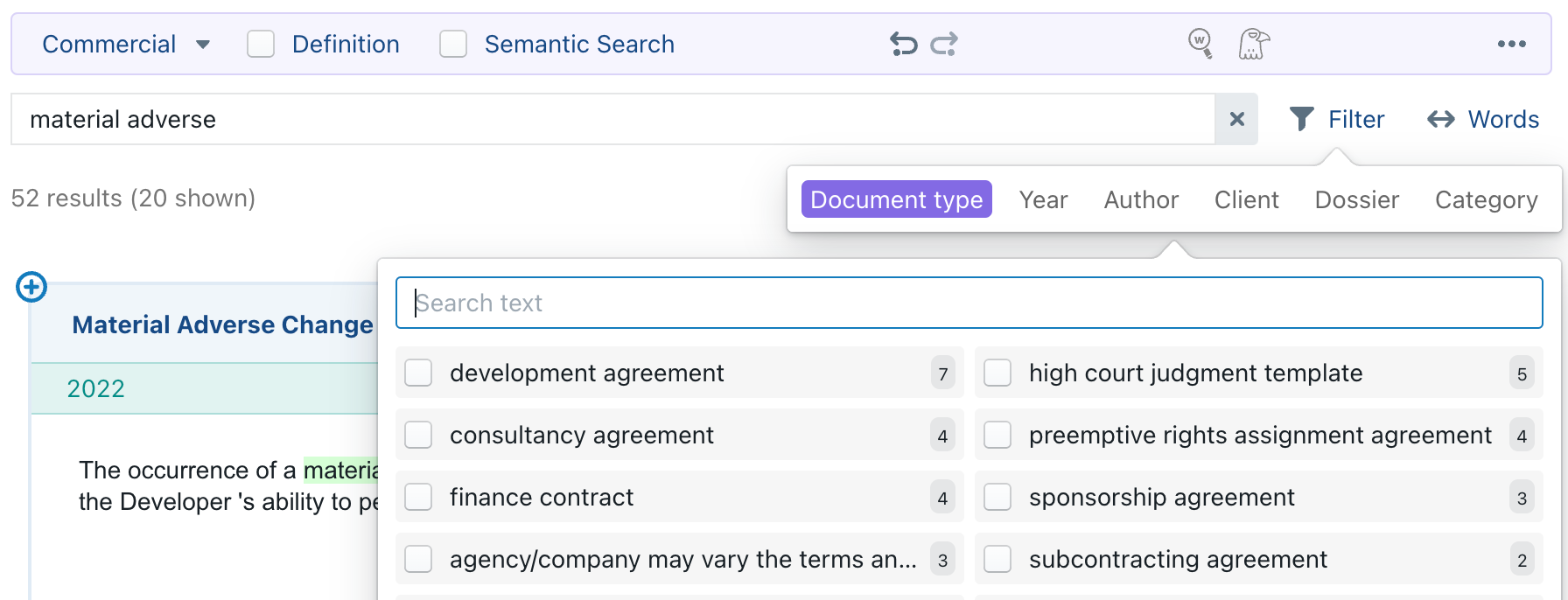
You can do so by clicking on "Folder". You will then be presented with a list of all the folders that that contain (either themselves, or through one of their subfolders) at least one clause that contains the specified keywords. To narrow down your search results to a specific folder, you simply click on a folder's name. You will see the name of that folder appear as a filter on the right side.

<figure><img src="https://2189520742-files.gitbook.io/~/files/v0/b/gitbook-x-prod.appspot.com/o/spaces%2FmRnUl2jsv556oF2ZexdO%2Fuploads%2FajD1Vu73MJOcXkLYkLo4%2Fimage.png?alt=media&amp;token=4070ec8b-3f71-4a73-b8b5-86831a264ef4" alt=""><figcaption></figcaption></figure>

## Gotchas <a href="#gotchas" id="gotchas"></a>

* Searching for keywords in the highly dynamic parts of a dynamic clause created in Clause9 may be unpredictable. For example, when you include 8 variations of the same sentence, searching for keywords found in different variations is possible, but unpredictable.&#x20;


# Browsing Folders

Instead of searching through keywords, you can also search through your clauses by browsing through your folders and subfolders.&#x20;

For example, if you are looking for a typical *interpretation* boilerplate clause, the keyword *interpretation* will itself probably not be a very good candidate, as it will lead to many noise search results with clauses that also happen to contain the word interpretation. In such case, it is probably much faster to browse to *Clauses > Boilerplate > Interpretation* and take a clause there.&#x20;

Searching through folders is very straightforward: you simply select a folder, and you are presented with a list of all the clauses in that folder, or any of its subfolders. If you want to further narrow down your search results, you can then click on a subfolder, or start [filtering your results](/quality-library/how/in-depth/searching-clauses/filtering-clauses).&#x20;

<figure><img src="https://2189520742-files.gitbook.io/~/files/v0/b/gitbook-x-prod.appspot.com/o/spaces%2FmRnUl2jsv556oF2ZexdO%2Fuploads%2FhNfBZulKS8caGXjUlUlV%2Fimage.png?alt=media&amp;token=9ab4f136-2810-4caf-a322-23332c619bf0" alt=""><figcaption></figcaption></figure>

## Filtering through keywords

To narrow down your search results, you can enter one or more keywords in the *Filter* input box. ClauseBuddy will then only show search results that are simultaneously within the folder you selected (or any of its subfolders) *and* also meet the keywords you entered.&#x20;

Check out our page on [*Searching by keywords*](/quality-library/how/in-depth/searching-clauses/searching-by-keywords) to learn more on how you enter keywords; all the tips & tricks described there, apply equally to the filtering in the context of *Browse*.&#x20;

## When to use <a href="#when_to_use" id="when_to_use"></a>

For legal professionals, browsing through folders is actually the most natural way to search. After all, when you are thinking about a certain clause, you are probably (at least implicitly) thinking primarily about a *kind* *of clause* — e.g., "I want to insert an *entire agreement* clause" or "I need an *applicable law* clause".&#x20;

If your library has a reasonably decent structure (taxonomy), you can therefore very quickly find a relevant clause, without having to come up with smart combinations of keywords.&#x20;

Folder searches will not work well in chaotic clause libraries and "residual" folders where difficult-to-categorise clauses are thrown together. In such scenarios, keywords may be a better fit.&#x20;


# Filtering clauses

When you are presented with a list of search results — either through folder browsing, keyword search, or similarity search — you can filter clauses to quickly find a small subset of interesting results. You can do so by using the filtering pane at the right side of ClauseBuddy.&#x20;

{% hint style="info" %}
When the right pane is not shown, then you have either found clauses for which no attributes were included, or you may have accidentally hidden the filtering pane. Click on the stacking-icon  in the top-right corner  to make it visible again.

<img src="https://2189520742-files.gitbook.io/~/files/v0/b/gitbook-x-prod.appspot.com/o/spaces%2FmRnUl2jsv556oF2ZexdO%2Fuploads%2Fof8SWGj1x8HzSgwtA7d9%2Fimage.png?alt=media&amp;token=0c659bc2-b2d3-4ea1-a02e-6f0920a60b85" alt="" data-size="original">
{% endhint %}

## When to use <a href="#when_to_use" id="when_to_use"></a>

The filtering pane primarily shows all the [attributes](https://help.clausebuddy.com/admin/managing-attributes) that you associated with the clauses you found — such as the length of a clause, its level of formality, the industry sector it is written for, the party position (e.g., favouring the customer, or instead favouring the supplier), and so on. &#x20;

The filtering pane also allows you to filter on the **search folder** where each clause is found. For example, in a law firm's general library, you may have search folders per legal department (corporate, employment, IT/IP, ...) and you may want to narrow down your searches to specific search folders.&#x20;

If none of the clauses you found are tagged with such attributes, and all the clauses are found in the same search folder, then the filtering pane will not be shown.

{% hint style="info" %}
Note that this filtering pane **uses curated legal knowledge**, i.e. it shows what you (or your colleague, knowledge manager, ...) manually associated with a clause. This is the most reliable way to build high-quality clause libraries, but there is a second option using AI.&#x20;

When searching in Clause mode, you will also see a brain-like button <img src="https://2189520742-files.gitbook.io/~/files/v0/b/gitbook-x-prod.appspot.com/o/spaces%2FmRnUl2jsv556oF2ZexdO%2Fuploads%2FQAKBVdhRzR1No7ZkdVv6%2Fimage.png?alt=media&amp;token=65e633cd-546a-4913-aae5-47428c6664cb" alt="" data-size="line"> that allows you to filter your clauses using Artificial Intelligence. This mode of operation is [separately discussed](https://help.clausebuddy.com/truffle-hunt/how/in-depth/process-results-with-ai).
{% endhint %}

## How to use <a href="#how_to_use" id="how_to_use"></a>

In the filtering pane, ClauseBuddy shows you all the search folders and legal attributes it found in your initial search results. For example, if you searched on keyword *distributor,* then it will take all the clauses containing that keyword, and present you with a list of all the search folders and legal attributes found in any of those clauses. In the example below, you can see 357 results, which is probably way too much to scroll through.&#x20;

<figure><img src="https://2189520742-files.gitbook.io/~/files/v0/b/gitbook-x-prod.appspot.com/o/spaces%2FmRnUl2jsv556oF2ZexdO%2Fuploads%2FA9N44PIqYs44bKsYOBBr%2Fimage.png?alt=media&amp;token=2ce92b1c-1488-45c9-a664-0a86a9e8b50a" alt=""><figcaption></figcaption></figure>

You can then filter your search results by clicking on any of the checkboxes in front of a search folder or attribute value. For example, when you only want to search for mutual clauses that highly favour the distributor, you can see that ClauseBuddy returns a manageable number of results (3).

<figure><img src="https://2189520742-files.gitbook.io/~/files/v0/b/gitbook-x-prod.appspot.com/o/spaces%2FmRnUl2jsv556oF2ZexdO%2Fuploads%2F1yqMyqFyvqldeqEM2Meq%2Fimage.png?alt=media&amp;token=c4eb303d-5995-424b-aa09-3f942022bd29" alt=""><figcaption></figcaption></figure>

If you happen to make an impossible combination — e.g. clauses that are both mutual and very long — you may end up with no results:

<figure><img src="https://2189520742-files.gitbook.io/~/files/v0/b/gitbook-x-prod.appspot.com/o/spaces%2FmRnUl2jsv556oF2ZexdO%2Fuploads%2Fipgp87AsjGk2BhKB2HeS%2Fimage.png?alt=media&amp;token=ec3bad15-a934-459d-a81b-bd7a02793241" alt=""><figcaption></figcaption></figure>

You can then either remove the filter (by clicking on the small **x** in the top corner), or go back in time by clicking on the leftpointing triangle at the right side.&#x20;

<figure><img src="https://2189520742-files.gitbook.io/~/files/v0/b/gitbook-x-prod.appspot.com/o/spaces%2FmRnUl2jsv556oF2ZexdO%2Fuploads%2FagHPsYlEyH4YJFVgq6vN%2Fimage.png?alt=media&amp;token=5d2a4106-8649-4013-a1a8-07a590a0565f" alt=""><figcaption></figcaption></figure>

## What are those small dots? <a href="#what_are_those_small_dots" id="what_are_those_small_dots"></a>

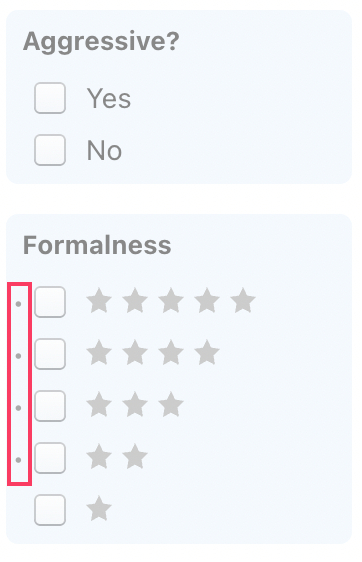
You will notice that often, small dots appear at the left side of the checkboxes.&#x20;

<figure><img src="https://files.helpdocs.io/f86qgdbm02/articles/amdec3blui/1662374547373/629-e-0141-d-7-bc-90400562710-f-image-2022-06-06-152937191.png" alt="" width="188"><figcaption></figcaption></figure>

Those dots indicate that, within the currently fetched list of clauses, there is at least one clause (but possibly multiple) that meet the filtering criterion. In other words, when clicking on this filter, you will be certain that the resulting list will not be empty.&#x20;

Please note that the omission of a dot does not mean that there are no clauses in the database that meet that criterion. A dot may simply be missing because not all the clauses have been loaded; by simply altering your search criteria, you may very well arrive at a clause that meets that filter's criteria.


# Inspecting clauses

Once you've found a good clause, you can inspect its legal metadata and compare it to other clauses inside your document. You can do so by hitting the **...** button in the top right corner of the clause.

<figure><img src="https://2189520742-files.gitbook.io/~/files/v0/b/gitbook-x-prod.appspot.com/o/spaces%2FmRnUl2jsv556oF2ZexdO%2Fuploads%2FQsWhguvkAHXedMMEs8he%2Fimage.png?alt=media&amp;token=9dc488ee-a774-4551-94ee-84d2f1e428fb" alt="" width="375"><figcaption></figcaption></figure>

This popup menu will show you the following:

* The **internal number** of the clause (e.g., #1272443). This number may come across as very nerdy, but it's sometimes very handy when communicating with colleagues — e.g., when a senior partner would email a junior associate telling to *"use clause #8875124"*. The junior can then simply paste these numbers in the keyword search bar, and will immediately find that particular clause.
* The date & time when this clause was **last changed** by someone.&#x20;
* Any legal **comment** (typically case law or doctrine references) assigned to the clause.

Note that the clause's legal description will be shown *above* the clause.

## Comparing clauses <a href="#comparing_clauses" id="comparing_clauses"></a>

You can compare the content of a selected clause with whatever text you happen to have currently selected inside the MS Word document. You can do so by clicking on the *Compare* button.&#x20;

<figure><img src="https://2189520742-files.gitbook.io/~/files/v0/b/gitbook-x-prod.appspot.com/o/spaces%2FmRnUl2jsv556oF2ZexdO%2Fuploads%2FS4WUhbD6uQkohPKqrNJj%2Fimage.png?alt=media&amp;token=9270b93a-6822-44f7-845b-fac98528bbf8" alt=""><figcaption></figcaption></figure>

Don't forget to click on this button again to show its normal contents!

## Editing clauses <a href="#editing_clauses" id="editing_clauses"></a>

If you want to edit the contents of a clause (and are authorised to do so), click on the  *Edit clause* button.The clause will then be opened in the clause editor.

If the clause was created in Clause9 (and is therefore too complex to edit inside MS Word), you will be invited to edit the clause inside Clause9, i.e. in your browser (if you have the required access rights).

<figure><img src="https://2189520742-files.gitbook.io/~/files/v0/b/gitbook-x-prod.appspot.com/o/spaces%2FmRnUl2jsv556oF2ZexdO%2Fuploads%2Ff9EzTitomUh8kKNMwnWq%2FScreenshot%202025-08-05%20at%2011.37.23.png?alt=media&amp;token=92f85103-6e9c-4a99-9cc1-e4f88b84384e" alt="" width="373"><figcaption></figcaption></figure>


# Using Clauses


# Inserting clauses

{% embed url="<https://www.youtube.com/watch?v=QA4cOV0Fv7A>" %}

Once you have found a clause, you can insert it into your Word document (i.e. the left side of your Word window), by clicking on the **+** button.&#x20;

## Tweaking a clause before insertion <a href="#tweaking_a_clause_before_insertion" id="tweaking_a_clause_before_insertion"></a>

When you click on the big plus-icon (+) in the left corner of a clause, a dialog box appears where you can configure this clause's content and appearance.&#x20;

<figure><img src="https://2189520742-files.gitbook.io/~/files/v0/b/gitbook-x-prod.appspot.com/o/spaces%2FmRnUl2jsv556oF2ZexdO%2Fuploads%2FkVhUcBPQ33dRlFbVzPp8%2FScreenshot%202025-11-27%20at%2016.33.21.png?alt=media&amp;token=32acfd17-3a02-4f34-ab27-73940fbf9163" alt="" width="563"><figcaption></figcaption></figure>

After inserting, a new menu will appear, giving you the option to change the levels of the clause as well as the option of including the clause title or not.

<figure><img src="https://2189520742-files.gitbook.io/~/files/v0/b/gitbook-x-prod.appspot.com/o/spaces%2FmRnUl2jsv556oF2ZexdO%2Fuploads%2Fl9xBgz9WPpkpJpBrzkIq%2FScreenshot%202025-11-27%20at%2017.03.37.png?alt=media&amp;token=49cae873-cdea-4364-8dcc-5fb44b401ff8" alt="" width="225"><figcaption></figcaption></figure>

## Filling placeholders <a href="#filling_placeholders" id="filling_placeholders"></a>

ClauseBuddy allows you to fill placeholders — i.e. text marked as yellow in ClauseBuddy's editor — right from within ClauseBuddy, before you insert the clause into your MS Word document. Simply click on the relevant placeholder, and fill in the value you want.&#x20;

<figure><img src="https://2189520742-files.gitbook.io/~/files/v0/b/gitbook-x-prod.appspot.com/o/spaces%2FmRnUl2jsv556oF2ZexdO%2Fuploads%2FWITvIKUTO7VuMlY3P6VR%2Fimage.png?alt=media&amp;token=80a37ece-7d02-418e-8437-501fb1f63ee3" alt="" width="563"><figcaption></figcaption></figure>

## Formatting <a href="#tweaking_formatting" id="tweaking_formatting"></a>

ClauseBuddy allows you to easily store clauses together with their internal structure — title, headings, subheadings and bullets — and can ensure that such internal structure is respected when clauses are pasted into an MS Word document.

ClauseBuddy incorporates "**layout-awareness**", which means that ClauseBuddy will do a lot of complex calculations under-the-hood to figure out the styling of your currently opened Word-document, and tries to make your clause fit in there, without you having to do anything.

## Tips <a href="#tips" id="tips"></a>

* When you insert your clause, you may see your screen quickly flash and restructure the text at the left side. The reason is that ClauseBuddy inserts an initially numbered clause, and subsequently tries to fit the numbering and styling to the surrounding clauses. Thanks to this two-step process, you can always try to hit **undo (Ctrl-Z) once in MS Word** to check whether you actually want to keep the initially inserted version. Hit undo again to remove the clause alltogether.


# Configuration

## Tweaking terminology <a href="#tweaking_terminology" id="tweaking_terminology"></a>

In dynamic clauses, i.e. those created with Clause9, you can tweak the label used for concepts. For example, if you are inserting a clause inside a contract where the manufacturer actually uses its own name (instead of the generic "Manufacturer"), you can change that term by clicking on the word "manufacturer". &#x20;

<figure><img src="https://2189520742-files.gitbook.io/~/files/v0/b/gitbook-x-prod.appspot.com/o/spaces%2FmRnUl2jsv556oF2ZexdO%2Fuploads%2FLarD09igc6cRvwoIV1Uk%2Fimage.png?alt=media&amp;token=6c0a94f9-1098-46f5-8d85-0bae739bd417" alt="" width="563"><figcaption></figcaption></figure>

Such terminology may seem overkill for a clause of two lines, but can be very handy for large clauses where the same term is used many times. Furthermore, when you would insert multiple dynamic clauses, ClauseBuddy will remember the terminology you previously used, and automatically apply that terminology for subsequent insertions — and even save that terminology within the MS Word file, so upon reopening you do not need to configure it again.&#x20;

Instead of changing the term, you may also simply want to change the gender or the number (singular / plural) of the term you are about to insert. Thanks to ClauseBuddy's grammatical engine, all the verbs, pronouns, adjectives, articles and even grammatical cases will automatically adapt. Now that's a time saver!

## Changing placeholders <a href="#changing_datafields" id="changing_datafields"></a>

In addition to changing terminology, you can also change the contents of placeholders (technically called "datafields") right from within ClauseBuddy. A [full description of datafields](https://help.clause9.com/special-functions/datafields) is outside the scope of this manual, but essentially datafields are super-placeholders that allow you to dynamically change clauses. For example, they allow you to only show a certain bullet if the contract value is above a certain threshold, or hide a part of the sentence if arbitration in Paris would be chosen.&#x20;

Any placeholders inserted in a clause will show up in ClauseBuddy, so that you can tweak your clause before you effectively insert it into your MS Word document. Moreover, any values you assigned to a datefield in the past — whether in Clause9e or in ClauseBuddy — will automatically be remembered.

Such data is encrypted and stored in the Word file's "comments" property, and updated with every change you make to the datafields or terminology. By default, users of the same customer can read each other's metadata. If you want to change this default, your administrator has to login to the Clause9 administrator backend of ClauseBuddy, and go to the *Admin > Default*s section.


# Drafting Clauses


# Creating clauses

{% embed url="<https://www.youtube.com/watch?v=0G7wR-wkjTs>" %}

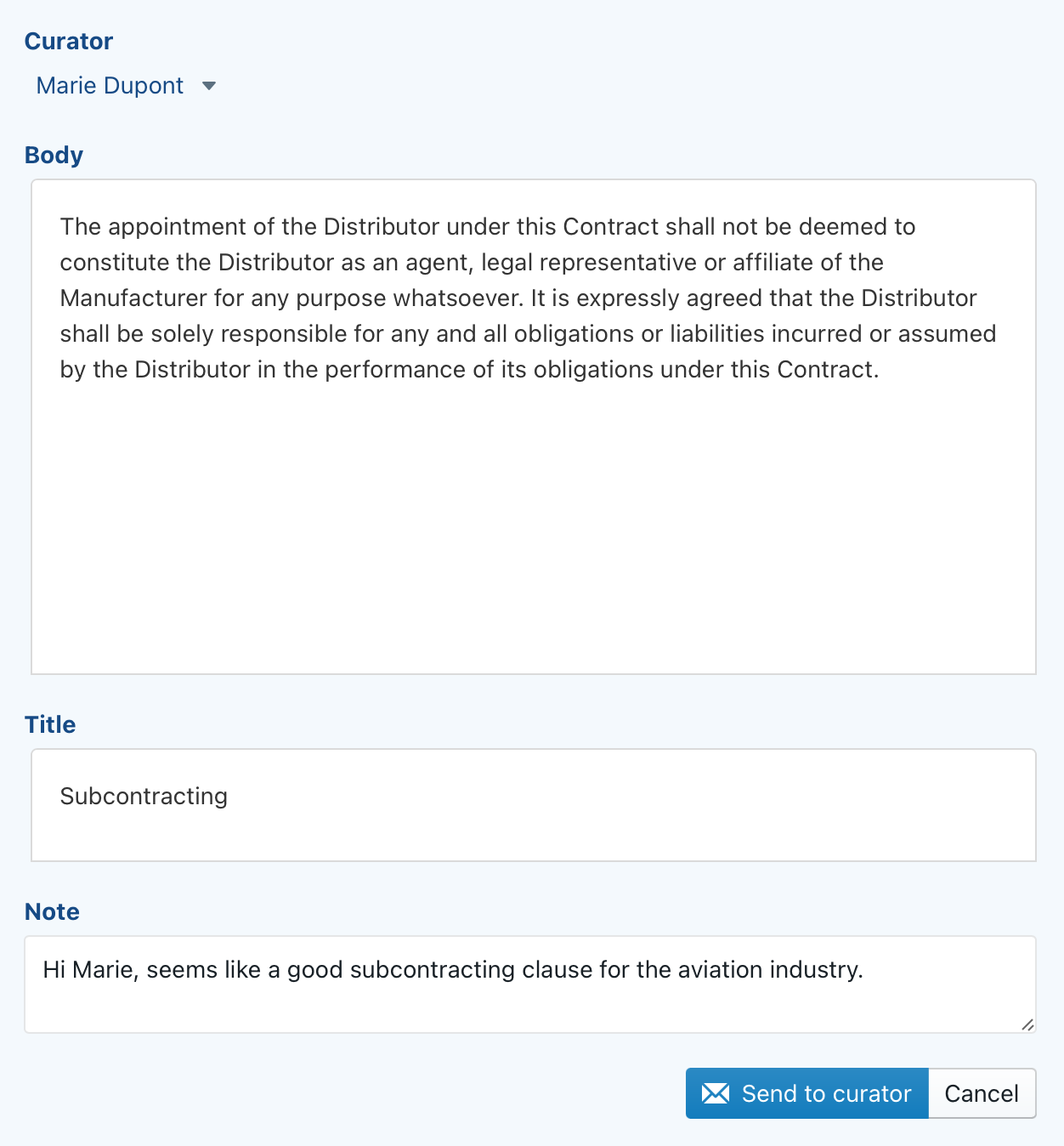
Adding clauses to ClauseBuddy is very simple. You can either create a new clause yourself, or send interesting text to a colleague (a "curator").&#x20;

In both cases, the easiest option is to start by selecting one or more paragraphs in your MS Word document, Buddy will then try to pre-fill the submission form with your selection.

<figure><img src="https://2189520742-files.gitbook.io/~/files/v0/b/gitbook-x-prod.appspot.com/o/spaces%2FmRnUl2jsv556oF2ZexdO%2Fuploads%2FZuW4tHjz6b1xekh1IffI%2Fimage.png?alt=media&amp;token=730d638d-b43b-433b-b0ea-e9acfa954adc" alt="" width="225"><figcaption></figcaption></figure>

## Adding a clause yourself <a href="#adding_a_clause_yourself" id="adding_a_clause_yourself"></a>

When you choose *New clause,* the selected text will be analysed by the software and distributed over the relevant fields in the clause entry form.&#x20;

For example, when selecting the following text in Word:

<figure><img src="https://2189520742-files.gitbook.io/~/files/v0/b/gitbook-x-prod.appspot.com/o/spaces%2FmRnUl2jsv556oF2ZexdO%2Fuploads%2Fqg99ruQD6MhDUChQnwqu%2Fimage.png?alt=media&amp;token=f64b27af-c5b1-4c1b-bf25-7ea33a9fc459" alt=""><figcaption></figcaption></figure>

ClauseBuddy will split the text into a filename, title and two paragraphs for the body.&#x20;

<figure><img src="https://2189520742-files.gitbook.io/~/files/v0/b/gitbook-x-prod.appspot.com/o/spaces%2FmRnUl2jsv556oF2ZexdO%2Fuploads%2FyYpHRUT0lOaSfmrn8FcD%2Fimage.png?alt=media&amp;token=367afde0-d8e3-469e-9b46-8dbaa33ecb13" alt=""><figcaption></figcaption></figure>

In the **Name** field, you can enter a filename for the clause. Typically you will want to make this field as short and descriptive as possible, indicating towards your users (or your future self) what this clause is all about, without requiring them to read the entire clause. In the example above, you may for example use *"Entire agreement — standard"* as the filename.&#x20;

It is usually not a good idea to describe every legal nuance of a clause in the filename — ClauseBuddy's *attributes* (see below) can do a much better job in describing the general properties of a clause, while a clause's location will also provide context for the clause. And for very subtle nuances, you are recommended to use the *Description* or *Comments* field described below.

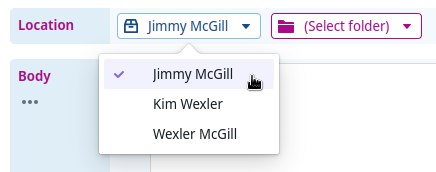
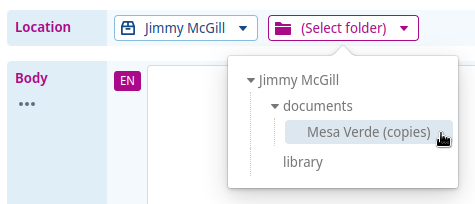
In the **Location** field you can specify in which **search folder** then **(sub)folder** a clause should be stored. Think carefully where you will store a clause, as the location provides a lot of legal context towards the users of your clause. Creating folder hierarchies is described in greater detail on the Managing Folders page.

<figure><img src="https://files.helpdocs.io/f86qgdbm02/articles/rv5cdknurg/1719565710548/image.png" alt=""><figcaption></figcaption></figure>

<figure><img src="https://files.helpdocs.io/f86qgdbm02/articles/rv5cdknurg/1719565793096/image.png" alt=""><figcaption></figcaption></figure>

In the **Title** field you can specify an optional title for your clause. Unlike the Name field (which ClauseBuddy will never insert into the actual Microsoft Word document), the title field will be included as a (sub)title of the clause that will get inserted into your users' document — although users can also configure ClauseBuddy to not insert that subtitle.&#x20;

In the **Body** field you can include the bulk of your legal contents, separated into paragraphs. We describe this in greater detail on the Drafting clauses page.

Finally, the **Attributes** field allows you to store and manage legal metadata regarding a clause — e.g. from which party's perspective a clause is written, how nuanced it is, whether it is treated as the organisation's standard clause, etc. Read all about it on our [Attributes page](https://help.clausebuddy.com/admin/managing-attributes).&#x20;

In the bottom corner of the ClauseBuddy pane, you can click on *+ Augment clause* to insert additional fields, for enriching your clause even further.

<figure><img src="https://2189520742-files.gitbook.io/~/files/v0/b/gitbook-x-prod.appspot.com/o/spaces%2FmRnUl2jsv556oF2ZexdO%2Fuploads%2FqHCq7zDGaXdJEEr9LjH8%2Fimage.png?alt=media&amp;token=b49b4deb-0028-4ad5-8eba-da932412932a" alt="" width="198"><figcaption></figcaption></figure>

In the **Extra keywords** field you can add additional keywords on the basis of which this clause should show up as a result when [searching for clauses](/quality-library/how/in-depth/searching-clauses).

In the **Description** field you can add additional internal information, shedding some more light about the context of the clause — where it comes from, how it should (not) be used, what users should pay attention to, etc.&#x20;

The text in the description field will be shown above the actual legal content of the clause; this text will never be inserted into the Word document.&#x20;

<figure><img src="https://2189520742-files.gitbook.io/~/files/v0/b/gitbook-x-prod.appspot.com/o/spaces%2FmRnUl2jsv556oF2ZexdO%2Fuploads%2FtXjLh6YTlTIiDakk3k8T%2Fimage.png?alt=media&amp;token=3a6bf5f3-33e5-4d27-ae95-ccfa7accfa3c" alt="" width="375"><figcaption></figcaption></figure>

Finally, the **Comments** field should be used for secondary information about a clause. Most ClauseBuddy users treat the **Comments** field as a storage area for legal comments, such as references to case law and legal doctrine.

Tip: as many users will naturally gravitate towards keyword search, you may want to take the opportunity to enter interesting keywords in the filename, description and/or legal comments. For example, with respect to a "Texas shoot out" clause in corporate law, you will not typically find the words "Texas" or "shoot out" in actual contracts, i.e. the title and body of a clause will not contain those exact words. However, it is probably a very good idea to include those words in the filename or description of the clause, as your users will probably enter those keywords when searching for such a clause.

## Translating content <a href="#translating_content" id="translating_content"></a>

If your clause library is stored on a multilingual server (as is the case in the screenshots on this page), you will notice buttons that invite you to store translations of your legal contents.&#x20;

This is an incredibly powerful feature if you work in a multilingual environment, as you can keep closely related text blocks next to each other.&#x20;

ClauseBuddy will automatically propose a translation if you add a new language version of a new or existing clause. You can also use the "..." button to insert a new translation.

Machine translations have gotten much better in the last years, particularly for frequently used legal clauses. However, you should always manually review these translations, because great translations are sometimes interspersed with not-so-great fragments. Treat the machine translation as a brilliant first-year junior legal expert, who usually delights you with her work, but also makes serious mistakes from time to time — typically in a small corner of a document, where you least expect it.&#x20;

<figure><img src="https://files.helpdocs.io/f86qgdbm02/articles/rv5cdknurg/1662374781919/621878-f-45-ffbb-565-b-58-a-1-bd-0-image-2022-02-25-073635.png" alt=""><figcaption></figcaption></figure>

## Sending text to a curator <a href="#sending_text_to_a_curator" id="sending_text_to_a_curator"></a>

Instead of adding clauses yourself, you can also appoint one or more persons in your team to take care of this task. Your administrator can appoint one or more such persons in the firm/company.

In light of the legal experience and complexity that is often required for legal knowledge management, it is actually not a bad idea to appoint such curators — in particular in larger teams, or when consistency is required.

Tip: if you are a curator, you can also send a clause to yourself. This can come in handy when you stumble over an interesting clause, but do not currently have any time to spend on the curation of this clause.

You can include a body section, an optional title and an internal note (presumably targeted at your curator).

<figure><img src="https://files.helpdocs.io/f86qgdbm02/articles/rv5cdknurg/1662374798197/6216096-b-507-b-24-c-7-cd-2-e-0009-image-2022-02-23-111608.png" alt=""><figcaption></figcaption></figure>

## Adding clauses as a curator <a href="#adding_clauses_as_a_curator" id="adding_clauses_as_a_curator"></a>

If you are appointed as a curator, then you receive the clause-related messages sent by your colleagues in your inbox.&#x20;

Next time you open ClauseBuddy, the software will see how many messages are waiting in your inbox, which you can view on the home page.

<figure><img src="https://files.helpdocs.io/f86qgdbm02/articles/rv5cdknurg/1662374801133/62-a-240531839-a-41-f-64248-f-4-f-image-2022-06-09-204746733.png" alt=""><figcaption></figcaption></figure>

When you then click on the *Import* button, the body and title will be imported into the clause addition dialog box described above (so from this point on, the process is identical to the situation where you would have initiated the clause addition yourself). The *Note* will not be imported, as it is considered a merely internal hint at the curator.

When done, you can click on the trash icon to remove the message.

## Curation within Clause9 <a href="#curation_within_clause9" id="curation_within_clause9"></a>

If you are a curator, then you can also opt to edit clauses that are sent from within ClauseBuddy in the Clause9 environment.

This will be particularly important when you want to create dynamic clauses — e.g. clauses with automatically adapting terminology, or with conditional text.&#x20;

You can find clauses sent to you by opening the [Globo panel](https://help.clause9.com/misc/globo-panel), accessed from the button in the top-right corner. Next, you have to click on the "Curation" subpanel on the left side.

<figure><img src="https://files.helpdocs.io/f86qgdbm02/articles/rv5cdknurg/1662374806232/62160-fd-3587-a-0-d-24-b-7516-c-17-image-2022-02-23-114328.png" alt=""><figcaption></figcaption></figure>

When you click on the *Import* button, the title and body will be transferred to the (relevant language box in the) *Content body or Content title* section of the clause editor in Clause9.

When you are done adding the clause, you can then click on the trash can in the Globo panel to remove the message.

## Editing created clauses <a href="#editing_created_clauses" id="editing_created_clauses"></a>

If you have the right to do so, you can edit any clause you found via any of the search/browse actions. To do so, click on found clause&#x20;

<figure><img src="https://files.helpdocs.io/f86qgdbm02/articles/rv5cdknurg/1662374813363/62-a-240-a-7223-cd-1463-cc-19-f-93-image-2022-06-09-204910970.png" alt=""><figcaption></figcaption></figure>

You will subsequently be transferred to the clause editor dialog box described above. When you are done, you can simply click the *Save* button to store your modifications.


# Drafting the body of a clause

Drafting legal content in ClauseBuddy is fairly straightforward, there are just a few things to know.&#x20;

By way of example, the following clause — found in a random distribution contract — will be implemented:

<figure><img src="https://files.helpdocs.io/f86qgdbm02/articles/dvlimvva2b/1662374863969/6218-a-601-c-4-b-74-eab-18-e-69-d-15-image-2022-02-25-104849.png" alt=""><figcaption></figcaption></figure>

## General structure <a href="#general_structure" id="general_structure"></a>

In ClauseBuddy, paragraphs can either start with a numberset (such as 1. or 1.2.3) or one or more asterisks(\*, \*\*, \*\*\*, etc).&#x20;

When inserted in a Microsoft Word document, numbered paragraphs will by default get Heading 1/2/3/... style, while bulleted paragraphs will get Body 1/2/3/... style. If you have set up automatic numbering in your document, your inserted paragraps can adopt the automatic numbering. (You can, however, always request ClauseBuddy to remove the numbering before you actually insert the paragraphs into your document).

The example paragraphs above would thus become:

<figure><img src="https://files.helpdocs.io/f86qgdbm02/articles/dvlimvva2b/1662374876956/6218-eeda-06-eb-09-c-0-f-182836-f-image-2022-02-25-155938.png" alt=""><figcaption></figcaption></figure>

So notice that paragraph 13.1 simply becomes 1, while paragraph 13.2 becomes 2, and so on. Also notice that sub bullets start with a double asterisk.

ClauseBuddy can automatically detect most types of numberings, so when you pre-select content and hit the **+** button, ClauseBuddy will automatically convert existing numbering into 1/2/3 or asterisk-style.&#x20;

## Aligning with a previous paragraph <a href="#aligning_with_a_previous_paragraph" id="aligning_with_a_previous_paragraph"></a>

Sometimes you may want a paragraph to have the same indentation as a previous paragraph, while not receiving a certain number/bullet. For example, the last paragraph of 9.2 in the example below *(In both cases...)* is positioned at the same indentation level as the first paragraph of 9.&#x32;*(The Licensee must hold...)*.

<figure><img src="https://files.helpdocs.io/f86qgdbm02/articles/dvlimvva2b/1662374881437/6218-f-801-fe-4-e-4-f-1877-fa-3-f-75-image-2022-02-25-163841.png" alt=""><figcaption></figcaption></figure>

To store such structure in ClauseBuddy, you simply repeat the number of the first paragraph:

<figure><img src="https://files.helpdocs.io/f86qgdbm02/articles/dvlimvva2b/1662374884683/6218-f-86-f-23802408-ce-4-eb-828-image-2022-02-25-164030.png" alt=""><figcaption></figcaption></figure>

## Changing numbering <a href="#changing_numbering" id="changing_numbering"></a>

When you insert your cursor into the body or title section of a clause, a toolbar will automatically appear that allows you to apply numbering and formatting.&#x20;

<figure><img src="https://files.helpdocs.io/f86qgdbm02/articles/dvlimvva2b/1662374890232/6218-f-6-a-6723-c-5356-ab-613-cc-7-image-2022-02-25-163253.png" alt=""><figcaption></figcaption></figure>

The leftmost button allows you to apply / unapply a number to a paragraph, while the second button allows you to apply / unapply bullets.&#x20;

The third and fourth button cause paragraphs to be indented or unindented.&#x20;

Unlike Microsoft Word, the paragraph(s) will not actually indent physically — instead, the numberset or the amount of bullets will change.

## Placeholders <a href="#placeholders" id="placeholders"></a>

Inserting a placeholder is as simple as selecting some predefined text, and clicking on the placeholder button. For example, instead of "hard-coding" the duration of three years in the screenshot below\...

<figure><img src="https://files.helpdocs.io/f86qgdbm02/articles/dvlimvva2b/1662374899614/6218-f-91860-a-71-e-8-fc-8691223-image-2022-02-25-164320.png" alt=""><figcaption></figcaption></figure>

... you can select the duration and click on the placeholder button. The text will then get a yellow background, indicating that it has been turned into a placeholder.

<figure><img src="https://files.helpdocs.io/f86qgdbm02/articles/dvlimvva2b/1662374903224/6218-f-97-c-708-c-985-df-0-bcbedc-image-2022-02-25-164459.png" alt=""><figcaption></figcaption></figure>

{% hint style="success" %}
The placeholders can actually be configured in pretty cool ways, allowing you to select from predefined values. Checkout the [dedicated page](/quality-library/how/in-depth/drafting-clauses/smart-placeholders)!
{% endhint %}

## Cross-references <a href="#cross_references" id="cross_references"></a>

In a full-document automation context — such as in Clause9 — cross-references can be automatically kept up-to-date.&#x20;

Conversely, in a clause-based product such as ClauseBuddy, cross-references will need to be manually changed by the user. In order to alert the user that references will need to be manually changed, you can mark the reference in pink by clicking on the **ref** button.&#x20;

<figure><img src="https://files.helpdocs.io/f86qgdbm02/articles/dvlimvva2b/1662374908300/621901807-e-635-e-9-b-8-c-10-f-447-image-2022-02-25-171912.png" alt=""><figcaption></figcaption></figure>

When inserted into a document, the text will also be printed with a pink/fuchsia background, to draw the user's attention.

<figure><img src="https://files.helpdocs.io/f86qgdbm02/articles/dvlimvva2b/1662374915467/621901-bd-6-ffa-727-e-719-bc-780-image-2022-02-25-172013.png" alt=""><figcaption></figcaption></figure>

## Footnotes <a href="#footnotes" id="footnotes"></a>

You can insert footnotes by clicking on the dedicated button in the text toolbar. Footnotes should be positioned at the bottom of the clause within ClauseBuddy. Upon insertion in the MS Word document, they will get automatically inserted in the footnote section of the document.

<figure><img src="https://files.helpdocs.io/f86qgdbm02/articles/dvlimvva2b/1662374922422/62191600-d-5-f-88-d-4-b-3-fbd-2859-image-2022-02-25-184639.png" alt=""><figcaption></figcaption></figure>

Result in Microsoft Word:

<figure><img src="https://files.helpdocs.io/f86qgdbm02/articles/dvlimvva2b/1662374925963/62191756303-b-97-d-2575-eb-348-image-2022-02-25-185222.png" alt=""><figcaption></figcaption></figure>

You can also insert footnotes without using the footnote button. Simply insert a number within square brackets in a paragraph, and repeat that same number at the bottom of the clause.

## Tables <a href="#tables" id="tables"></a>

You can insert tables by clicking on the table button in the toolbar and choosing the number of rows and columns. After insertion, you can perform typical table-related operations (such as merging or splitting cells, inserting or deleting rows/columns, etc).&#x20;

<figure><img src="https://2189520742-files.gitbook.io/~/files/v0/b/gitbook-x-prod.appspot.com/o/spaces%2FmRnUl2jsv556oF2ZexdO%2Fuploads%2FjKX5CMzK5ZAPI7zsYMDu%2FScreenshot%202025-08-05%20at%2011.46.13.png?alt=media&amp;token=59878e9b-2f5f-49e3-9e40-66b763fdb7f0" alt=""><figcaption></figcaption></figure>


# Smart placeholders

ClauseBuddy allows you to insert simple placeholders using the toolbar.&#x20;

<figure><img src="https://2189520742-files.gitbook.io/~/files/v0/b/gitbook-x-prod.appspot.com/o/spaces%2FmRnUl2jsv556oF2ZexdO%2Fuploads%2FluNsIsleIitxulNj3mwI%2Fimage.png?alt=media&amp;token=9ff3f87f-0a92-46c8-bd02-2ae4b1e42d73" alt="" width="563"><figcaption></figcaption></figure>

In their simplest form, these placeholders will turn up as text with a yellow background within your MS Word document.&#x20;

<figure><img src="https://2189520742-files.gitbook.io/~/files/v0/b/gitbook-x-prod.appspot.com/o/spaces%2FmRnUl2jsv556oF2ZexdO%2Fuploads%2FQ7Q3eLgoyOGEVPhfheJb%2Fimage.png?alt=media&amp;token=6464fa91-8a77-43a0-a53a-7439a30e3a33" alt=""><figcaption></figcaption></figure>

But that's only the beginning. Read on for all the options you can play with!&#x20;

## Filling & configuring placeholders

Instead of simply inserting a clause into your MS Word document, you can also configure it by choosing the *Configure clause* option of the dropdown-menu:&#x20;

<figure><img src="https://2189520742-files.gitbook.io/~/files/v0/b/gitbook-x-prod.appspot.com/o/spaces%2FmRnUl2jsv556oF2ZexdO%2Fuploads%2FzEePYwau0EAX2FpDN1E5%2Fimage.png?alt=media&amp;token=8e04b8b3-4e96-4904-9590-e1bfd31cd9f6" alt="" width="375"><figcaption></figcaption></figure>

You are then taken to a separate dialog box, where the placeholders are grouped together, either at the bottom of the window (when there's not a lot of horizontal space), or at the right (when ClauseBuddy has sufficient horizontal space):&#x20;

<figure><img src="https://2189520742-files.gitbook.io/~/files/v0/b/gitbook-x-prod.appspot.com/o/spaces%2FmRnUl2jsv556oF2ZexdO%2Fuploads%2FfivGwwmDoTL3vd3yeqN5%2Fimage.png?alt=media&amp;token=deaf7362-f267-402c-b0d2-dbc10827c7ff" alt="" width="563"><figcaption></figcaption></figure>

You can then click on a placeholder to enter a value. You will notice that the placeholder gets replaced by the value you choose. Click on the trash-can icon to remove the assigned value again.&#x20;

<figure><img src="https://2189520742-files.gitbook.io/~/files/v0/b/gitbook-x-prod.appspot.com/o/spaces%2FmRnUl2jsv556oF2ZexdO%2Fuploads%2FO8XMn9OPFJOdZ4zG6yBD%2Fimage.png?alt=media&amp;token=233a51b0-9d6b-42fd-a0fc-8a80f07c5cbc" alt="" width="563"><figcaption></figcaption></figure>

## Using multiple instances of a placeholder

Anywhere you use exactly the same placeholder in your clause, it will be replaced by the same assigned value. This is one of the most powerful features of the placeholders, as the placeholders will then act as a kind of super-fast "find & replace".&#x20;

For example, suppose you have the following clause:&#x20;

<figure><img src="https://2189520742-files.gitbook.io/~/files/v0/b/gitbook-x-prod.appspot.com/o/spaces%2FmRnUl2jsv556oF2ZexdO%2Fuploads%2FT88EeoVH3mfhtXg3WxHl%2Fimage.png?alt=media&amp;token=e352e0b8-2c86-4b10-8095-1e6e0e37fb52" alt="" width="563"><figcaption></figcaption></figure>

When you then configure this clause, you will notice that only three placeholders are shown in the placeholders-panel:&#x20;

<figure><img src="https://2189520742-files.gitbook.io/~/files/v0/b/gitbook-x-prod.appspot.com/o/spaces%2FmRnUl2jsv556oF2ZexdO%2Fuploads%2FP5EgYCbbXLBCSugIzeoU%2Fimage.png?alt=media&amp;token=2f8b5cda-bc68-4cd3-bb71-32598239583f" alt="" width="563"><figcaption></figcaption></figure>

When you fill in any of those placeholders, you will notice that all of the instances of that placeholder will be immediately replaced by the text you typed in. For example:&#x20;

<figure><img src="https://2189520742-files.gitbook.io/~/files/v0/b/gitbook-x-prod.appspot.com/o/spaces%2FmRnUl2jsv556oF2ZexdO%2Fuploads%2F1QYZZNECTjqembpgOGao%2Fimage.png?alt=media&amp;token=5f14fb5f-91f2-4e34-a88c-e3e8f1b5394d" alt="" width="563"><figcaption></figcaption></figure>

## Using predefined options

If you frequently assign the same text to the same placeholders, you may want to consider adding those texts in the placeholder itself. You can do so by putting a pipe-symbol (vertical line) between the various options. For example, when you use&#x20;

<figure><img src="https://2189520742-files.gitbook.io/~/files/v0/b/gitbook-x-prod.appspot.com/o/spaces%2FmRnUl2jsv556oF2ZexdO%2Fuploads%2FOyyl6wv1BOoiN3dbZzf8%2Fimage.png?alt=media&amp;token=db58add8-cd56-4608-a867-ed4c8a94a66d" alt="" width="136"><figcaption></figcaption></figure>

Then ClauseBase will show you the following options in a dropdown-menu:&#x20;

<figure><img src="https://2189520742-files.gitbook.io/~/files/v0/b/gitbook-x-prod.appspot.com/o/spaces%2FmRnUl2jsv556oF2ZexdO%2Fuploads%2F5lOByMBicgBmg9gFp5ka%2Fimage.png?alt=media&amp;token=4b62a77e-f600-49bc-a511-f34d1a8cea97" alt="" width="563"><figcaption></figcaption></figure>

You can then simply click on "Mr." or "Mrs." to choose that predefined option, or alternatively type in some custom text in the box at the bottom.&#x20;

You can even use two level of options, by inserting sub-options within square brackets after the name of your main category. For example:&#x20;

<figure><img src="https://2189520742-files.gitbook.io/~/files/v0/b/gitbook-x-prod.appspot.com/o/spaces%2FmRnUl2jsv556oF2ZexdO%2Fuploads%2F9Owh755xpYlHspiLcz86%2Fimage.png?alt=media&amp;token=4585dd85-2831-4c4d-9a85-18e7b5f19976" alt="" width="563"><figcaption></figcaption></figure>

... will then be presented with submenus, as follows:&#x20;

<figure><img src="https://2189520742-files.gitbook.io/~/files/v0/b/gitbook-x-prod.appspot.com/o/spaces%2FmRnUl2jsv556oF2ZexdO%2Fuploads%2FMYPPSxY0ceTWR0iMRZea%2F2024-09-27_10-58-07%20(1).gif?alt=media&amp;token=3c4bc16e-e204-4c5a-873d-4ef0cbb14f17" alt=""><figcaption></figcaption></figure>

## Remembering options

ClauseBuddy will remember the values you assign to each placeholder. Once you assign some text to a placeholder in one clause, it will automatically show up in other clauses that use the same placeholder.&#x20;

ClauseBuddy will not only remember the value while it is loaded on your screen, but will also store that value in the "properties" (metadata) of your DOCX-file. This means that next time you open the document, it will remember the texts you assigned to the placeholders.&#x20;

{% hint style="info" %}
This metadata is encrypted, so that recipients of your document will not be able to know which values you assigned to your placeholders, even if they also use the very same placeholders within their version of ClauseBuddy. Only colleagues within the same customer-account will be able to see each other's metadata. (If this is even not strict enough, you can request ClauseBase to configure your server differently.)
{% endhint %}

{% hint style="info" %}
Be aware that some "metadata-scrubbers" will deliberately remove the metadata from DOCX-files. Many law firms use standard tools that remove such data before, for example, sending out emails to third parties. Be aware that this will make ClauseBuddy "forget" the assigned texts next time you would open the DOCX-file and inspect a clause.&#x20;
{% endhint %}

## Configuring the style of the placeholder

Under the hood, ClauseBuddy relies on the powerful Clause9 drafting engine, which allows many types of customisations. If you have access to Clause9 (or can involve someone who has access), then you can [configure the placeholder](https://help.clause9.com/styling/references-styling#placeholders) to have a different background-color and/or use a different style of placeholder when inserted. (It will still show with a yellow background, but once inserted into your MS Word document, it will look differently.)

As always with Clause9, the custom styling configuration can be applied to all the users (*customer-wide*), or per group, or even per user.&#x20;

Have a look at the available options on how you can stylize the placeholder:

<figure><img src="https://2189520742-files.gitbook.io/~/files/v0/b/gitbook-x-prod.appspot.com/o/spaces%2FmRnUl2jsv556oF2ZexdO%2Fuploads%2FSvtJjpPEow56vdBBs1OL%2Fimage.png?alt=media&amp;token=12458f33-d08d-4fd9-82b1-ac97e7e9093d" alt="" width="365"><figcaption></figcaption></figure>

And all colours are at your disposal:&#x20;

<figure><img src="https://2189520742-files.gitbook.io/~/files/v0/b/gitbook-x-prod.appspot.com/o/spaces%2FmRnUl2jsv556oF2ZexdO%2Fuploads%2FgqnaUHBvP2aSfleSTi9T%2Fimage.png?alt=media&amp;token=dd78ac94-5411-4b68-8f2a-89ab0f9c52d8" alt="" width="333"><figcaption></figcaption></figure>

## Hungry for more?&#x20;

If you want even more automation, then you probably want to turn to document automation, using the [Smart Templates](/smart-templates) feature of ClauseBuddy. And if that's not enough, you can also use the enormous power of Clause9 to create highly dynamic, multi-lingual clauses. Those clauses will then be available right from within your clause library in ClauseBuddy, ready to be customised and inserted into your MS Word documents.&#x20;


# Custom styling

## Why? <a href="#warning_expert_territory" id="warning_expert_territory"></a>

Simple clause libraries only allow you to store plain blocks of text, and require you to manually apply styling once text is pasted into a document. ClauseBuddy allows you to easily store clauses together with their internal structure — title, headings, subheadings and bullets — and can ensure that such internal structure is respected when clauses are pasted into an MS Word document.&#x20;

ClauseBuddy incorporates "**layout-awareness**", which means that ClauseBuddy will do a lot of complex calculations under-the-hood to figure out the styling of your currently opened Word-document, and tries to make your clause fit in there, without you having to do anything.&#x20;

**About 80% of the time this automatic styling works correctly and there is no need for custom styling. In other words, you can probably skip this entire section about custom styling.**

However, many legal documents have mediocre to even very poor technical layout quality, so ClauseBuddy is facing an impossible task and may fail. Furthermore, it may be the case that you have very special inhouse layouts or templates, for which you want to provide better layout guidance.

For these situations, you can configure custom styles in ClauseBuddy, that will take precedence over the automatically calculated styling. Once your house style is properly implemented, (almost) perfect layout results are guaranteed when you paste clauses into documents conforming to that house style.&#x20;

## Warning: expert territory <a href="#warning_expert_territory" id="warning_expert_territory"></a>

Implementing this custom style / house style in ClauseBuddy is, on itself, not difficult, but requires a deep understanding of how styles and templates really work in MS Word. In our experience, few lawyers really master this area, and tend to simply use whatever styling happens to be available in a template.

In other words, don't be afraid to involve your organisation's (internal or external) MS Word expert to implement your house style in ClauseBuddy. We also offer [online Word courses](https://www.clausebase.com/msword/word-for-lawyers) and support on a consultancy basis, please check our [support options](https://www.clausebuddy.com/support).

## Methodology <a href="#methodology" id="methodology"></a>

Your house style is implemented by manually mapping every layout option in ClauseBuddy to your house style's layout structure (further called a "**style scheme**"). You can even store multiple style schemes, e.g. one for contracts, a separate one for legal briefs and yet another one for formal letters.&#x20;

Optionally, you can also offer the software identification clues for your style schemes, so that the right one will be pre-selected when the user opens ClauseBuddy from within such a template.

All users of your organisation will automatically receive a copy of your style schemes (as well as any updates to it) when they load ClauseBuddy with an account linked to your organisation. These style schemes are then stored locally within MS Word's configuration and are automatically applied when there is a match between the currently opened document and some loaded style scheme.

*Note: the "Clause9" style scheme is automatically loaded by the system without users having to configure anything. It applies to documents created with Clause9.*

## Where to find it in the software <a href="#methodology" id="methodology"></a>

See *Settings > Styles*. Note that **only administrators** can configure custom styles.

Once configured, the house style will be automatically applied when there's a match with a template through the template detection. Also clauses inserted through Truffle Hunt will make use of the house style in such situation.

<figure><img src="https://2189520742-files.gitbook.io/~/files/v0/b/gitbook-x-prod.appspot.com/o/spaces%2FmRnUl2jsv556oF2ZexdO%2Fuploads%2Fjl8XwTUwjt9CjQ6nR23N%2FScreenshot%202025-08-05%20at%2011.52.31.png?alt=media&amp;token=9193dfde-a1b4-4441-a5ad-0235cc6e4e78" alt=""><figcaption></figcaption></figure>


# ClauseBuddy layout structure

ClauseBuddy (and Clause9) offers a refined layout structure, that is probably be much more flexible than your house style in some areas.&#x20;

Essentially, the ClauseBuddy layout structure is subdivided into nine different **levels**. On each level, you can encounter a **title** style (typically bold and/or coloured), a **heading** style and up to nine different **body** styles. Each title and heading can have a **number**, while each body paragraph can optionally have a bullet. Finally, there is also a separate style for the **title of the (sub)document** itself.

ClauseBuddy's Word style structure thus look as follows:

<figure><img src="https://files.helpdocs.io/f86qgdbm02/articles/wmz5i22f9d/1662406816682/629-d-9-be-34-ba-1-c-50503-e-2-a-869-image-2022-06-06-081707248.png" alt=""><figcaption></figcaption></figure>

Note that the set of nine body styles is used below each of the title/heading styles, although the indentation can differ. The underlying idea is to have a consistent approach towards bullets, so that if (for example) the first level of bullets is a filled circle and the second level of bullets is (a) (b) (c), those two types of bullets are always used in such way, whether below top-level titles/headings, or instead sub-sub-sub titles.  Example:

<figure><img src="https://files.helpdocs.io/f86qgdbm02/articles/wmz5i22f9d/1662406814251/629-da-4307-d-66-dd-4-b-7-b-5-cf-481-image-2022-06-06-085232052.png" alt=""><figcaption></figcaption></figure>

{% hint style="info" %}
Clauses prepared in **ClauseBuddy** itself can only have one title (i.e. the optional title assigned to it in the designated editor area, when the clause is being edited in ClauseBuddy). However, clauses and Q\&As that were prepared in **Clause9** can have titles in any of the nine levels.
{% endhint %}


# Heading pane

In the Headings pane, you can map ClauseBuddy's nine levels of "Heading x" and "Heading x Title" styles to your own style.&#x20;

<figure><img src="https://files.helpdocs.io/f86qgdbm02/articles/wmz5i22f9d/1662406808578/629-da-8-d-3-c-8442-b-193-ede-3043-image-2022-06-06-091219651.png" alt=""><figcaption></figcaption></figure>

* You can **add** a new level by clicking on the green "+ Add level" button.&#x20;
* You can **delete** the last level by clicking on the trash can icon at the right/
* Many different house styles will always have a style that looks like a title on the top level (i.e., they don't allow plain heading styles at that top level). If such is the case then, check the *"Only titles on the first level"* option: it will only allow clauses with titles at the first level, and will force clauses without a title to use the style at the second level (Heading 2 in the screenshot).&#x20;

When you click on the "..." button at the right, you can show additional options for ach level

* For each level, you can optionally assign a different MS Word style name for the title style. (If such separate title style name is missing, then the same MS Word style will be used for headings and heading titles on that level.)
* For each level, you can assign up to nine different MS Word styles for body paragraphs (bulleted or not) below that level. If no such separate body styles are assigned, then ClauseBuddy will use the general MS Word styles for body paragraphs that are assigned in the Body text pane discussed below.

<figure><img src="https://2189520742-files.gitbook.io/~/files/v0/b/gitbook-x-prod.appspot.com/o/spaces%2FmRnUl2jsv556oF2ZexdO%2Fuploads%2FSJtnocESxvFbk0ybYdS9%2FScreenshot%202025-08-05%20at%2011.54.18.png?alt=media&amp;token=98615616-73db-4828-b89e-4aad6044c4a0" alt=""><figcaption></figcaption></figure>


# Body text pane

In this pane, you can define which MS Word styles should be assigned to body paragraphs (whether bulleted or not).&#x20;

This pane contains three different sub-panes (*Below headings*, *Outside any heading* and *In table)* that all work identically.&#x20;

* The *Below headings* sub-pane covers the general styles that will be used for body paragraphs, if no special setting applies. Such special setting would apply when a body paragraph is situated below a heading level that has its own deviating body styles (as indicated in the Headings pane), or when the body paragraph would be situated outside any heading, or in a table.&#x20;
* The *Outside any heading* sub-pane covers body paragraphs that are not situated below any heading or title, i.e. body paragraphs that are situated at the top level (or below some other body level that is not situated below some heading or title).
* The *In table* sub-pane covers body paragraphs situated within a table.

For each of the levels, you can optionally specify that bulleted paragraphs should be assigned a different MS Word style, by clicking on "..." at the right side and choosing "Bullet-style name".  If no such different style is chosen, then both bulleted and non-bulleted body paragraphs will be assigned the same MS Word style.

<figure><img src="https://2189520742-files.gitbook.io/~/files/v0/b/gitbook-x-prod.appspot.com/o/spaces%2FmRnUl2jsv556oF2ZexdO%2Fuploads%2FK4H3FwhqUtXAs7c2emuy%2FScreenshot%202025-08-05%20at%2011.59.03.png?alt=media&amp;token=eb3f3b6f-5c59-4e13-9357-151136576a82" alt=""><figcaption></figcaption></figure>


# Document title pane

In the Document title pane, you can specify the MS Word style that should be assigned to (sub)document titles.&#x20;

{% hint style="info" %}
Such (sub)document titles are only relevant for clauses and Q\&As created within **Clause9.**
{% endhint %}

<figure><img src="https://2189520742-files.gitbook.io/~/files/v0/b/gitbook-x-prod.appspot.com/o/spaces%2FmRnUl2jsv556oF2ZexdO%2Fuploads%2FdWoFZ2CMxrW5a3AmvUWk%2FScreenshot%202025-08-05%20at%2011.59.45.png?alt=media&amp;token=2a875c41-623d-46f2-b6b5-44338d54d993" alt=""><figcaption></figcaption></figure>


# Template detection pane

Once a style scheme is configured, you can optionally assign a "detector", that will apply that style scheme if the associated template is detected.&#x20;

{% hint style="info" %}
You can assign multiple detectors for the same style scheme; ClauseBuddy will try them in the order they are listed, and apply the style scheme as soon as one of the detectors leads to a match. When multiple style schemes are available, then ClauseBuddy will try their detectors in the order of the alphabetical listing of the style scheme name.
{% endhint %}

<figure><img src="https://files.helpdocs.io/f86qgdbm02/articles/wmz5i22f9d/1662406831941/629-dbfafae-254-a-3-c-5-b-147-b-1-b-image-2022-06-06-104951314.png" alt=""><figcaption></figcaption></figure>

The detector uses the information within the metadata of a DOCX file, i.e. the information available in the file's Properties.&#x20;

In the first dropdown list, you choose the metadata type. Except for "custom" (discussed below), those fields correspond to the fields availble in the "Summary" pane within the MS Word properties dialog box:

<figure><img src="https://files.helpdocs.io/f86qgdbm02/articles/wmz5i22f9d/1662406835338/629-dc-07-af-4-e-0-b-20-e-0-a-07-a-9-b-0-image-2022-06-06-105314652.png" alt="" width="375"><figcaption></figcaption></figure>

The **custom** option corresponds to the contents of the "Custom" pane of the same dialog box.&#x20;

{% hint style="info" %}
While MS Word allows you to define different types of values (Text / Date / Number / Yes or No), currently only text-based custom fields are supported by ClauseBuddy.
{% endhint %}

<figure><img src="https://files.helpdocs.io/f86qgdbm02/articles/wmz5i22f9d/1662406837889/629-dc-0-d-7-b-3-ce-9-b-5-f-0-d-540-dfe-image-2022-06-06-105446905.png" alt="" width="375"><figcaption></figcaption></figure>

For example, documents generated with Clause9 contain property "SX-version", with some text indicating the current version (usually "101").

In the second dropdown list, you can specify how the text should be recognised:

<figure><img src="https://files.helpdocs.io/f86qgdbm02/articles/wmz5i22f9d/1662406840615/629-dc-1837-c-3-e-132-aec-7573-a-8-image-2022-06-06-105739071.png" alt=""><figcaption></figcaption></figure>

* If you choose **text**, you will match the value specified on the right side with the entire contents of the text field. For example, if you would specify "Alpha Beta" as the text value for the "Subject" field, then ClauseBuddy will select the style scheme if a DOCX file contains "Alpha Beta" in its metadata subject field. Conversely, if a DOCX file would contain "Alpha Beta Gamma" or "XXX Alpha Beta", it would not match. (Leading/trailing spaces and capitalisation are, however, ignored.)
* If you choose **partial text**, then there will be a match as soon as the text value specified is found as part of the value in the DOCX metadata. For example, value "Alpha" would match DOCX metadata "Alpha Beta Gamma" or "xxAlphayy".
* If you choose **regex**, then there will be a match based on so-called regular expressions, while **partial regex** would perform a partial match with such regular expressions.&#x20;

{% hint style="info" %}
Regular expressions are very powerful validations, that allow you to perform advanced matches, e.g. "match text that starts with "x", is then followed by at least three different letters, is then not followed by a number or by a slash, and ends with at least two underscores".They are written in a standard mini programming language  that defines what a piece of text should look like. There are many websites online that allow you to learn about, and interactively experiment with, these regular expressions. A good example is <http://www.regex101.com/> (the regex “dialect” used by Clause9 is the JavaScript Regex). Many introduction tutorials exist — see, for example, <https://regexone.com/>.
{% endhint %}


# Example use cases


# FAQ


# How to create a new folder when you add a new clause?

When you add a clause to your library and you don't have an existing folder to save your clause, you can immediately create a new folder when you assign a location. Click on the location button and select the folder under which you want to save your clause and click on the three dots:

<figure><img src="https://2189520742-files.gitbook.io/~/files/v0/b/gitbook-x-prod.appspot.com/o/spaces%2FmRnUl2jsv556oF2ZexdO%2Fuploads%2FDQakmKh8MRZ5f8iH6ikp%2FPicture%201.png?alt=media&amp;token=c34b5105-1211-475f-8433-5e19a42c0b02" alt="" width="471"><figcaption></figcaption></figure>

And then click on “New folder”:<br>

<figure><img src="https://2189520742-files.gitbook.io/~/files/v0/b/gitbook-x-prod.appspot.com/o/spaces%2FmRnUl2jsv556oF2ZexdO%2Fuploads%2F5YvfsEN2I4N6eM0gKJYu%2FScreenshot%202025-08-05%20at%2012.01.02.png?alt=media&amp;token=38638f98-cd3a-46f8-9d98-d47ab9b19f17" alt="" width="259"><figcaption></figcaption></figure>


# How do I fill out a placeholder when adding a clause to a document?

Navigate to the clause you wish to insert.\
Click on the clause in the library and click on the plus-icon in the upper left corner.

Click on "Configure clause":

<figure><img src="https://2189520742-files.gitbook.io/~/files/v0/b/gitbook-x-prod.appspot.com/o/spaces%2FmRnUl2jsv556oF2ZexdO%2Fuploads%2FxvvpHg4KaLxh2hAhkm3Q%2FScreenshot%202025-03-17%20at%2014.15.28.png?alt=media&amp;token=19191e5f-4851-4798-bcb3-82b942ed7c9d" alt="" width="246"><figcaption></figcaption></figure>

Now you can click on the text with a grey background (on the bottom) to complete any placeholders:

<figure><img src="https://2189520742-files.gitbook.io/~/files/v0/b/gitbook-x-prod.appspot.com/o/spaces%2FmRnUl2jsv556oF2ZexdO%2Fuploads%2FRvMYhXtvY9zrJvXeuKLF%2FScreenshot%202025-03-17%20at%2014.22.01.png?alt=media&amp;token=653db927-4f1b-443c-9b54-a28cf4c64852" alt="" width="198"><figcaption></figcaption></figure>

Do note that you first have to mark the placeholders as actual placeholders. This can be done when creating/editing the clause:

<figure><img src="https://2189520742-files.gitbook.io/~/files/v0/b/gitbook-x-prod.appspot.com/o/spaces%2FmRnUl2jsv556oF2ZexdO%2Fuploads%2FjsvfKGDIHBRMhuiy6zzI%2FScreenshot%202025-08-05%20at%2012.01.43.png?alt=media&amp;token=0ded6e0d-d94b-47d8-8c9d-c43e125df7bf" alt="" width="375"><figcaption></figcaption></figure>


# How do I change a folder name?

In the user settings, go to “Manage folders”:

<figure><img src="https://2189520742-files.gitbook.io/~/files/v0/b/gitbook-x-prod.appspot.com/o/spaces%2FmRnUl2jsv556oF2ZexdO%2Fuploads%2Faaas8hXzlo0MUjbIkmVA%2FPicture%201.png?alt=media&amp;token=200d18b8-949b-4c56-ab07-5356e69cc6a7" alt="" width="261"><figcaption></figcaption></figure>

Next, click on the folder whose name you want to change and click “Rename”:

<figure><img src="https://2189520742-files.gitbook.io/~/files/v0/b/gitbook-x-prod.appspot.com/o/spaces%2FmRnUl2jsv556oF2ZexdO%2Fuploads%2Fcf77SwuOTOccNks5dYk0%2FPicture%201.png?alt=media&amp;token=0b4445d8-a594-4f56-a3cb-e1fc94b5a89b" alt="" width="554"><figcaption></figcaption></figure>

NOTE: if you cannot see the “Manage folders” menu, ask your Administrator to enable this functionality for you.


# How can I change the location of a clause in the library?

You have added a clause to your library and saved it in a folder. Now you want to move the clause to another folder.

Navigate to the clause you wish to move and click on the “edit clause” icon:

<figure><img src="https://2189520742-files.gitbook.io/~/files/v0/b/gitbook-x-prod.appspot.com/o/spaces%2FmRnUl2jsv556oF2ZexdO%2Fuploads%2F6tCQWnC40f4sPKtx91Ui%2FPicture%201.png?alt=media&amp;token=ca9edde1-4074-4f73-a77a-5ab45a1b830d" alt="" width="49"><figcaption></figcaption></figure>

Afterwards, you can choose a new location under “Location” and then save this change:

<figure><img src="https://2189520742-files.gitbook.io/~/files/v0/b/gitbook-x-prod.appspot.com/o/spaces%2FmRnUl2jsv556oF2ZexdO%2Fuploads%2FvJ93i61zek7Uzgj0WZVc%2FScreenshot%202025-08-05%20at%2012.05.13.png?alt=media&amp;token=9525f85f-ddbc-4219-b4db-d6be28a27085" alt=""><figcaption></figcaption></figure>


# How do I delete a folder?

In the user settings, go to “Manage folders”:

<figure><img src="https://2189520742-files.gitbook.io/~/files/v0/b/gitbook-x-prod.appspot.com/o/spaces%2FmRnUl2jsv556oF2ZexdO%2Fuploads%2Faag8z76dqBpBZdQCdHc8%2FPicture%201.png?alt=media&amp;token=7f873693-bb5b-4d85-9387-07bb2d838586" alt="" width="220"><figcaption></figcaption></figure>

Next, select the folder you wish to delete and click on “Delete folder”:

<figure><img src="https://2189520742-files.gitbook.io/~/files/v0/b/gitbook-x-prod.appspot.com/o/spaces%2FmRnUl2jsv556oF2ZexdO%2Fuploads%2FlyFwuljrY9hmFg5RZaj9%2FPicture%201.png?alt=media&amp;token=f3674841-b22b-47d5-824e-04cbe582a501" alt="" width="241"><figcaption></figcaption></figure>

NOTE: if you cannot see the “Manage folders” menu, ask your Administrator to enable this functionality for you.


# What’s the difference between green and purple clauses?

Purple clauses are those created in ClauseBuddy, green clauses are those created in Clause9 (another software we offer). Both are visible and usable in ClauseBuddy.

Do note that only the purple clauses are editable in ClauseBuddy.


# Why are not all attributes visible as filters?

This is because only the attributes assigned to the clauses in the Library are displayed. For example, if there is no clause with the term ‘Termination’ that has a ‘length’ attribute, it will not be visible.


# When do I apply a status to my clause instead of an attribute?

You can use a status for the phase of the clause (e.g. experimental). In principle, you can also create these as attributes, but then it is important not to use status and attributes interchangeably.


# How can I create my own attributes?

You do this via the ‘manage attributes’ in your account info:

<figure><img src="https://2189520742-files.gitbook.io/~/files/v0/b/gitbook-x-prod.appspot.com/o/spaces%2FmRnUl2jsv556oF2ZexdO%2Fuploads%2Fk22FK5AKGAAGHgvxMW5E%2FScreenshot%202025-03-17%20at%2014.53.00.png?alt=media&amp;token=4bde4779-a356-40b1-a4b0-33116a3f851e" alt="" width="300"><figcaption></figcaption></figure>

Then click on ‘Custom attribute model’. More info can be found [here](https://help.clausebuddy.com/administration/managing-attributes#creating_a_new_attribute_model):&#x20;

<figure><img src="https://2189520742-files.gitbook.io/~/files/v0/b/gitbook-x-prod.appspot.com/o/spaces%2FmRnUl2jsv556oF2ZexdO%2Fuploads%2FtnQ9dnr7nRmB9uckCzzC%2FScreenshot%202025-03-17%20at%2014.56.56.png?alt=media&amp;token=067ae2c5-f97b-4429-b23e-cb5fc011bdce" alt="" width="375"><figcaption></figcaption></figure>

NOTE: if you cannot see the “Manage attributes” menu, ask your Administrator to enable this functionality for you.


# What is the difference between the Quality Library and the Truffle Hunt?

The Quality Library and Truffle Hunt share one common goal: searching for clauses to insert into your document.

The way they go about achieving that goal, however, is vastly different:

The **Truffle Hunt** allows you to search for useful clauses in the way that most legal teams are accustomed to: diving through dozens, if not hundreds of precedent documents by way of a keyword search.

Truffle Hunt helps you to find this needle in the haystack by centralizing the precedent documents to search through, automatically extracting clauses from it, and giving you a range of different tools (besides simple keyword searching) to find the needle.

The **Quality Library** is similar to Truffle Hunt in that it is ultimately a repository for clauses. It differs from Truffle Hunt in that its focus is not on quantity but on quality. To continue the analogy: whereas you build a haystack in Truffle Hunt and hope you will find the needles later on, Quality Library is all about collecting the individual needles in one place.

To that end, Quality Library is much more suited to organisations who wish to standardize their legal drafting, e.g.: by collecting company standard clauses and fallback positions. It would be virtually impossible to achieve this goal in Truffle Hunt, where these clauses are accompanied by hundreds or thousands of other clauses with no way to tell their significance.


# How can I avoid duplicating clauses when adding to the library?

If you wish to save a clause with similar content, ClauseBuddy will notify you of this. It does this as soon as there is similar content. In other words, even if the clauses are not exactly the same, but look hard alike, this notification will come:

<figure><img src="https://2189520742-files.gitbook.io/~/files/v0/b/gitbook-x-prod.appspot.com/o/spaces%2FmRnUl2jsv556oF2ZexdO%2Fuploads%2F15JQ8tq8SPF6pdDi2vjn%2FScreenshot%202025-08-05%20at%2012.09.37.png?alt=media&amp;token=83fc7bf3-d3d9-4c6d-9acc-8751e76e179c" alt=""><figcaption></figcaption></figure>


# What?

### What is Truffle Hunt?

Truffle Hunt is a search tool designed to help legal teams find valuable clauses hidden in their existing documents. It focuses on extracting drafting inspiration from their own set of precedent contracts, templates, and older documents that legal experts often rely on throughout their careers.

You can use Truffle Hunt in two main ways. First, it allows you to search through your own curated library, i.e. a hand-picked collection of high-quality documents that your team has developed over time. These documents are typically well known within your team and should include high-quality, standard clauses that can be confidently reused in future drafts. Second, Truffle Hunt also supports a broad, uncurated library, i.e. large-scale extraction of clauses from hundreds or even thousands of older documents. These approaches create a wide-reaching, clause-focused search that reveals numerous alternative wordings from a large pool of past work.

All extracted clauses can be previewed and copied straight into your current Word document, regardless of whether it originated from a DOCX or PDF file. This system is optimised for clause-level searching, which makes it much faster and more convenient than traditional document or case management tools. You can use keywords to explore your clause library, without having to open each document individually or sift through irrelevant content.

Please note that Truffle Hunt does not replace your [Quality Library](/quality-library) but works alongside it. While the Quality Library provides carefully selected and organised content, Truffle Hunt gives you access to a much broader and less curated source of inspiration. It is especially useful when the Quality Library does not yet contain what you are looking for, or when you want to compare different ways of phrasing a particular clause.

There is no single way to use Truffle Hunt. Legal teams often start with a mass-extraction of clauses from old documents, and then gradually move toward a more curated approach. Over time, Truffle Hunt can even serve as a stepping stone to building a stronger Quality Library.

<figure><img src="https://3283789061-files.gitbook.io/~/files/v0/b/gitbook-x-prod.appspot.com/o/spaces%2FvYCQOu9QyMne5pyjM4al%2Fuploads%2FAOVVx5SLlHAEAESEdDGc%2FScreenshot%202025-08-12%20at%2009.24.03.png?alt=media&amp;token=4ecf1d7a-18fa-4279-ae87-96ef826e1509" alt=""><figcaption></figcaption></figure>


# Why?

**Why use Truffle Hunt?**\
Truffle Hunt helps you reuse and build on existing work instead of starting each draft from scratch.

#### **✅ When you&#x20;*****should*****&#x20;use it:**

* **To find specific clauses you or others once wrote**\
  If you or someone else in your team once wrote an excellent clause but forgot where it was used, Truffle Hunt helps you quickly locate it,  without digging through dozens of old files or racking your brain to recall the relevant project.
* **To get inspired by precedent language**\
  Sometimes you're not sure how to phrase something and need real-life examples. Truffle Hunt lets you browse through actual clauses used in similar contexts.
* **To unlock knowledge hidden in your document stash**\
  Legal teams often build up large collections of contracts and templates. Truffle Hunt makes this archive searchable and useful, especially when you don’t yet have a curated clause library.
* **To bridge the gap towards a Quality Library**\
  If your team doesn’t yet have a curated clause library, Truffle Hunt offers a realistic starting point. You can extract clauses in bulk and then cherry-pick the best ones to build your library over time.
* **To work faster inside MS Word**\
  Instead of switching between systems or digging through folders, Truffle Hunt lets you search and insert content straight from within your document, even if the original file was a PDF.

***

#### **❌ When you&#x20;*****shouldn’t*****&#x20;use it:**

* **If you're expecting perfect clauses**\
  Truffle Hunt shows what was used in the past, not necessarily what’s ideal. It’s up to you to assess and improve the content you find.
* **If your team already has a clean, complete Quality Library**\
  If your clause library already covers all the content you need, you may not benefit much from digging through unstructured precedents.
* **If you don’t have time to assess the quality of the clauses**\
  Because Truffle Hunt works with raw, uncurated material, you’ll often need to read and compare a few clauses before picking one. If you want guaranteed quality with minimal review, the [Quality Library](/quality-library) is a better fit.


# How?


# Step-by-step


# In depth


# Introduction

{% embed url="<https://www.youtube.com/watch?v=lfTHG6ZgyJ4>" %}

## **What is Truffle Hunt?**

Truffle Hunt allows you to make full use of your drafting history. It allows you to upload DOCX & PDF documents in order to:

* visually search through these documents
* automatically have interesting clauses extracted from them and line up similar clauses
* insert relevant content into new documents with the click of a button
* easily add clauses to your Quality Library

In a way, you can consider Truffle Hunt to be a specialised "Google for legal documents & clauses". Or as your specialised instrument to search for golden nuggets hidden in piles of irrelevant things. In fact, that's where the name and icon come from: finding truffles within a large forest, using a specially trained device.

{% hint style="info" %}
In past versions of ClauseBuddy, we separated Truffle Hunt into two completely separated modules, respectively called "Scroll Hunt" (search full documents) and "Truffle Hunt" (only for clauses). Since 2024, we have integrated both modules and refer to the whole as "Truffle Hunt".
{% endhint %}

## **Three modes**

Truffle Hunt offers three separate modes, visualised by three separate tabs at the top of the screen:

<figure><img src="https://files.helpdocs.io/f86qgdbm02/articles/2eu0pqvirt/1705866969686/image.png" alt="" width="188"><figcaption></figcaption></figure>

* The **Clauses** mode allows you to search through all your automatically extracted clauses, typically lined up with similar clauses.
* The **Documents** mode allows you to search for entire documents. You can then either use a found document as a whole (to start from for your next drafting task), or extract interesting paragraphs from it.
* The **Manage** mode allows you to upload documents, and have the clauses automatically extracted.

You may wonder what the conceptual difference is between the Clauses and the Documents mode, as the "Documents" mode also allows you to search for interesting clauses. Of course, both modes are targeted at finding good clauses in previously drafted documents. However, the journey towards those clauses is very different in both modes. Both modes have different use cases, and different advantages and disadvantages — but it's an and/and and not an either/or, because you can use both modes interchangeable.

<table data-header-hidden><thead><tr><th width="170"></th><th></th><th></th></tr></thead><tbody><tr><td></td><td><strong>Document Mode</strong></td><td><strong>Clause Mode</strong></td></tr><tr><td><strong>Concept</strong></td><td>Visual searching through entire documents</td><td>Mass-search through documents</td></tr><tr><td><strong>Functionality</strong></td><td>Show documents in their entirety, and clauses in their original context</td><td>Line-up of extracted clauses. Clauses do not show their original context.</td></tr><tr><td><strong>Clause methodology</strong></td><td>Quality focused: assess clauses in their original context.</td><td>Quantity focused: find clauses by comparing them to similar clauses, even though their original context is not immediately visible.</td></tr></tbody></table>

## **Three typical use cases**

Truffle Hunt combines three distinct but typical use cases in legal teams:

* **Search through your set of precedent documents,** i.e. the set of "go-to" documents that many legal experts build for themselves over the years (even take with them to new employers), and which they tend to go to over and over again when searching for inspiration.\
  Typically, these documents have good quality, are well-known and are frequently used within a team. While they are typically not as high-quality as the curated Quality Clause library in ClauseBuddy, these documents are usually cherry-picked from the enormous amount of documents that legal experts tend to see on a weekly basis.\
  Truffle Hunt allows you to easily search through these documents, to select relevant clauses or the relevant template to start from for your next drafting task. After all, the average legal team tends to have a stash of about 200 to 300 high-quality precedents, but individual legal experts tend to use only a small subset of those documents, ignoring the wealth of other documents that are available within the team's stash.
* **Mass-extraction of clauses from** **large amounts of old documents**. This solves the typical frustratio&#x6E;*"I have written this clause in the past, but I cannot find it easily"*.\
  In this use case, you will typically uploads *thousands* of old documents, in order to have *all* their clauses automatically extracted from them. This use case is therefore heavily focused on quantity.\
  Many legal teams start with this use case, because it seems like the most appealing: almost zero effort and significant benefits.\
  However, while this mass-extraction looks interesting, but has the downside of resulting in a lot of noise in the search results. For example, if a team of commercial lawyers uploads even only 500 commercial contracts, it will likely end up with 425 confidentiality clauses, which — after the automatic removal of semi-identical clauses — likely results in about 300 different confidentiality clauses. This seems like a plus, until you realise that you will spend a lot of time reading those clauses during your search actions.
* **Treat Truffle Hunt as a transitionary phase towards a Clause Library.**\
  Due to the problems associated with the mass-extraction, many legal teams will eventually learn that a good Quality Library is actually much more useful than a noisy quantity-focused pile of clauses. Over time, they will cherry-pick the best mass-extracted clauses, copy them into the Quality Library, and then either remove the unused mass-extracted clauses, or only use them as a fallback.

Of course, you can also mix-and-match these approaches. For example, (1) create a few baskets with good templates that anyone can start from; (2) populate a Quality Library with clauses that where cherry-picked from baskets uploaded into Truffle Hunt and then afterwards delete; (3) create a basket that is only accessible to senior lawyers, and contains a pile of mass-extracted clauses from the past, to search in when the Quality Library does not deliver any results.

## **Comparison with document management systems**

Almost all document management systems and case management systems will allow you to search through your documents. However, those systems are *document-focused* and very few of them offer a mode optimised for finding drafting inspiration. In fact, they're actually very slow when you scroll through their result lists, hunting for inspiration.

Suppose you want to find a good *assignment* clause. In a typical document management system:

* You must complete a complicated search form in which you enter your search term.
* The system will present search results per documen&#x74;**,** because these systems are document-focused.
* You must then click on each individual document, go to the search menu of MS Word or Adobe Acrobat, enter your search term again, scroll to the relevant section, and then assess whether you like what you're seeing.
* The system will usually not search for semantically similar content and words that are grammatically close to your search term.
* The system is usually not integrated within MS Word, or at least does not easily allow you to copy/paste content into MS Word.
* When the original document is a PDF document, copy/pasting usually results in an ugly mess of paragraphs that are broken up into separate lines.

Truffle Hunt offers an optimised experience for legal drafters. With one click of a button, you can copy an interesting clause, insert the clause into the MS Word file you are currently working on. And all of this for both DOCX documents and PDF documents.

## **Comparison with the Quality Library**

For most legal experts, a nicely ordened clause library should be the first location to find a clause, as it will generally be the fastest approach during use, with the highest quality, ideally also providing do's and don'ts for each clause.

However, as every legal expert knows, there are situations when you are looking for inspiration. Truffle Hunt can then be an interesting avenue to explore, because it allows you to quickly search through hundreds or thousands of precedents.

If you are like most legal teams, you will be tempted to think that using the automatic clause extraction of Truffle Hunt will save you time and that it's not necessary to dedicate some time to building a Quality Library. However, the opposite is usually true: while you will indeed save time upfront by limiting yourself to the automatic clause extraction of C-Truffle Hunt, you will pay back for lost time during day-to-day use, because you will have to read through all the found clauses with every single search. Conversely, with a Quality Library, you can immediately navigate to the right folder and/or filter on legal characteristics (such as in whose favour a clause was written), and read the nice one-line summary of each clause.

As you can see in the table below, it will all depend on how many clause searches will be done by an entire team. If you do not frequently need to search for clauses, then the upfront investment of building a Quality Library will be high, as compared to the benefits you get from it. Truffle Hunt is then obviously the better solution from a speed perspective.

Conversely, if 5 team members each insert 10 clauses on a single day, then relying on the automatically extracted clauses will take much more time than a Quality Library for each single day. Obviously, this adds up over time, so that the investment in a quality clause library is typically "recouped" after a few months of usage.

<table data-header-hidden><thead><tr><th></th><th width="135"></th><th></th><th></th></tr></thead><tbody><tr><td></td><td><strong>Time upfront</strong></td><td><strong>Day-to-day time (average)</strong></td><td><strong>Quality</strong></td></tr><tr><td><strong>No dedicated software</strong></td><td>None</td><td>3 - 10 minutes per clause</td><td>Low</td></tr><tr><td><strong>Truffle Hunt in Documents Mode</strong></td><td>1 - 30 minutes</td><td>1 minute per clause</td><td>Medium</td></tr><tr><td><strong>Truffle Huntin Clause Mode</strong></td><td>1 - 30 minutes</td><td>Immediate hit: 30 seconds, otherwise 2 minutes</td><td>Low to medium</td></tr><tr><td><strong>Quality clause library</strong></td><td>Hours</td><td>30 seconds</td><td>High</td></tr></tbody></table>

You should also not forget that speed is not everything — in fact, for a typical legal team, quality is much more important than speed. Particularly when young lawyers are involved, a Quality Library will lead to much better guidance and higher quality.


# Clauses mode

## What is the Clauses mode? <a href="#what_is_the_clauses_mode" id="what_is_the_clauses_mode"></a>

Truffle Hunt's clauses mode enables you to search through thousands of extracted clauses from hundreds or thousands of old documents, to quickly find a relevant clause. ClauseBuddy will then search through those files and extract fragments of text that seem relevant. You can then quickly search through all extracted clauses, in search of good clauses.

## Why would I want to use it? <a href="#why_would_i_want_to_use_it" id="why_would_i_want_to_use_it"></a>

**The biggest advantage of Truffle Hunt's clauses mode is that it requires almost no effort to build a collection of clauses**: simply upload documents once, and have everything processed automatically for you. This is extremely tempting for busy legal teams, who are always pressed for time, yet still want to benefit from low-hanging tech fruit.

**Using this mode is ideal when you know exactly what you are searching for, and you do not need any surrounding context to assess the merits of a clause.** If those circumstances apply, then it will allow you to retrieve clauses quicker than extracting clauses from the Document mode, or curating a Quality Library of clauses.

You should be aware, however, that there are tradeoffs:

* You will save time upfront, but pay later with each and every search. For a typical legal team, the time spent on a day-to-day basis will exceed the time spent on curating a Quality Library.
* Legal quality will suffer, because clauses are extracted from their context. Quality clause libraries simply offer much better guidance, particularly towards young team members.
* Due to the sheer volume of clauses extracted, you may run into [compliance](/truffle-hunt/how/in-depth/compliance) issues. If you are like most legal experts, you are subject to client confidentiality rules, non-disclosure obligations, data protection rules and various internal security rules. No matter how secure ClauseBuddy is, storing thousands of confidential on external systems for mere efficiency reasons, is usually a bad idea.

{% hint style="info" %}
When reading the above, it should be obvious that we here at ClauseBase have mixed feelings about merely relying on automatic clause extractions, instead of (also) curating a Quality Library. In fact, we wrote an [in-depth blog post about all the problems of the fairytale of automatic clause extraction databases](https://www.clausebase.com/post/automatic-clause-databases), where we described how we had initially developed a module like htis, but then threw it away once we saw how our initial testers started using it.

However, after publishing this blog, we kept receiving requests from customers who want to use it, despite all our warnings. In the end, instead of stubbornly preaching why it's a bad idea, we decided to make this module available and neatly integrate it in our other modules.
{% endhint %}

## Understanding the clause extraction process <a href="#understanding_the_clause_extraction_process" id="understanding_the_clause_extraction_process"></a>

ClauseBuddy automatically extracts clauses from your uploaded documents. This requires zero effort from your side — just a little bit of patience, about 1.5 seconds per document if you have a good internet connection.

However, you should be aware that automatic extraction is hit-and-miss process. For example, have a look at the clause below. Assuming you think it is wonderfully written and you want to include it in your clause library, how would you deal with it? Keep it as a whole and insert it as-is, because that’s the nature of such a “miscellaneous” clause? Or store each of the individual paragraphs? Or perhaps store both?

<figure><img src="https://files.helpdocs.io/f86qgdbm02/articles/fz58dme8gg/1688988156341/image.png" alt=""><figcaption></figcaption></figure>

ClauseBuddy uses advanced algorithms and some fast artificial intelligence (not GPT) to extract only relevant content, and split the content in a reasonable way. But do not expect this to be perfect: there will be many situations where you would make a different splitting assessment, erroneously considers text to qualify as a title, or where the software inadvertently ignores certain paragraphs, or instead extracts irrelevant paragraphs.

While we continue improving the extraction process, this is simply the tradeoff of having everything extracted automatically, as opposed to manual clause curation. The quality of the extraction will depend on the type of document (the software is trained on contracts), the language, the formatting (automatically formatted documents work much better), and so on.

## User interface for searching <a href="#user_interface_for_searching" id="user_interface_for_searching"></a>

Getting started with Truffle Hunt's search mode is quite easy, but there are actually quite some additional search tools that you may want to read about.

<figure><img src="https://3283789061-files.gitbook.io/~/files/v0/b/gitbook-x-prod.appspot.com/o/spaces%2FvYCQOu9QyMne5pyjM4al%2Fuploads%2FUKZc6E5tp8aHcMscKx9l%2Fimage.png?alt=media&amp;token=d6375280-87de-4027-bf0a-22eaa4fc4a01" alt=""><figcaption></figcaption></figure>

{% hint style="info" %}
The brain-like button  *Process results with AI* is not shown on this screenshot. It is [separately discussed](/truffle-hunt/how/in-depth/process-results-with-ai). <img src="https://3283789061-files.gitbook.io/~/files/v0/b/gitbook-x-prod.appspot.com/o/spaces%2FvYCQOu9QyMne5pyjM4al%2Fuploads%2FwiFxTai9NJuCIjN7QqdU%2Fimage.png?alt=media&amp;token=2b0161cd-a107-4030-aca0-8124b8341779" alt="" data-size="line">
{% endhint %}

1. The **Basket Selection** allows you to select different baskets to search in.
2. The **Definition** checkbox allows you to limit searches to clauses that were identified as definitions inside a contract.
3. The **Strict Search** checkbox allows you to search for content in a more literal way.
4. The **Undo/Redo** buttons allow you to go back and forth in your search actions.
5. The **Switch Buttons** allow you to transfer your query to other search modules (when available): keyword search in your Quality Library, or Samples Hunt.
6. In the **Primary Query** box you type words that should be present in your clause. If you checked "Definition", then this box will instead allow you to search for the legal term.\
   In the **Secondary Query** box — not currently shown, it is only visible when searching for definitions — you type words that must also be present in the definition's body text.
7. In the **Filter** panel you can narrow down found documents to certain categories, authors, years, files or titles.
8. The **Words** slider allows you to filter clauses by their length.
9. The **Add to Quality Library** button allows you to store a clause in your Quality Library.
10. The **Send to Curator** button allows you to send a clause to a curator in your team.
11. the **Redraft** button allows you to redraft clauses using artificial intelligence.
12. The **Insert/Copy** button allows you to insert the clause into your Word-document, or (when used outside MS Word) to copy the clause to the clipboard.
13. **Title** of the clause
14. **Information regarding the document** from which this clause was extracted. When you click on this bar, you will be taken to the entire document.
15. The **Language selection** dropdown list

### **1. Basket Selection**

Truffle Hunt allows you to create different "baskets" with clauses — e.g., one for the Corporate department, one for Employment, one for IT/IP, and perhaps also a personal basket for every legal expert.

When you switch between baskets, Truffle Hunt will re-submit your current search query. So if you do not find any useful results in one basket, you can easily try in another basket to which you have access.

### **2. Definition**

When checked, the Primary Query box will be used to search for the legal term, and the Secondary Query box will be used to search for words in the body of the definition. See the explanation below.

### **3. Strict search**

ClauseBuddy allows you to search in two modes: smart and strict.&#x20;

* The default search mode is **smart**. In this mode, ClauseBuddy uses an intelligence layer to search for clauses that semantically  match what you type in. The search will not be literal, so that *descriptions* and *synonyms* will usually also result in the right clause being shown at the top.&#x20;
* You can also search in **strict** mode, by enabling the checkbox to the right of the search box. In strict mode, the search is performed in a literal way. Even though grammatical variations are allowed (e.g., searching for "claims" will also find clauses containing the singular "claim"), clauses that contain synonyms of your keywords will not be included in the search results. &#x20;

### **4. Undo/redo buttons**

With these buttons, you can go back & forth in your list of historical actions. So if you liked your initial search, but then made a few changes that were not so smart after all, you can go back to your initial search by hitting the Undo button a few times.

### **5. Jump to other search modules**

By pressing this button, you can easily switch to the other search modules in ClauseBuddy. For example, when you are searching for a clause on "assignment" in a corporate context, but you suddenly realise that it's perhaps better to search within your Quality Library, you can click on the magnifying glass to jump to the keyword search within the Quality Library. Your current search term ("assignment") will then automatically get filled in and search on.

### **6. Query boxes**

In the primary query box (left) you type in your main search terms. Truffle Hunt will then search for clauses where those terms are found in either the title or the body of the clause. Truffle Hunt will also take into account grammatical variations, depending on the language in which you are searching.

#### **Searching for a definition**

If you have enabled the "Definition" checkbox, then the primary query converts into a defined term selector. If you want to narrow down the body of definitions, then you should enter search terms in the Secondary Query box.

For example, in the screenshot below, you can see a search for a definition of the term "material adverse change", narrowed down to definitions whose body also contains the word "merger"

<figure><img src="https://files.helpdocs.io/f86qgdbm02/articles/fz58dme8gg/1705914398138/image.png" alt=""><figcaption></figcaption></figure>

#### **Literal search**

Similar to searching in Google, you can quote search terms, to ensure that terms are not merely present within the clause, but are instead found next to each other.

For example, when you want to search for *licensor's liability*, you will notice that the software will also find clauses in which both words are separated from each other.

<figure><img src="https://files.helpdocs.io/f86qgdbm02/articles/fz58dme8gg/1705914629199/image.png" alt=""><figcaption></figcaption></figure>

If you instead put double quotes around the words, only clauses that will contain both words next to each other will show in the search results.

**Removing terms**

By adding a hyphen to a term, you will remove search results having that term near the other terms specified. For example, this will search for clauses with the expression *garden leave,* but without the word *executive*.

<figure><img src="https://3283789061-files.gitbook.io/~/files/v0/b/gitbook-x-prod.appspot.com/o/spaces%2FvYCQOu9QyMne5pyjM4al%2Fuploads%2FUSegcJloC7dCK5u0VWlP%2Fimage.png?alt=media&amp;token=25579a22-f7ef-4b31-b8d4-ffdaf8b64e08" alt="" width="375"><figcaption></figcaption></figure>

#### **Secondary Query**

In this box, you can specify other words that need to be present in the definition's body. See explanation above.

### **7. Filter Panel**

In this panel you can filter found results on criteria such as the document's title, year, author, client or dossier name.

<figure><img src="https://files.helpdocs.io/f86qgdbm02/articles/fz58dme8gg/1705914795702/image.png" alt=""><figcaption></figcaption></figure>

The numbers to the right of each result in the popup dialog indicate how many unique clauses match this filter, *taking into account all the other filters and criteria*. For example, in the screenshot above, 8 unique clauses with the words "material" and "adverse" were found in documents entitled "development agreement". If other criteria would have been specified as well (e.g., the clause length, or the year, ...) then those would also have been taken into account when determining the number to the right.

### **8. Words slider**

This slider allows you to filter on the number of unique non-stopwords in a clause — essentially it allows you to filter on the length of clauses. For example, in the screenshot below, only very short clauses that contain the words "material" and "adverse" will be found.

<figure><img src="https://files.helpdocs.io/f86qgdbm02/articles/fz58dme8gg/1705915049167/image.png" alt=""><figcaption></figcaption></figure>

### **9. Add to Quality Library button**

<img src="https://3283789061-files.gitbook.io/~/files/v0/b/gitbook-x-prod.appspot.com/o/spaces%2FvYCQOu9QyMne5pyjM4al%2Fuploads%2FYonA13B7GyMiePh0KaVh%2Fimage.png?alt=media&amp;token=71195c2d-a2e5-4f59-a613-a65fee6aa5ee" alt="" data-size="line"> This button extracts the title and boy of the clause, and inserts it into the Add clause dialog box.

### **10. Send to curator**

<img src="https://3283789061-files.gitbook.io/~/files/v0/b/gitbook-x-prod.appspot.com/o/spaces%2FvYCQOu9QyMne5pyjM4al%2Fuploads%2FWOlpgsZvf9agTRKnrx9D%2Fimage.png?alt=media&amp;token=560f04d7-8b1d-4b37-ab32-773c4d799fc5" alt="" data-size="line">This button allows you to send the title and body of the clause to your [curator](about:/article/rv5cdknurg-creating-clauses#sending_text_to_a_curator), who will then decide whether (and how) to add it to your team's library.

### **11. Redraft**

<img src="https://3283789061-files.gitbook.io/~/files/v0/b/gitbook-x-prod.appspot.com/o/spaces%2FvYCQOu9QyMne5pyjM4al%2Fuploads%2FS2oajUS6M0LNWxumBe09%2Fimage.png?alt=media&amp;token=8adb8f4f-7d57-4485-bf8d-ba3b257f3585" alt="" data-size="line"> This button allows you to have artificial intelligence redraft the contents of your clause (e.g. to make it shorter or longer, or to synchronize the terminology with the terminology of the document), through a simple prompt. Afterwards, you can then request a comparison between the original text and the new text.

### **12. Insert / copy button**

<img src="https://3283789061-files.gitbook.io/~/files/v0/b/gitbook-x-prod.appspot.com/o/spaces%2FvYCQOu9QyMne5pyjM4al%2Fuploads%2FXAFl8jGcUsyYNTFVVODz%2Fimage.png?alt=media&amp;token=8e4e12d9-7ab2-4c58-b428-c59538827aba" alt="" data-size="line">This button allows you to insert the clause into your Word-document, or (when used outside MS Word) to copy the clause to the clipboard.

When inserting into a Word-document, you can opt to insert the change using "track changes". Click on the name of the author ("ClauseBase Admin" in the screenshot below) to swap it to some author.

<figure><img src="https://3283789061-files.gitbook.io/~/files/v0/b/gitbook-x-prod.appspot.com/o/spaces%2FvYCQOu9QyMne5pyjM4al%2Fuploads%2FaKmsCCkeAXrp8obIGs2V%2Fimage.png?alt=media&amp;token=09031dbe-0ed9-4312-ace5-462e067fe918" alt="" width="563"><figcaption></figcaption></figure>

You can also change the layout of the clause, e.g. to avoid inserting the title or avoid bullets. See our separate page on inserting clauses.

ClauseBuddy is layout-aware and will usually be smart enough to match the styling of your current document. However, there is an (advanced) possibility to implement your own house style, if you want to offer more guidance towards the software on how to format certain elements. Check out the page on [Custom styling for the Clause Library](/quality-library/how/in-depth/custom-styling), which uses the same mechanism.

### **15. Language selection**

When multiple languages are enabled, you will see the language selection dropdown box. This will determine the language of the clauses in your search results.&#x20;

{% hint style="info" %}
The keywords you enter can be in any language. For example, by searching for *"protection vie privé*" in French, but simultaneously setting the language selection to English, you will get English clauses related to privacy.
{% endhint %}

***

## Search tips

### General Tips <a href="#tips" id="tips"></a>

* You can **quote keywords** if you want the keywords to appear next to each other. For example, *"holiday entitlement"* will only find clauses that contain the word *holiday* and the word *entitlement* (or linguistic variations of those words) next to each other.&#x20;
* You can **insert a hyphen before a keyword** to remove clauses containing that keyword from the search results. For example, when you want to find clauses containing the words "holiday" and "entitlement" but not the word "termination", you can enter *holiday entitlement -termination* in the search box.

### Tips for smart mode

* Smart mode works best if you **submit several keywords at once** (e.g. *confidential information exclusions*), or even a **short description** (e.g. *liability limitation with a maximum equal to the invoiced amount*). Similar to how you would confuse humans when only giving one word (e.g. *confidentiality*), smart mode does not work so well if you provide only one word.
* Smart mode is **relatively smart**: it is a lot smarter than the strict search (which uses literal matching), but it deliberately does not use "GenAI" Artificial Intelligence to filter your results. Accordingly, expect it to be *smarter than strict search*, but at the same type not *human-like smart*. If you don't like the results results and want deeper intelligence applied, you must use the brain-like <img src="https://3283789061-files.gitbook.io/~/files/v0/b/gitbook-x-prod.appspot.com/o/spaces%2FvYCQOu9QyMne5pyjM4al%2Fuploads%2Fi8jDUgBMkWENqfCpvyMH%2Fimage.png?alt=media&amp;token=eb9a3d8a-143b-4d56-b5ab-e05fcb2d1355" alt="" data-size="line">button, as [discussed separately](/truffle-hunt/how/in-depth/process-results-with-ai).
* If multiple languages are enabled then, even though the results will be in the language you selected in the dropdown list, you **can use keywords in any language you want**. For example, by searching for *"responsable du traitement"* in French, while having English selected, you will find English clauses relating to privacy.

<figure><img src="https://3283789061-files.gitbook.io/~/files/v0/b/gitbook-x-prod.appspot.com/o/spaces%2FvYCQOu9QyMne5pyjM4al%2Fuploads%2FQmFuAuLABqOeeMMvKkEX%2Fimage.png?alt=media&amp;token=53b1d9dd-6209-4a32-9a45-1d143baee303" alt=""><figcaption></figcaption></figure>

### Tips for strict mode

* In strict mode, you can **combine multiple keywords** to narrow down your search. For example, if you are searching for employment clauses and enter *holiday entitlement*, ClauseBuddy will find clauses that contain both the word *holiday* and the word *entitlement* (or linguistic variations of those words). Note that both words do not need to be next to each other in the clause, in order to be found.&#x20;
* ClauseBuddy will ignore **stop words**, i.e. keywords that have no information value — e.g. words such as *the*, *that*, *if*, and so on (depending on the language).

### Note on the number of results

It may be the case that the total number of results is less than the initial result, particularly when there are many (e.g., more than 100) results. You may therefore end up in a situation where the software will, for example, initially indicate that there are about 156 results, until you load all results by repeatedly clicking on the "Load More" button and you end up with 142 results.

{% hint style="info" %}
The technical reason for this discrepancy is that, in order to show results as fast as possible, the software does not calculate all the details of all the clauses in advance. Instead, the software makes an estimate of the total number, and then refines that number as it loads more and more results when requested by the user.&#x20;

Each time results are loaded, ClauseBuddy will then optimise the results, by removing (near-)duplicate clauses and reordering ("reranking") the remaining results. This will improve the results shown on the screen, but may also slightly lower the amount of effectively shown results each time.

Background: Should you be wondering why duplicate clauses are not removed in advance: the primary reason is that ClauseBuddy effectively stores all duplicates, because it stores each contract in its entirety, so with each clause. Accordingly, when you have stored thousands of contracts, you can expect quite some duplicate clauses, particularly in the boiler plate sections.

It is not possible to remove these duplicates in advance, because what qualifies as a "duplicate" will in fact depend on the result set. For example, some force majeure clause in contract A may be sufficiently similar to some force majeure clause in contract B (e.g., have 3% different wording), while the force majeure clause in contract B is on its turn sufficiently similar (4 different wording) to some force majeure clause in contract C. However, it is not necessarily the case that the force majeure clauses of A and C are also sufficiently similar to each other, because the clauses of contract A and C may differ slightly too much from each in order to be considered similar.&#x20;
{% endhint %}

***

## Exporting search results <a href="#exporting_search_results" id="exporting_search_results"></a>

If you would like to export the results of any particular clause search to either a Word or Excel document, click the `...` button toward the right of the toolbar and select 'Export truffles'.

<figure><img src="https://files.helpdocs.io/f86qgdbm02/articles/fz58dme8gg/1719575662195/image.png" alt=""><figcaption></figcaption></figure>

Once you have made your selection of export options and clicked 'Export', a file download link will be prepared for you. Wait a couple seconds for it to appear then click to download the file.

<figure><img src="https://3283789061-files.gitbook.io/~/files/v0/b/gitbook-x-prod.appspot.com/o/spaces%2FvYCQOu9QyMne5pyjM4al%2Fuploads%2FIdzIDZIOqzmnBSnwx3kR%2FScreenshot%202025-08-12%20at%2009.51.53.png?alt=media&amp;token=43310a57-c948-4b14-a9bd-43d3c3cf548b" alt="" width="375"><figcaption></figcaption></figure>


# Documents mode

## What is the Documents mode <a href="#what_is_the_documents_mode" id="what_is_the_documents_mode"></a>

The Documents mode of Truffle Hunt allows you to visually browse through a selection of your best documents (typically templates), in search of inspiring fragments of text.

**Its biggest selling point is that it allows you to quickly jump to relevant locations in a document, and then assess candidate clauses within their original context.** So if you are looking for inspiration, but don't know *exactly* what you are looking for, and therefore want to be able to assess clauses, the Documents mode is ideal.

## Number of documents to use <a href="#number_of_documents_to_use" id="number_of_documents_to_use"></a>

While Truffle Hunt allows you to search through thousands of documents, it's usually a bad idea to upload thousands of documents if you are mostly focused on the Documents mode.

{% hint style="info" %}
As explained in the [Introduction](/truffle-hunt/how/in-depth/introduction) the Clause mode may be more suited for uploading thousands of documents, if you're using it to solve the frustration of *"I have written this clause in the past, but cannot find it."*
{% endhint %}

The ideal set of documents to upload, instead, consists of your set of *favourite* documents. For legal experts, this is a set between 20 and 50 documents (sometimes a bit more) per lawyer that you often go back to when you search for inspiration. Most legal experts have such a set of favourite documents — they even tend to take it with them wherever they professionally go, because they like those documents, they are high-quality, and so on.

For an entire team, this will typically boil down to a few hundred documents for the entire team.

For [compliance reasons](/truffle-hunt/how/in-depth/compliance) you also want to avoid uploading thousands of documents, except if you would thoroughly clean them upfront. If you are like most legal experts, you are subject to client confidentiality rules, non-disclosure obligations, data protection rules and various internal security rules. No matter how secure ClauseBuddy is, storing thousands of confidential on external systems for mere efficiency reasons, is usually a bad idea.

## User interface <a href="#user_interface" id="user_interface"></a>

Getting started with the Document mode's search is quite easy, but there are actually quite some additional search tools that you may want to read about.

<figure><img src="https://files.helpdocs.io/f86qgdbm02/articles/fedcnp8pfh/1705872059187/image.png" alt=""><figcaption></figcaption></figure>

1. The **Basket Selection** allows you to select different baskets (folders) to search documents in.
2. The **Definition** checkbox allows you to limit searches to paragraphs that resemble contract definitions.
3. With the **Wide** checkbox, you can widen the extent of the "neighbourhood" in which words within the Primary Query box can be found near other.
4. These buttons allow you to easily **switch** to another search module within ClauseBuddy, automatically taking your current search term with you.
5. In the **Primary Query** box you type words that should be found near each other in a document.
6. In the **Secondary Query** box you type words that should also be present in the document to be found. (Unlike the Primary Query box, those words do not necessarily need to be near each other.)
7. In the **Filter** panel you can narrow down found documents to certain categories, authors, years, files or titles.
8. The **Clauses** **Amount** filter allows you to narrow your results to documents containing a certain range of extracted clauses.
9. The **Results Amount** shows the number of results, while the **Previous/Next Document** outer buttons and the **Previous Highlight/Next Highlight** inner buttons, you can navigate through the document.
10. The **Clusters Bar** graphically shows you where terms are found in the entire document, and how they are "clustered" together.
11. The **Term Highlighter** allows you to select another term to visually highlight in the documents.
12. These buttons allow you to insert or copy the text you selected within the document, copy that text to the Quality Library, and download the original file as a DOCX file.
13. The "+" button opens a menu in which you can copy the current clause, insert it directly into your MS Word file, or search for similar clauses.

### **1. Basket Selection**

Truffle Hunt allows you to create different "baskets" with documents — e.g., one for the Corporate department, one for Employment, one for IT/IP, and perhaps also a personal locker for every legal expert.

Creating different baskets is not only recommended to create a primary segmentation within your documents (i.e., most of the time an employment lawyer is not interested in finding IP-related documents), but is also useful for [compliance reasons](/truffle-hunt/how/in-depth/compliance) and to ensure internal information rules are met.

When you switch between baskets, Truffle Hunt will re-submit your current search query. So if you do not find any useful results in one locker, you can easily try in another locker.

### **2. "Definition" checkbox**

If you enable this checkbox, then the search results will be limited to paragraphs that contain the word "means "or "meaning" close to the primary search query (or translations thereof — e.g., *"signifie"* and *"sens"* in French).

Note that you will typically not only find paragraphs in a definition list, but also paragraphs that contain an "inline" definition in the middle of a contract.

### **3. "Wide" checkbox**

This checkbox widens the perimeter of how far words specified in the Primary Query box can be apart within the documents to be searched. Technically speaking, words can then be about 275 words apart from each other, and still be considered to be near each other.

### **4. Switch to other search modules**

By pressing this button, you can easily switch to the other search modules in ClauseBuddy. For example, when you click on the magnifying glass, your current search terms will be copied to the search box of the Quality Library, and ClauseBuddy will jump to that search module.

### **5. Primary Query**

In this box you type in your main search terms. Clause Hunt will then search for documents where those terms are near each other (i.e., maximum about 150 words apart).

{% hint style="info" %}
You can widen the "neighbourhood" where words are deemed to be in each other's presence, by checking the "Wide" box. This increases the maximum to 275 words apart.
{% endhint %}

For example, when you enter *confidentiality liability* as search words, you will find documents where both words are near each other.

<figure><img src="https://files.helpdocs.io/f86qgdbm02/articles/fedcnp8pfh/1676022217103/image.png" alt="" width="563"><figcaption></figcaption></figure>

Note that the words may also be spread across different paragraphs, e.g. when searching for *change of control*:

<figure><img src="https://files.helpdocs.io/f86qgdbm02/articles/fedcnp8pfh/1676022474427/image.png" alt="" width="563"><figcaption></figcaption></figure>

#### **Literal search**

Similar to searching in Google, you can quote search terms, to ensure that terms are not merely within each other's neighbourhoud, but are instead found next to each other.

For example, when you want to search for paragraphs dealing with the concept of background intellectual property, a search such as the following may lead to undesirable results:

<figure><img src="https://files.helpdocs.io/f86qgdbm02/articles/fedcnp8pfh/1676021753569/image.png" alt="" width="375"><figcaption></figcaption></figure>

<figure><img src="https://files.helpdocs.io/f86qgdbm02/articles/fedcnp8pfh/1676021740638/image.png" alt="" width="563"><figcaption></figcaption></figure>

While a quoted search will be much better in this case:

<figure><img src="https://files.helpdocs.io/f86qgdbm02/articles/fedcnp8pfh/1676022801100/image.png" alt="" width="375"><figcaption></figcaption></figure>

<figure><img src="https://files.helpdocs.io/f86qgdbm02/articles/fedcnp8pfh/1676022782554/image.png" alt="" width="563"><figcaption></figcaption></figure>

#### **Combining terms**

You can also combine different terms. For example, when you want to search for results where the expressions "background IP" and "foreground IP" are in each other's vicinity:

<figure><img src="https://files.helpdocs.io/f86qgdbm02/articles/fedcnp8pfh/1676022907999/image.png" alt="" width="375"><figcaption></figcaption></figure>

<figure><img src="https://files.helpdocs.io/f86qgdbm02/articles/fedcnp8pfh/1676022949470/image.png" alt=""><figcaption></figcaption></figure>

#### **Removing terms**

By adding a hyphen to a term, you will remove search results having that term near the other terms specified. For example, this will search for documents with the expression *garden leave* not in the vicinty of the word *executive*.

<figure><img src="https://files.helpdocs.io/f86qgdbm02/articles/fedcnp8pfh/1676046684900/image.png" alt="" width="375"><figcaption></figcaption></figure>

#### **Stopwords**

Be aware that the software will always remove stopwords from your search terms, i.e. common words without much informational value, such as "the", "will", "shall", "if", "further", and so on.

### **6. Secondary Query**

In this box, you can specify other words that need to be present somewhere in the document. Those words do not need to be in the vicinity of the words of the primary query. For example, the following query would search for documents where "material", "adverse" and "effect" are near each other, while the word "hazardous" is also present somewhere (but not necessarily near the three other words).

<figure><img src="https://files.helpdocs.io/f86qgdbm02/articles/fedcnp8pfh/1676047278559/image.png" alt="" width="375"><figcaption></figcaption></figure>

Note that the word "hazardous" will not be initially highlighted in the document. You can, however, use the Term Highlighter to highlight this word.

### **7. Filter Panel**

In this panel you can filter found results on criteria such as the document's title, year, author, client or dossier name.

<figure><img src="https://files.helpdocs.io/f86qgdbm02/articles/fz58dme8gg/1705915888472/image.png" alt=""><figcaption></figcaption></figure>

The numbers to the right of each result in the popup dialog indicate how many documents match this filter, *taking into account all the other filters and criteria*. For example, in the screenshot above, 6 doucments with the word "test" were found that are entitled "development agreement". If other criteria would have been specified as well (e.g., the number of extracted clauses, the year, ...) then those would also have been taken into account when determining the number to the right.

### **8. Clauses amount**

The **Clauses** **Amount** filter allows you to narrow your results to documents containing a certain range of extracted clauses.

Note that while this tends to align with the document's length, it is not the same metric, as the number of "extracted clauses" depends on the number of individual clauses that were identified, *without taking into account the length of each individual clause*.

### **9. Results & Back/forth buttons**

The results amount indicator tells you how many documents were found, and which document you are currently seeing.

With the outer buttons, you can go to the next or previous document in the search results.

With the inner buttons, you can go to the next or previous cluster of results in the current document (except when you are at the end of the document, in which case you would jump to the first cluster of the next document).

### **10. Clusters Bar**

This bar is probably the coolest feature of Clause Hunt, as it graphically shows you how all the search terms of your primary query are spread across a document. When search terms are near each other, they will get clustered into a bubbles — the bigger the bubble, the more search terms are located near each other in a particular part of the document.

By simply moving your mouse over the visual clusters bar, you can jump between different clusters/bubbles. Alternatively, you can click on the inner back & forth buttons \[6].

### **11. Term Highlighter**

This popup allows you to specify which terms should be highlighted.

For example, when your primary query consist of the combination of *"material adverse effect"* and *development*, while your secondary query consists of *pledged*, you will see the following list:

<figure><img src="https://files.helpdocs.io/f86qgdbm02/articles/fedcnp8pfh/1676048072734/image.png" alt="" width="375"><figcaption></figcaption></figure>

When you select any option in the popup, the Clusters Bar will be updated to show where in the document the selected term is located. This is particularly useful for highlighting terms in your secondary query.

You can even highlight words not located in the primary/secondary query, by using the bottom input box.

### **12. Exporting text & documents**

In the top left part of each document, you can find four export buttons that allow you to use the content in the document

<figure><img src="https://files.helpdocs.io/f86qgdbm02/articles/gxvgzm575i/1676048971957/image.png" alt=""><figcaption></figcaption></figure>

#### **➊ Insert into Word-document**

This button allows you to insert any selected text into the Word-file you have currently opened. (If you are using ClauseBuddy in a browser, instead of inside MS Word, then this button will turn into a copy-button, that allows you to copy the selection to your computer's clipboard).

#### **➋ Add to clause library**

This button takes the selection and inserts it into the Add clause dialog bo&#x78;*.*

#### **➌ Send to curator**

This button takes the selection and, instead of directly adding it to your clause library, sends it to one of the curators in your team.

#### **➍ Open original Word-file**

This button opens the original file that was uploaded to the locker.

If Truffle Hunt detected a clause in a document, then it will show a big "+" icon to the left of it, within the document itself.

This popup menu then allows you to immediately insert a clause in your current Word-document, or to perform a similarity search for other clauses.

When inserting into a Word-document, you can opt to insert the change using "track changes". Click on the name of the author ("ClauseBase Admin" in the screenshot below) to swap it to some author.

You can also change the layout of the clause, e.g. to avoid inserting the title or avoid bullets. See our separate page on [inserting clauses](/quality-library/how/in-depth).

<figure><img src="https://3283789061-files.gitbook.io/~/files/v0/b/gitbook-x-prod.appspot.com/o/spaces%2FvYCQOu9QyMne5pyjM4al%2Fuploads%2FuK6jnnatgrGIgl5UiZAe%2FScreenshot%202025-08-12%20at%2009.54.24.png?alt=media&amp;token=6ee78bc4-6b0e-477a-bfbf-b7c35780b068" alt="" width="375"><figcaption></figcaption></figure>


# Managing Truffle Hunt baskets

{% embed url="<https://www.youtube.com/watch?v=GH3LsDswdgA>" %}

ClauseBuddy strongly encourages you to create different baskets (Truffle Hunt) — *e.g.,* one for your Corporate Department, one for your Employment Department, and one private basket for each individual legal expert. For [compliance reasons](/truffle-hunt/how/in-depth/compliance), you want to subdivide a department into such separate baskets.

{% hint style="info" %}
You need to be an administrator in order to create, update or delete baskets. An administrator can then define, for each basket which users are allowed to upload or remove content to/from it.
{% endhint %}

## **Different baskets**

Truffle Hunt allows you to create different "baskets" with documents & clauses — e.g., one for the Corporate department, one for Employment, one for IT/IP, and perhaps also a personal basket for every legal expert.

Creating different baskets is not only recommended to create a primary segmentation within your clauses (i.e., most of the time an employment lawyer is not interested in finding IP-related documents & clauses), but is also useful for compliance reasons and to ensure internal information rules are met.

Baskets can be managed by clicking on the "Manage" top of the screen. You will then see the following interface, containing a list of all your baskets at the left side.

<figure><img src="https://files.helpdocs.io/f86qgdbm02/articles/gl7o62tb2c/1705908752118/image.png" alt=""><figcaption></figcaption></figure>

## **Creating a new basket**

To create a new basket, you click on the big green plus icon, configure it, and click on the *Apply* button.

<figure><img src="https://files.helpdocs.io/f86qgdbm02/articles/gl7o62tb2c/1705908848352/image.png" alt="" width="375"><figcaption></figcaption></figure>

* The **label** should contain a friendly description of your locker/basket (e.g., "Commercial Templates" or "Mary Johnsson's Documents") — if relevant even translated into different languages.
* In the **Access-bundle** box you should select an [access-bundle](broken://pages/pEXmC5H56ui2VGw7kPvA), to define who gets access to a certain locker/basket, and who can upload / remove documents from it. Users need "Read & Use" rights to search, and need "Edit" rights in order to upload or remove documents from a locker/basket. See also the selection below on personal baskets.&#x20;
* When you activate the **Allow upload by email?** option, authorised users can upload documents by sending an email to the specified email address. See the separate section below for more details.

## **Uploading documents by dragging documents**

The primary way to get documents into Truffle Hunt is by **dragging** them onto the "Upload documents" button from your Windows Explorer or Mac Finder window. Alternatively, you can **click** on this button and select one or more documents through your operating systems' file selection dialog box.

<figure><img src="https://files.helpdocs.io/f86qgdbm02/articles/gl7o62tb2c/1705909190062/image.png" alt="" width="375"><figcaption></figcaption></figure>

Some tips & tricks:

* You can drag **multiple files at once**. In fact, you can even drag an entire folder that contains subfolders, sub-sub-folders, etc. ClauseBuddy will completely ignore the folder structure and extract all your DOC/DOCX/PDF files from it.
* There is a **limit of 1000 files** that you can drag in one go. Technically a basket can contain as many documents as you want, although in practice — to avoid noisy results — you will probably want to limit yourself to a few thousand documents anyway.
* There is a **limit of 25MB per file.** PDF files are usually much larger, but you can get around this by converting the PDF file to Word and removing any images.
* If you upload **less than 20** **files** at once, then ClauseBuddy will process them in real-time for you, meaning that ClauseBuddy will send a file to the server, wait for it to be processed, and only then send the next file.
* If you upload **more than 20** **files** at once, then ClauseBuddy will transfer them all at once to the server. The server will then process these files in the background and send you an email once it's done.
* Through the checkboxes above the "Upload documents" button, you can indicate whether you are interested in both the full document's content and the extracted clauses, or only one of them. If, for example, you do not want clauses to be automatically extracted for a particular set of documents, you can uncheck the "Clauses" checkbox.
* ClauseBuddy will automatically extract metadata from the DOCX/PDF file that you are uploading. However, you should be aware that the information in these files is generally noise — as most lawyers know, the DOCX properties often refer to the law firm that happens to have created the first draft, perhaps more than 15 years ago.\
  If you want to manually set the author, year, client, dossier, etc. for an entire batch of files *before* uploading them, then you can do so through the *Additional data to enrich uploaded files...* form. Alternatively, metadata can be edited on individual files after upload — either on the same **Upload** tab or the **Inventory** tab — by clicking the 'Edit' icon:

<figure><img src="https://files.helpdocs.io/f86qgdbm02/articles/gl7o62tb2c/1719569803270/image.png" alt="" width="375"><figcaption></figcaption></figure>

{% hint style="info" %}
Even though many files technically mention some *author*, it is quite likely that that author will not be correct. In practice, many Word-files contain the name of the name of the initial author that at some point in time created the document. However, any subsequent edits made by other persons will not cause the author's name to get updated in the Word file, so that many legal documents contain embarrassing information, such as the name of some lawyer in another law firm, whose document was reused.

In addition, many law firms scrub enrichment data from a DOC/DOCX file before transmission by email. This scrubbing is yet another reason why you may want to manually complete the author's name.
{% endhint %}

## **Uploading documents by email**

Uploading documents by email can be a very convenient feature to gradually upload documents, considering that most legal experts make heavy use of email. When an interesting document is drafted — e.g. a new template — you can simply forward this file to the specified email address, instead of having to manually drag in the file.

Notes:

* Any PDF, DOC or DOCX attachment will be automatically extracted from the email, and uploaded, as if you had manually dragged the file onto the "Upload documents" button.
* You can attach multiple files to the same email.
* The software platform will check the sender's email address; if the user is not allowed to manually upload documents to a basket, then sending by email will be refused as well.
* All the other data within the email (subject; body; persons in CC or BCC; etc.) will be completely ignored.
* It can take about one minute for the file to get processed; the sender will also receive an email confirmation with an overview of all the documents that got uploaded.
* Immediately afterwards, the email will be completely and permanently destroyed.
* The email address to which you have to send the emails looks a bit funny, but this is intended as a security measure, because the address is generated semi-randomly, so is difficult to guess. Should you ever want to change the address, you can click on the "Regenerate" button.

***

## **Other means to upload**

### **Uploading through iManage**

If you happen to use iManage as a document management system, then you can also send files or folders to ClauseBuddy using dedicated buttons in iManage. This requires a significant technical setup, so please have your administrator contact us if you are interested in this feature.

### **Uploading through an API**

You can also upload documents in batch through our so-called "REST API", e.g. to perform server-to-server transfers of thousands of files from some filing system to ClauseBuddy. Also this requires significant technical expertise, so will need to involve your IT-team.

***

## **Editing a basket**

### **Editing the properties of a basket**

To edit the name, access rules and email upload settings of a basket, you click on the ... at the right-side, and select *Settings.*

<figure><img src="https://files.helpdocs.io/f86qgdbm02/articles/gl7o62tb2c/1705909113920/image.png" alt="" width="375"><figcaption></figcaption></figure>

### **Editing the properties of a document**

You can edit the year, author, client, dossier and category of an individual file by going to the Inventory tab of a basket and clickin on the pencil icon at the right side.

<figure><img src="https://files.helpdocs.io/f86qgdbm02/articles/gl7o62tb2c/1705911644860/image.png" alt=""><figcaption></figcaption></figure>

Next, you can edit all properties through the popup dialog box.

<figure><img src="https://files.helpdocs.io/f86qgdbm02/articles/gl7o62tb2c/1705911721355/image.png" alt="" width="375"><figcaption></figcaption></figure>

### **Deleting a document**

You can delete a document by going to the Inventory tab, holding Shift on your keyboard and clicking on the trash-can icon at the right side. (You must hold Shift to avoid accidental clicks.)

Alternatively, you can delete a document by clicking on the "..." button in the upper-right corner of the currently visible document in the Documents mode.

### **Deleting a clause**

You can delete an individual clause by going to the Clauses mode and clicking on the "..." button in the upper-right corner of a clause.

### **Deleting a basket**

You can delete a basket by clicking on the ... at the right side, and then selecting *Delete*.

You will have to confirm that you truly want to delete the basket, because this process will irreversibly delete *all* your documents and clauses in it.

***

## Personal baskets

Through its [access bundles](broken://pages/pEXmC5H56ui2VGw7kPvA) system, ClauseBuddy allows you precisely configure which users have access to certain baskets. Without any special facilities, it is therefore possible to create baskets that only grant access to a specific user.&#x20;

However, many customers want to automatically give personal baskets to each of their users. ClauseBuddy therefore allows customers to have personal baskets automatically set up for both existing and new users.&#x20;

{% hint style="info" %}
The personal baskets that are created, are — technically speaking — not very different from the "regular" baskets that get created; they just get created automatically / in bulk and automatically get the access bundle of a certain person, and a certain predefined "Category".&#x20;

Once created, the personal baskets can be changed just like any other basket. For example, you can change the access bundle so that specific colleagues of the original user also get access. You can even remove it from the list of personal baskets by simply changing the category.
{% endhint %}

### Creating personal baskets for existing users

In order to create personal baskets for existing users, you must do the following as an administrator:&#x20;

Go to the *Manage* tab of Truffle Hunt and click on the green + button, and then the "..." button in the lower-right corner of the popup-dialog box. Choose *Create missing Personal baskets in bulk*

<figure><img src="https://3283789061-files.gitbook.io/~/files/v0/b/gitbook-x-prod.appspot.com/o/spaces%2FvYCQOu9QyMne5pyjM4al%2Fuploads%2FaNvNTs6Q1QPIEfTC2zuR%2Fimage.png?alt=media&amp;token=c5e902b3-9b81-4eaa-8134-ded83ac3126f" alt=""><figcaption></figcaption></figure>

In the new popup-window that appears, choose either *All* (create the missing baskets for everyone), *Groups* (create them for a specific group of users) or *User* (create a Personal basket for one specific user).

<figure><img src="https://3283789061-files.gitbook.io/~/files/v0/b/gitbook-x-prod.appspot.com/o/spaces%2FvYCQOu9QyMne5pyjM4al%2Fuploads%2F30S3vwnbonzVHUDG7GCd%2Fimage.png?alt=media&amp;token=51eaa28e-2d86-4c00-a90c-bd4afcd5423c" alt="" width="375"><figcaption></figcaption></figure>

### Creating personal baskets for new users

You can configure ClauseBuddy to automatically create personal baskets by going to the User setttings as an administrator, and choosing *New user defaults*.

<figure><img src="https://3283789061-files.gitbook.io/~/files/v0/b/gitbook-x-prod.appspot.com/o/spaces%2FvYCQOu9QyMne5pyjM4al%2Fuploads%2FtArinIaVGjJHpaUmUPtS%2Fimage.png?alt=media&amp;token=24a32779-6947-49e8-9764-af5437092fd1" alt="" width="375"><figcaption></figcaption></figure>

At the bottom of the settings pane that then appears, you can enable the *Personal Truffle baskets*. When you activate this option, you can see a few more settings:&#x20;

* The **Prefix** of the personal baskets, in the various languages you're dealing with. Technically speaking, the values you enter here will be used for the *Category* of the new basket.
* The **Include** checkboxes allow you to specify whether the personal baskets should store clauses, documents, or both.
* The **Allow upload by email?** setting allows users to upload new documents/clauses by email.

<figure><img src="https://3283789061-files.gitbook.io/~/files/v0/b/gitbook-x-prod.appspot.com/o/spaces%2FvYCQOu9QyMne5pyjM4al%2Fuploads%2FnaNI4NEz41NRCKx5UHjE%2Fimage.png?alt=media&amp;token=d1a842d3-2f0e-4aad-b1c6-4c9447a56471" alt="" width="563"><figcaption></figcaption></figure>

{% hint style="info" %}
Pressing *Save* is enough if you're only changing the personal baskets setting; it's not necessary then to press *Save for all users*.
{% endhint %}

***

## **Language support**

Most legal drafting software packages claim to be "language-agnostic". This sounds fancy, but "language unaware" would actually be a nicer term, because such software does not try to understand the words inside a document or clause. So whether you're uploading a document in English, Spanish, Chinese or Klingon — it does not matter for that software, it will simply allow you to search for individual characters.

ClauseBuddy does the opposite: it is very much *language aware,* and will determine the language of each document, so that you can perform a better search. For example:, when you search for "agreement" in English, it will also automatically search for "agreements" in plural; but the rules for what constitutes a singular or plural differ between languages. Similarly, when splitting a document into individual clauses, ClauseBuddy will use different anchoring points depending on the language (e.g., "Chapter 5" in English, but "Chapitre 5" in French) to decide how to split up clauses and how to understand numbering.

Truffle Hunt will automatically determine the language of your document based on its contents. While this almost always works correctly, you should be aware of a few caveats:

* Truffle Hunt automatically subdivides a basket into different languages and will then search in one of the sub-baskets depending on the search term that you enter. If, for example, you search for "logiciel licence" then Truffle Hunt will search in the French sub-basket of your selected basket, and only return French documents & clauses. Conversely, if you would search for "assignment confidentiality", it will search in the English sub-basket.
* If you enter only a single word, then ClauseBuddy may end up searching in the wrong basket. For example, the word "software" will be a valid word in many different languages. The solution is simple: just add one or more terms to your search query, so that ClauseBuddy can correctly determine the language and subsequently search in the right basket.

***

## **Uploading PDF files**

ClauseBuddy accepts .DOC, .DOCX and .PDF files. In the background, it will automatically convert all of them into .DOCX and store them in the database.\
\
Also useful to know that it is even possible to upload scanned documents.

You should be aware, however, that the conversion process for PDF-files is inherently noisy, and will always result in files of lesser quality than .DOCX files.

{% hint style="info" %}
The reason is that PDF-files were designed for high-fidelity printing purposes, and not for structuring content. Essentially, a PDF file stores characters individually, so that a paragraph such as "Buyer shall undertake..." is essentially saved as "Put the letter "B" in Arial 10pt black at 5.23cm from the top side of the page and 2.34cm from the left side. Next, put the letter "u" at 5.23 cm from the top and 2.35cm from the left. And so on."

ClauseBuddy will have to "guess" which words belong together, and where paragraphs start and stop. Usually its guesses are reasonably OK, but there will be many mistakes made. This is not specific to ClauseBuddy, of course, as anyone knows who has converted PDF files into DOCX.
{% endhint %}


# Process results with AI

Within the Truffle Hunt Clauses mode, the Similar Clauses functionality and your Quality Library, you can filter down your clauses using the help of Artificial Intelligence:&#x20;

<figure><img src="https://3283789061-files.gitbook.io/~/files/v0/b/gitbook-x-prod.appspot.com/o/spaces%2FvYCQOu9QyMne5pyjM4al%2Fuploads%2FF6YO0f9Tw3W9QtVH2CAV%2Fimage.png?alt=media&amp;token=6eb95b0e-9b2d-4c7e-8438-8989aa49c6a0" alt="" width="293"><figcaption><p>This is how this button looks in the Truffle Hunt</p></figcaption></figure>

How this works is mostly self-explanatory, but let's go through some of the details nevertheless.&#x20;

## How does it work?

Essentially ClauseBuddy will send your currently visible clauses to a Large Language Model (LLM, aka the new type of "GenAI" Artificial Intelligence), along with your search query or selected text. The AI will then be asked to judge each of those clauses, filter them where necessary, reorder them and send back the ordering.&#x20;

## When is it useful?

Truffle Hunt, Similar Clauses and the Quality Library use "smart" search by default, meaning that a superficial layer of artificial intelligence gets to look at your clauses to provide some level of intelligence that goes beyond a literal ("dumb") matching, as is the case with the "strict search". This level of intelligence is very fast (can process thousand results in less than a second) but the downside that the level of intelligence is superficial.&#x20;

When you involve GenAI, however, a very deep level of intelligence is looking at your clauses. This takes several seconds and cannot encompass hundreds of clauses, but the results are much better though-out.&#x20;

So all in all it's a balancing act with the current state of the technology, between *strict search* (super fast but dumb & literal), *smart search* (the default: reasonably fast, some intelligence) and post-processing with GenAI (slow, but very intelligent). As with all things in life, there are tradeoffs.

## How to use&#x20;

The *Process results with AI* button starts from your current selection of clauses.&#x20;

The AI post-processing is currently **limited to the top 50 clauses**. While this amount may go up in the future (when GenAI gets faster) it is therefore very important **that you first do a pre-selection with the other tools at your availability**, such as the length & content filters in Truffle Hunt and the attributes in the Quality Library.&#x20;

Once you have a rough selection, you then click on one of the options.&#x20;

### Optimize search results (Truffle Hunt)

This button (located in the dropdown button below the brain-icon <img src="https://3283789061-files.gitbook.io/~/files/v0/b/gitbook-x-prod.appspot.com/o/spaces%2FvYCQOu9QyMne5pyjM4al%2Fuploads%2FoyU5HRuWonoLSJg1DPpr%2Fimage.png?alt=media&amp;token=f8537474-1787-479c-820f-276b1a1e5636" alt="" data-size="line">) will filter your search results, so that only the clauses/truffles are kept that meet the filter.

<figure><img src="https://3283789061-files.gitbook.io/~/files/v0/b/gitbook-x-prod.appspot.com/o/spaces%2FvYCQOu9QyMne5pyjM4al%2Fuploads%2Fq2HlmUIPA3uTMe7XK0nH%2Fimage.png?alt=media&amp;token=df983978-5b93-43e5-b61a-a1a45d42071c" alt="" width="200"><figcaption></figcaption></figure>

ClauseBuddy will send your search query along with the truffles/clauses to the GenAI-engine. When the query contains multiple words, this is usually enough for the GenAI to figure our what you mean — for example, when your search query would be *"liability invoice maximum"*, then the GenAI will probably figure out itself that you're looking for clauses that relate to liability and some invoicing maximum.&#x20;

However, you can help the LLM in its job to filter your clauses by providing an additional hint in the *Optional prompt* box. For example, you can type in there *"Only clauses limiting the liability of the supplier"*, or perhaps something like *"don't include clauses relating to payment defaults"*.&#x20;

<figure><img src="https://3283789061-files.gitbook.io/~/files/v0/b/gitbook-x-prod.appspot.com/o/spaces%2FvYCQOu9QyMne5pyjM4al%2Fuploads%2FjkGGiwIT2J8qxSqVgkc0%2Fimage.png?alt=media&amp;token=039854cb-23eb-4e75-9065-7eb15a6273d1" alt="" width="344"><figcaption></figcaption></figure>

### Extract legal features (Truffle Hunt & Quality Library)

This button (located in the dropdown button below the brain-icon <img src="https://3283789061-files.gitbook.io/~/files/v0/b/gitbook-x-prod.appspot.com/o/spaces%2FvYCQOu9QyMne5pyjM4al%2Fuploads%2FoyU5HRuWonoLSJg1DPpr%2Fimage.png?alt=media&amp;token=f8537474-1787-479c-820f-276b1a1e5636" alt="" data-size="line">) will compare your currently visible clauses and allow you to easily make subselections.

<figure><img src="https://3283789061-files.gitbook.io/~/files/v0/b/gitbook-x-prod.appspot.com/o/spaces%2FvYCQOu9QyMne5pyjM4al%2Fuploads%2FzRoJmc3gDP1CbgSVcaMP%2Fimage.png?alt=media&amp;token=c8679d53-9b57-4282-9fad-fb08e80cb4a8" alt="" width="232"><figcaption></figcaption></figure>

When you click this button, you'll see the GenAI group your clauses into different categories, with each clause in the same category sharing some legal "features". Clauses can belong to multiple categories at once.

For example, in the screenshot below, you can see that about fifteen categories of clauses were created — such as *"insurance requirements"* and *"procurement procedures"*.

<figure><img src="https://3283789061-files.gitbook.io/~/files/v0/b/gitbook-x-prod.appspot.com/o/spaces%2FvYCQOu9QyMne5pyjM4al%2Fuploads%2F0a5zfIUuuW56FgZO3ne2%2Fimage.png?alt=media&amp;token=1b49dcb4-5b4d-43dd-9a32-bbefd845cfac" alt=""><figcaption></figcaption></figure>

You can then select one or more categories of legal features to filter down what's visible on your screen. For example, if you select *"Information security"*, you'll notice that only three clauses are selected, that all contain something related to information security.

<figure><img src="https://3283789061-files.gitbook.io/~/files/v0/b/gitbook-x-prod.appspot.com/o/spaces%2FvYCQOu9QyMne5pyjM4al%2Fuploads%2FCsnQAzfN40VLMDB6ahx4%2Fimage.png?alt=media&amp;token=c077d559-8dc1-4a35-a1ef-bb92fa167d2a" alt=""><figcaption></figcaption></figure>

If you then click another (non-light) category, you would further filter down. For example, if you also click on "Data Access and Processing Restrictions", you'll see only those clauses that both talk about information security and data access/processing restrictions.&#x20;

<figure><img src="https://3283789061-files.gitbook.io/~/files/v0/b/gitbook-x-prod.appspot.com/o/spaces%2FvYCQOu9QyMne5pyjM4al%2Fuploads%2FxvS82HWAcEV0N1mMP3Qt%2Fimage.png?alt=media&amp;token=6124c67e-ba5c-4da5-80f8-9baec7962aef" alt=""><figcaption></figcaption></figure>

{% hint style="info" %}
A light-coloured category means "with your current selection of categories, you would end up with no results", because there are no clauses that belong to all those categories at once.
{% endhint %}

You can click on the small X at the right to remove the legal features view and return to the normal view.

<figure><img src="https://3283789061-files.gitbook.io/~/files/v0/b/gitbook-x-prod.appspot.com/o/spaces%2FvYCQOu9QyMne5pyjM4al%2Fuploads%2FmgPtxS4RLrLd81mbKu18%2Fimage.png?alt=media&amp;token=4e9d426d-5c25-4cc4-8d4e-2cbfcff0ab61" alt=""><figcaption></figcaption></figure>

### Reorder (Similar Clauses)

Similar Clauses is all about getting clauses that are somewhat similar to your currently selected text. The most important post-processing functionality is therefore to simply reorder your current results, so that the most relevant ones — i.e. the most similar ones — are shown first.&#x20;

<figure><img src="https://3283789061-files.gitbook.io/~/files/v0/b/gitbook-x-prod.appspot.com/o/spaces%2FvYCQOu9QyMne5pyjM4al%2Fuploads%2FNvyorvJFkgdtPYcXTDTL%2Fimage.png?alt=media&amp;token=f3d97340-7c66-4616-891b-8055d8459857" alt="" width="320"><figcaption></figcaption></figure>

The LLM will essentially take your currently selected text, and then figure out how much the clauses in the visible results relate to that selected text.&#x20;

### Keep if (Similar Clauses)

The *Keep if* option allows you to write down the criterion for keeping clauses in your result.&#x20;

If, for example, your confidentiality clauses were extracted from both employment contracts and shareholder agreements, then you could envisage writing "about employees & employers" if you only want to keep the employment-related clauses.

<figure><img src="https://3283789061-files.gitbook.io/~/files/v0/b/gitbook-x-prod.appspot.com/o/spaces%2FvYCQOu9QyMne5pyjM4al%2Fuploads%2FTUENqvSKCNLhwYCqItEG%2Fimage.png?alt=media&amp;token=81220bfa-272d-486c-b499-1e4b67217e88" alt="" width="256"><figcaption></figcaption></figure>

### Remove if (Similar Clauses)

This is the opposite of *Keep if*. If most results are OK but you want to get rid of a few, go for *Remove if*.&#x20;

<figure><img src="https://3283789061-files.gitbook.io/~/files/v0/b/gitbook-x-prod.appspot.com/o/spaces%2FvYCQOu9QyMne5pyjM4al%2Fuploads%2FW4jLrf9wJ3ZafJDTsgo4%2Fimage.png?alt=media&amp;token=dc25adf0-5d33-45d7-84bb-4075b676307b" alt="" width="286"><figcaption></figcaption></figure>


# Compliance

{% hint style="info" %}
**Summary:** Truffle Hunt is an inspirational tool for legal experts; it should not be used as a document archive. Think twice before uploading documents containing confidential or personal data, as this may undermine your non-disclosure and data protection obligations. ClauseBase takes no responsibility for the loss or disclosure of any data uploaded.
{% endhint %}

As explained in the [introduction](/truffle-hunt/how/in-depth/introduction), Truffle Hunt is designed to allow you to easily search through your set of favourite documents.

Due to Truffle Hunt's sheer power and speed, you may be tempted to start uploading thousands of old documents, which you then share across your team. Depending on your jurisdiction, legal domain and the types of documents you are working, you may run into compliance trouble.

## **Confidentiality obligations**

Attorneys are bound by strict client confidentiality rules. While the rules differ across jurisdictions, they generally require you to ensure information is reasonably protected against leakage. In-house legal counsel and other professions are often subject to similar rules.

Even if you are not bound by such rules, you will probably be subject to various non-disclosure agreements that go in the same direction. It's therefore generally a really bad idea to store an outsourcing agreement that you worked on 4 years ago, and then make that agreement accessible to your whole department — that agreement may very well still be in force.

{% hint style="info" %}
Some bar associations will be flexible in how "professional secrecy" applies to groups of people, for example allowing easy data exchange between all lawyers in a law firm — no matter how temporary or permanent those lawyers are there. While the wide dissemination of old contracts (e.g., within an entire firm of over 100 lawyers) would then be OK from a deontological perspective, this still remains a significant problem from a GDPR / data security / NDA perspective. In other words, the position of your bar association is an *additional* factor to take into account, it does not set you free from all other oblgiations.
{% endhint %}

### **Persons with access**

As anyone knows, the risk of information leakage increases *exponentially* with each additional person who gets access to information, even when each additional person is also bound by rules of confidentiality. This is the reason why non-disclosure agreements tend to contain an obligation to only allow access to confidential information on a need-to-know basis.

You should therefore carefully consider whether you want to make documents available in a large team, particularly when team members tend to rotate.

### **Difference with other systems**

You may be tempted to argue that Truffle Hunt is, *in se,* not so different from a typical content management system, or even a traditional drawer with paper files. After all, in most teams, all team members can also gain access to files in those systems.

However, Truffle Hunt's speed and ability to instantly jump between paragraphs and documents will cause team members to gain random access to various bits of information. This is quite different from a targeted search that would be traditionally undertaken when a team member would search for a specific file in a case filing system. Even if you would undertake a broad search in those systems, it would take considerably more time to get access to pieces of information, because you will have to open a file, scroll through it, and so on. Read more about this topic in our [in-depth blog post about the downsides of unfiltered repositories of clauses](https://www.clausebase.com/post/automatic-clause-databases).

## GDPR

The EU General Data Protection Regulation (GDPR), and similar legislation such as the Canadian counterpart, contains similar rules that require you to treat personal data confidentially/securely, taking into account factors such as the type of data, technology, cost, etc.

Because personal data is interpreted in a very broad way — basically anything relating to a potentially identifiable person — the scope of the GDPR's obligations is at the same time larger and smaller than the scope of typical non-disclosure agreements.

For example, personal data will also cover data that is not necessarily "confidential", such as fairly trivial information about a person. Conversely, some data that may be highly confidential (e.g., a multinational's internal financials) will not be within the scope of the GDPR obligations, because they do not relate to a natural person.

Accordingly, even if no non-disclosure agreement or professional secrecy rules would apply, the GDPR may impose limitations on how you treat documents.

### **Data minimisation**

Article 1.c of the GDPR explicitly requires personal data to be minimised. Conversely, when you start uploading thousands of files into Clause Hunt to ensure that you have access to all *potentially* interesting clauses, you are performing data *maximisation* instead. While there are some grey zones, the position of most data protection authorities roughly states that you should not be collecting data that is only *potentially useful*.

### **Repurposing**

Less known is the subtle repurposing prohibition of the GDPR, which applies separate from the confidentiality obligations.

Article 5 of the GDPR states that personal data shall be *"collected for specified, explicit and legitimate purposes and not further processed in a manner that is incompatible with those purposes"*.

Article 6.4 then states that in situations when no consent was obtained, several factors must be taken into account to assess whether reuse of personal data is compatible. These factors include the link between the initial and the new purpose, the context, the type of personal data and the impact on the persons concerned; and the security safeguards.

In other words, completely separate from its confidentiality & security obligations, the GDPR may outright prohibit storing documents in Clause Hunt, because the purpose of storing them in Clause Hunt (i.e., for getting inspiration during drafting) is quite different from the initial purpose for which this data was stored (i.e. for handling a file, e.g. contract negotiation, litigation, legal advice, etc).

All of this depends on all the factors mentioned. It remains a gray area, but notice in particular the factor of the security safeguards. Applied to Clause Hunt, this probably means that making content available to a wide range of persons will negatively contribute to the compatibility between the initial and new purpose.

### **Processing ground**

The GDPR requires an explicit legal ground in order for the processing of personal data to be lawful. Article 6.1 GDPR lists the six possible legal grounds. While processing personal data for handling client files is perfectly fine (6.1.a: consent, or 6.1.b: necessity for the performance of a contract), only the grey zone of the "legitimate interests" of article 6.1.f can be invoked to process personal data for efficiency or quality reasons, as is the case when uploading documents to Clause Hunt.

That "legitimate interests" legal ground is often invoked as a last resort, but it is under increased scrutiny by authorities and courts. For example, in [case C‑252/21 (Meta/Facebook) of 4 July 2023](https://curia.europa.eu/juris/document/document.jsf?text=\&docid=275126\&pageIndex=0\&doclang=FR\&mode=req\&dir=\&occ=first\&part=1\&cid=43685), the EU Court of Justice emphasized that the processing of the personal data should be "strictly necessary" in order to reach the legitimate interests specified by the company, meaning *"that the legitimate data processing interests pursued cannot reasonably be achieved just as effectively by other means less restrictive of the fundamental rights and freedoms of data subjects"* (nr. 108).

It remains to be seen to which extent uploading documents with personal data to Clause Hunt is "strictly necessary" for efficiency/quality reasons, as there exist equally valid alternatives (such as manual cleaning and uploading to a quality clause library, which in our opinion is a much better idea from a quality & time-saving perspective).

Also interesting to note is that the ECJ did not accept "product improvements" as a reason, in light of the scale of the processing that Meta/Facebook undertakes, as well as the fact that the consumers did not expect that their data was used for this reason. This is highly relevant for our discussion here, because legal teams will want to do the clause extraction for *service* improvement reasons.

## Rules of thumb <a href="#rules_of_thumb" id="rules_of_thumb"></a>

* **Limit the amount of persons** who have access to a certain basket with documents. For this reason, Truffle Hunt allows you to create an unlimited number of lockers, so you can segment as you see fit.
* Limit the persons who have access to a certain locker to those who **already had access to the documents in that basket** (e.g., because they were previously involved in handling the file).
  * Consider subdividing an individual department into **separate sub-baskets**. For example, in a law firm, you may want to consider creating a basket for each partner, and grant access to only that partner and the associates it closely works with on a day-to-day basis. Similarly, for inhouse legal departments, you may want to create a basket per subject matter.
  * Also consider allowing creating **personal baskets**. We often hear from legal experts that, even if they are strongly inclined to share content in a clause library, it "feels" different to bluntly share significant amounts of past working documents with random colleagues, particularly when those documents have their own "history" that is only known to the original author.
* **Don't blindly upload all existing files** into Truffle Hunt; instead, make a selection of your the best (favourite) documents.
* **Don't treat Truffle Hunt as a document archive.** Instead, upload copies of selected documents you find in your document management system, and upload copies thereof.
* **Do not upload very old files**, as the likelihood that the information they contain is outdated, will obviously be higher. Take into account that the GDPR contains several provisions regarding data quality and a "right to be forgotten".
* Upload **templates** if possible (instead of actual contracts). Usually they contain no confidential or personal data.
* **Manually clean** your old documents, so that they do not contain any confidential or personal data.
* Consider using **scrubbing software** before upload, such as [the open source MAPA project](https://mapa-project.eu/) or [Microsoft Presidio](https://microsoft.github.io/presidio/). However, you should be aware that the effectiveness of these tools varies between languages and documents, so you should expect their performance to generally not exceed 80%. You probably need to combine this with some human screening. (We are investigating the possibility to use "Large Language Models" (LLMs) such as GPT and Google Bard to perform the scrubbing, so in the future we may offer such tools ourselves.)
* If you are subject to the GDPR and rely on the "legitimate interests" legal ground to reuse the data of previous files, then remember to transparently inform your data subjects — upfront, i.e. not afterwards.

{% hint style="warning" %}
For all reasons above, we deliberately **do not support importing your entire content management system in one go** (e.g., an entire iManage or NetDocuments hierarchy). Such blind mass-import is a very bad idea, as this is all about data maximisation (the opposite of what the GDPR requires) and also because the signal-to-noise ratio of relevant documents versus irrelevant documents will be very bad. We therefore require you to do at least a minimum of prefiltering in your documents before uploading.

Of course, an even worse idea would be to automatically synchronise your content management system with ClauseBuddy, so that essentially every new file that would get added to your content management system will automatically end up in ClauseBuddy. In terms of compliance nightmares, this obviously trumps everything, and we don't want to be part of it.
{% endhint %}

## Disclaimer <a href="#disclaimer" id="disclaimer"></a>

This is the unfortunate part where we have to tell you that we are really serious about the information in the paragraphs above. Please check clause 8.3 of our [T\&C](https://www.clausebase.com/terms-and-conditions), where we explicitly disclaim quite a lot of responsibility.

## More information <a href="#more_information" id="more_information"></a>

You may want to read an in-depth [blog post from the renowned data protection law firm Timelex about legal tech compliance pitfalls](https://www.timelex.eu/en/blog/ai-based-legal-tech-solutions-discover-legal-pitfalls).


# Example use cases


# FAQ


# Can ClauseBuddy read and retrieve clauses from scanned documents?

Yes, in addition to Word and normal PDF documents, ClauseBuddy can also read scanned PDF documents.


# How do I go to the document containing the found clause?

This can be done by clicking on the green strip below the clause title:

<figure><img src="https://3283789061-files.gitbook.io/~/files/v0/b/gitbook-x-prod.appspot.com/o/spaces%2FvYCQOu9QyMne5pyjM4al%2Fuploads%2FxhKbduWPkbDPc4k5EOBt%2FScreenshot%202025-08-12%20at%2010.13.01.png?alt=media&amp;token=249c4698-a034-4b1c-81df-476ec53cddbb" alt="" width="375"><figcaption></figcaption></figure>


# What is the difference between the strict and non-strict option when searching for clauses?

ClauseBuddy offers two search modes: Smart and Strict.\
The default mode is smart. Here, ClauseBuddy uses an intelligence layer to find semantically matching clauses. The search is not literal, so descriptions and synonyms usually also show the correct clause at the top.

\
Strict search is possible by checking the box to the right of the search bar. A literal search is performed in this mode. Grammatical variations are allowed, but synonyms are excluded from the search results.


# What's the best way to search for clauses in Truffle Hunt?

There are a couple of things to keep in mind when using Truffle Hunt to look for clauses.

As is the case with other search engines, using a single word is never recommended, except when it’s a fairly unique word that you can expect to see show up in just a few clauses. It’s simply too broad and you will easily get many results. \
\
Using a single word is particularly not recommended in ClauseBuddy’s standard smart search, which searches for clauses that are semantically related to your search term. As this involves a specific type of artificial intelligence, and it’s quite a new way to search.

A couple of things to keep in mind are:

* “Semantically related” means that the overall meaning of a certain clause must roughly “correspond to” the overall meaning of your
* The shorter your search query, the more difficult it becomes for artificial intelligence to treat an entire clause as “corresponding” to your search term, because you're comparing a text that bundles together perhaps 15 different conceptual ideas, with a single word that expresses just one concept. That’s like asking *“Do you think a fruit basket and a banana are similar?”*: most people would probably disagree. Conversely, if you would ask *“Do you think a set containing a banana, apple and pear are similar to a fruit basket?”*, the answer is more likely to be positive
* **Note**: While semantic search involves a certain type of artificial intelligence, it doesn’t think “deeply” about your search query (like ChatGPT is able to think about what you ask), as that would be much too slow in a database with thousands of clauses. You should therefore not expect ClauseBuddy’s speed-focused artificial intelligence to “deeply” understand your search query and/or the clauses in the database.

Solutions to use the Truffle Hunt search more efficiently:&#x20;

* &#x20;Always **avoid single-generic-word searches**
* **Check the option “strict”**, in which case a literal keyword-search is conducted. In such literal keyword-search, the artificial intelligence and semantic meaning deduction are deliberately avoided.
* Use a more **descriptive semantic search** (you don’t have to type in a sentence: combining multiple keywords is usually also sufficient)
* **Don’t treat the search engine as an intelligent lawyer**, as the artificial intelligence is focused on speed. Also, unlike Google, it cannot guess your search intent as deeply, because it operates in the law firm’s private silo, so cannot rely on the search feedback of billions of users.


# Is a clause modification in Truffle Hunt permanent?

No, any change you make like redrafting is temporary. The underlying clause remains unchanged.


# Can you search multiple baskets at once?

No that is not possible at the moment. Searching for clauses is done by basket.


# Can you edit properties of documents in bulk such as doc title or year?

No, this is not possible. However, it is possible to adjust it on a document-by-document basis. You can do this as an admin in the manage tab of Truffle Hunt. More info can be found [here](/truffle-hunt/how/in-depth/managing-truffle-hunt-baskets).


# Can I store multiple clauses from Truffle Hunt in the Quality Library at once?

Yes that is definitely possible! When you search for clauses in Truffle Hunt, you can immediately export the results to the Quality Library:

<figure><img src="https://3283789061-files.gitbook.io/~/files/v0/b/gitbook-x-prod.appspot.com/o/spaces%2FvYCQOu9QyMne5pyjM4al%2Fuploads%2F0gQ3lizHvlVzGQTOWyMf%2FScreenshot%202025-08-12%20at%2010.16.10.png?alt=media&amp;token=2b57846b-5104-4ce6-8b37-985fa6bac45b" alt="" width="563"><figcaption></figcaption></figure>


# Is there a quick way to upload an open document to Truffle Hunt?

Yes there is. You can easily upload your active (opened) document to any basket by clicking on “upload active document” in Truffle Hunt:

<figure><img src="https://3283789061-files.gitbook.io/~/files/v0/b/gitbook-x-prod.appspot.com/o/spaces%2FvYCQOu9QyMne5pyjM4al%2Fuploads%2Fc9pGE1LEXbBXq7nQ00Lx%2FScreenshot%202025-08-12%20at%2010.17.17.png?alt=media&amp;token=33400f1b-ea9c-4e23-b741-06440c217021" alt="" width="206"><figcaption></figcaption></figure>


# How can I update party names in a clause without manually overwriting?

If you wish to adjust the terminology before inserting a clause in the document, you can do so by clicking on the wrench icon :

![Image](https://3283789061-files.gitbook.io/~/files/v0/b/gitbook-x-prod.appspot.com/o/spaces%2FvYCQOu9QyMne5pyjM4al%2Fuploads%2FJ24oErRd5m6DJtMVap4k%2F2.png?alt=media\&token=441162ce-3c1d-4dd0-b076-78b72f7af5a3)

&#x20;

Next, a new menu appears where you have the option at the bottom to replace a term in the clause with a custom term chosen from the open document (or by entering a term in the field next to the term):

![Image](https://3283789061-files.gitbook.io/~/files/v0/b/gitbook-x-prod.appspot.com/o/spaces%2FvYCQOu9QyMne5pyjM4al%2Fuploads%2FXKCnohFUznVjau0cSTWE%2F3.png?alt=media\&token=d6874d94-55ab-4650-8418-b112b415d797)&#x20;

After choosing the term, you simply click on ‘Redraft’, and the clause terminology will be adjusted with the terms chosen by you:

![Image](https://3283789061-files.gitbook.io/~/files/v0/b/gitbook-x-prod.appspot.com/o/spaces%2FvYCQOu9QyMne5pyjM4al%2Fuploads%2FGrPkvMjy5f4WRP5GoB2T%2F4.png?alt=media\&token=56237525-3241-4f96-ac9a-b3b4fc2174ec)&#x20;

The clause with the adjusted terms can then be inserted into the document using the plus icon.


# What happens when I upload a duplicate clause or duplicate document to Truffle Hunt?

As in other ClauseBuddy tools, the Truffle Hunt takes into account file duplication.

In the Truffle hunt result list, de-duplication is done as follows:

* All clauses are converted to lowercase (so that differences in capitalisation are ignored)
* Punctuation is removed (so that differences in that respect are ignored)
* Stop words are removed (so that differences in words like "and", "the", "will", etc. are ignored)

In the end, what it boils down to is that if you were to upload the same document, it would also end up in the basket (which should not be an issue. After all, Truffle Hunt is an inspiration module)

But, an identical clause will **not** be displayed twice in the results.

So for example, let's say you would upload the exact same document 8 times in a basket. Then a clause from the document is not going to appear 8 times in the results, only once.


# What?

### What is Samples Hunt?

Samples Hunt is a powerful tool that gives you access to thousands of real-life legal documents, sourced from the EDGAR database maintained by the U.S. Securities and Exchange Commission (SEC). It uses the same advanced search technology as [Truffle Hunt](/truffle-hunt), allowing you to find specific clauses and contract language across a large dataset of publicly filed documents.

Unlike Truffle Hunt, you cannot upload your own files to Samples Hunt. Instead, you explore a curated collection of contracts and legal documents that were originally submitted by publicly traded companies as part of their legal obligations.

The documents in Samples Hunt mostly cover documents relating to commercial contracting, financial agreements, employment matters, real estate transactions, distribution arrangements, information technology and intellectual property. These are exactly the types of contracts most useful for clause inspiration.

The content is sourced directly from EDGAR and is regularly reviewed and updated. In the future, documents from newer years will be added, and older years may be phased out to keep search results relevant and manageable.

Since the documents in EDGAR are in the public domain, you are free to reuse individual clauses, though you will likely want to adapt and simplify them. Most documents are authored by companies themselves, typically written by in-house legal teams, executives, and financial officers.

Samples Hunt gives you a practical way to explore how other companies draft their contracts, right inside your familiar ClauseBuddy environment.

<figure><img src="https://3981939460-files.gitbook.io/~/files/v0/b/gitbook-x-prod.appspot.com/o/spaces%2F1L69q5XUJww2xAQ3Qlpy%2Fuploads%2FKAKQf2VMLyhVeMp9RiyH%2FScreenshot%202025-08-08%20at%2011.33.14.png?alt=media&amp;token=28df77b4-f47c-43d4-9664-e859f94c893f" alt="" width="563"><figcaption></figcaption></figure>


# Why?

### Why use Samples Hunt?

Samples Hunt helps you find inspiration from real-life contracts used by public companies. Quickly, easily, and right within your drafting environment.

✅ **When you&#x20;*****should*****&#x20;use it:**

* **To get inspired by real-world clauses**\
  See how large companies phrase complex clauses in practice. Useful when you’re unsure how to approach a topic or want to compare drafting styles.
* **To explore a wide range of contract types**\
  From employment agreements to finance deals, Samples Hunt covers many key areas of law  with thousands of real life examples.
* **To save time on research**\
  No need to browse the EDGAR website or sift through entire documents. Samples Hunt makes it easy to search by keyword and clause content.
* **To use clauses directly in your drafts**\
  Thanks to automatic styling by ClauseBuddy, the content you find in Samples Hunt can be dropped straight into your document, clean and consistent.
* **To benefit from curated content**\
  Instead of dealing with millions of irrelevant filings, you get a focused selection of useful contracts with regular updates.

❌ **When you&#x20;*****shouldn’t*****&#x20;use it:**

* **If you need jurisdiction-specific content**\
  These are U.S.-centric documents. If you're working in a civil law or non-Anglo-Saxon context, they may need significant adaptation.
* **If you need exhaustive research**\
  Samples Hunt offers a curated selection for inspiration, not a complete archive. For academic or fully comprehensive research, EDGAR itself may be more appropriate.


# How?


# Step-by-step


# In depth

## Samples Hunt

Samples Hunt merges the technology of [Truffle Hunt](https://help.clausebuddy.com/clausebuddy/inspiration/introduction) with the vast "EDGAR" database published by the US Securities & Exchange Commission (SEC).

### **How to use Samples Hunt** <a href="#how-to-use-samples-hunt" id="how-to-use-samples-hunt"></a>
Please see the pages that describe [Truffle Hunt](https://help.clausebuddy.com/clausebuddy/inspiration/introduction). The technology is exactly the same, and works in exactly the same way as with your only documents. The only real difference is that you cannot upload new documents to Samples Hunt.

### **About Edgar** <a href="#about-edgar" id="about-edgar"></a>

The EDGAR *(Electronic Data Gathering, Analysis, and Retrieval)* system, managed by the SEC, serves as the source for the documents included in Samples Hunt. Established in the early 1990s, EDGAR was developed to streamline the submission and dissemination of filings required by the SEC from publicly traded companies. These filings encompass a broad spectrum of corporate information, including annual and quarterly reports, insider trading disclosures, and details on mergers and acquisitions.

The underlying idea is that these documents offer some transparancy towards (potential) shareholders, to assess the state and the financial results of publicly traded companies. The documents sourced from EDGAR offer comprehensive insights into the financial health, strategic decisions, and legal obligations of publicly traded companies.

### **Frequently Asked Questions** <a href="#frequently-asked-questions" id="frequently-asked-questions"></a>

1. **What are the licensing rights for using EDGAR documents?** The documents obtained from the EDGAR database are in the public domain and can be used freely. However, users should adhere to any guidelines set forth by the SEC regarding their use, especially in commercial products or services.
2. **Who typically authors these documents?** The documents in the EDGAR database are primarily authored by the companies themselves, as they are legal filings required by the SEC. These filings are often prepared by a combination of company executives, legal teams, and financial officers.
3. **Can these documents be redistributed?** Yes, since these documents are public domain, they can be redistributed. However, you probably do not want to re-use these documents in their entirety, because (1) the formatting of the documents is fairly poor, because the SEC does not provide the original documents; and (2) for non-Anglosaxon jurisdictions, the documents tend to be too long, too specific and too American. Instead, you probably want to use these documents to search for interesting clauses.

4. **How current are the documents in the software?** Previously we included documents from 2000 to 2022, but the feedback we received from our users was that the selection was simply too large, typically with thousands of results for each search. We have therefore deliberately limited our selection to the period 2015-2023. We intend to add new years in the future, although it should be borne in mind that our use of the EDGAR database is for *inspiration*, so should not be used for situations where you require exhaustivity. Going forward, we may also delete old years (such as 2015, 2016, and onwards) when we add new years.
5. **Which legal domains are included?** The EDGAR database contains millions of documents; many of them are not relevant for drafting inspiration purposes. We therefore selected mostly contracts, in the field of commercial law, finance agreements, employment law and commercial law (real estate, distribution agreements, IT, IP).


# Example use cases


# FAQ


# From which database does Samples Hunt get its info?

Samples Hunt obtains its clauses/documents from the EDGAR database.

EDGAR (Electronic Data Gathering, Analysis, and Retrieval) is an internal database system managed by the SEC that performs automatic collection, validation, indexing and acceptance of submissions by companies and others required by law to file forms with the SEC. The database contains a wealth of information about the commission and the securities industry that is freely available to the public via the internet.


# What?

### **What is Similar Clauses?**

Similar Clauses allows you to instantly search for relevant or (nearly) identical clauses while you are drafting or reviewing text in Word. This feature provides two intuitive ways to retrieve content:

* **Alternative clauses**: ClauseBuddy uses semantic search to find clauses that deal with a comparable subject or meaning, even if they are worded differently. Ideal when drafting or negotiating and looking for inspiration.
* **(Nearly) identical clauses**: ClauseBuddy will search for clauses that are as identical as possible to your selection, returning up to 10 results from both your [Quality Library](https://help.clausebuddy.com/quality-library/) and [Truffle Hunt](https://help.clausebuddy.com/truffle-hunt/). All results are automatically compared against your selected text, with differences highlighted. Perfect for compliance tasks or consistency checks.

In both cases, you can insert a relevant clause into your document with just two mouse clicks. While browsing through your document: simply place your cursor inside a paragraph or select some text. ClauseBuddy will use that selection as the basis for its search. Even a few words are enough — ClauseBuddy will automatically expand the scope to the full paragraph. Depending on your settings, searches can run automatically whenever you move your cursor, or only when you explicitly press the search button. You can “pin” results to keep them visible while moving through your document.

Similar Clauses searches both curated clauses from your Quality Library and mass-extracted content from Truffle Hunt. You can fine-tune which folders or baskets are included via simple checkboxes in the toolbar. All your selections and options are remembered until you log out.

Similar Clauses is deliberately minimalistic in design, so it doesn’t interrupt your workflow. It acts as a subtle but powerful assistant that helps you find and reuse high-quality content as you write.

<figure><img src="https://3498780184-files.gitbook.io/~/files/v0/b/gitbook-x-prod.appspot.com/o/spaces%2FqLJlcVJkdZsxq7aXkZCR%2Fuploads%2FHojUC0PfC47jyp27TZKM%2Fimage.png?alt=media&amp;token=2bb56360-4f51-4d7e-b312-4e406ff6449a" alt=""><figcaption></figcaption></figure>


# Why?

**Why use Similar Clauses?**\
Similar Clauses helps you draft faster and smarter by presenting relevant clauses exactly when you need them.

#### ✅ **When you&#x20;*****should*****&#x20;use it:**

* **To speed up your drafting workflow**\
  Instead of opening separate tools or folders to look for content, simply type or browse in Word and get instant suggestions.
* **To find relevant clauses without knowing the exact words**\
  Thanks to semantic search, you can find clauses that are conceptually similar, even if they use completely different phrasing.
* **To quickly retrieve alternatives**\
  When you're unsure about a clause or want to see different variations, Similar Clauses gives you instant inspiration, especially useful for fine-tuning tone or legal positioning.
* **To support compliance and consistency**\
  The *nearly identical* option helps you verify that your clause wording closely matches previously approved or standardized language, making it easier to spot even small deviations and ensure alignment with internal policies or compliance requirements.
* **To maximise the value of both quality and quantity**\
  Similar Clauses combines the structured reliability of your [Quality Library](/quality-library) with the breadth of [Truffle Hunt](/truffle-hunt). You get high-quality curated clauses, but also access to real-life alternatives from your precedent documents.
* **To stay in the zone while writing**\
  The interface is deliberately minimal and unobtrusive, so you stay focused on your drafting. Search results appear contextually, eliminating the need to juggle multiple documents and allowing you to browse your content without breaking your flow.

***

#### ❌ **When you&#x20;*****shouldn’t*****&#x20;use it:**

* **If you prefer full control over search queries**\
  Similar Clauses works best when you want quick and smart help. If you prefer to navigate folders manually, Truffle Hunt or the Quality Library might suit you better.
* **If your document is already finalised**\
  This tool is meant for the drafting and editing phase. If your document is ready for signature, there's usually no need to go searching for alternatives.


# How?


# Step-by-step


# In depth

{% embed url="<https://www.youtube.com/watch?t=1s&v=UUAVkdXtCHI>" %}

The Similar Clauses feature allows you to search for interesting clauses while typing or browsing through your Word-document. This feature has two typical use modes:

* **Alternative clauses**: allowing you to very quickly search using semantic search to find clauses that deal with a similar subject, or have similar content. The typical use case is to **find inspiration** and quickly insert a new clause into your opened document.
* **(Nearly) identical clauses**: allowing you to very quickly search for clauses that are as identical as possible to your selection to check whether you have written a certain clause (or some text very similar to it) in the past. The typical use case is for **compliance tasks** to check whether you have written a certain clause (or some similar text) in the past.

<figure><img src="https://3498780184-files.gitbook.io/~/files/v0/b/gitbook-x-prod.appspot.com/o/spaces%2FqLJlcVJkdZsxq7aXkZCR%2Fuploads%2FiQf6UA56lYZNLRfpFGwF%2Fimage.png?alt=media&amp;token=4ca4df06-bc3e-412a-a4f8-e3dd3f5c7e08" alt=""><figcaption></figcaption></figure>

In both cases, you can then insert a found clause by hovering over to the plus-icon and clicking on Insert (with changes):

<figure><img src="https://3498780184-files.gitbook.io/~/files/v0/b/gitbook-x-prod.appspot.com/o/spaces%2FqLJlcVJkdZsxq7aXkZCR%2Fuploads%2FErWeIxdN14NuMAvvHBNE%2FScreenshot%202025-09-24%20at%2011.13.01.png?alt=media&amp;token=a4b14ee9-c354-4cd3-97e7-b4a1b0943094" alt=""><figcaption></figcaption></figure>

The user interface is deliberately simple, with only a few settings to control.

## **Choosing relevant sources**

In the top bar, you can choose the sources in which the software must search for relevant content:

At the **left side**, you can choose which "search folders" within your Quality Library should be included. By default, all the search folders you have access to will be included, but you can simply uncheck the ones that are not relevant for you.

<figure><img src="https://3498780184-files.gitbook.io/~/files/v0/b/gitbook-x-prod.appspot.com/o/spaces%2FqLJlcVJkdZsxq7aXkZCR%2Fuploads%2Ff07auU2owE4rjcoZvQ8y%2FScherm%C2%ADafbeelding%202025-09-23%20om%2019.13.25.png?alt=media&amp;token=c63e039e-902b-46e9-9899-f58229c4fc6d" alt="" width="267"><figcaption></figcaption></figure>

At the **right side** next to it, you can choose which Truffle Hunt "basket" should be targeted.

<figure><img src="https://3498780184-files.gitbook.io/~/files/v0/b/gitbook-x-prod.appspot.com/o/spaces%2FqLJlcVJkdZsxq7aXkZCR%2Fuploads%2F1UdjtuQt3YT0hzj0QNFE%2FScherm%C2%ADafbeelding%202025-09-23%20om%2019.14.34.png?alt=media&amp;token=0aad573d-f56d-4c99-a3bc-848f1cd55213" alt="" width="303"><figcaption></figcaption></figure>

{% hint style="info" %}
You can currently select only one Truffle basket at a time. This should usually be exactly what you want — you don't want thousands of mixed results: you want the most relevant ones — but we may extend this in the future.&#x20;
{% endhint %}

Both types of sources have their advantages and disadvantages:

* The volume of suggestions within your Quality Library will likely be smaller, so this may result in less matches. At the same time, the quality of the contents will be higher.
* Clauses in the Quality Library may include tags, ratings, comments, descriptions, descriptive titles, etc. that will help you assess the relevant material.
* The Truffle Hunt will then be able to produce more results, but these may be of lower quality than those from the Quality Library.

{% hint style="info" %}
Note that if your administrator disabled access to a source, it will not show up on your screen.
{% endhint %}

## **Triggering a search action**

You can request ClauseBuddy to search for relevant clauses in three different ways:

* **By simply typing in contents** (presumably in an empty paragraph). As soon as you have typed a few letters and pause for a moment, the software will start searching for a match and show it to you. Each time you change your text, it will search again.
* By **browsing through a Word-document**. Simply positioning your mouse in a paragraph will cause the software to start searching for a matching.
* By **selecting text across paragraphs in your Word-document**. If you select multiple paragraphs at once, ClauseBuddy will take the contents of all those paragraphs into consideration when searching. Note that you do not need to select all text of the paragraph — just a part of a paragraph is also enough.

## **How does ClauseBuddy search?**

As set out above depending on the mode you select, ClauseBuddy will perform a different type of search:

* **Alternative Clauses** relies on a **vector-based semantic search**, meaning it identifies the clauses that are semantically most closely related to your search query. From these, the top 100 results are then reordered by a reranker. This reranker also focuses primarily on semantic similarity, but applies additional layers of intelligence to refine the ranking.\
  \
  It is important to emphasize, however, that **semantic similarity is not the same as deep legal reasoning**. No GenAI engine can replicate the thought process of an experienced lawyer. Moreover, the technology used here is designed for speed: it can filter through hundreds or even thousands of clauses in less than 0.5 seconds, but that speed does not allow for the application of deeper reasoning.\
  \
  If you require more thoughtful and nuanced results, you should use the Optimize results button. This option invokes a GenAI engine to analyze the search results in more depth. It takes longer (typically around 10 seconds) but provides higher-quality outcomes.\
  \
  Finally, to improve efficiency, if your search query is shorter than 100 characters, Alternative Clauses searches only within the titles of stored clauses. For longer queries, it also searches within the bodies of clauses. This design helps optimize relevance: short phrases (e.g., *“Applicable law”*) typically produce poor matches when compared against long body texts, so restricting such queries to titles leads to better results.
* (**Nearly) Identical Clauses**  works very differently from Alternative Clauses. Instead of using semantic search, it performs a **literal word-for-word comparison**. That means it takes the exact words from the text you have selected in your open document and compares them directly with the clauses stored in your Quality Library and in Truffle Hunt. Its purpose is to check whether you (or your organization) have used this clause—or something extremely similar—in the past.<br>

  Importantly, this mode **deliberately avoids “smart” search techniques**. It does not take into account semantic meaning, synonyms, or paraphrasing. It is designed to be strict and precise.<br>

  To keep the results focused, this mode will return a maximum of 10 results: 5 from your Quality Library and 5 from Truffle Hunt. Each result is then automatically compared against the text you selected, and any differences are highlighted for quick review.

{% hint style="success" %}
Tip: you can also filter your clauses with the deep intelligence of GenAI, by clicking on the *Optimize results* button <img src="https://3498780184-files.gitbook.io/~/files/v0/b/gitbook-x-prod.appspot.com/o/spaces%2FqLJlcVJkdZsxq7aXkZCR%2Fuploads%2F4Qu4Gbk88VMWpE7M7aZE%2Fimage.png?alt=media&amp;token=8b75404e-2376-403c-a29c-d236b8d20247" alt="" data-size="line">. This takes a few seconds to process, but thanks to the intelligence that's applied, it may well be worth the waiting... \
\
See our relevant [page](https://help.clausebuddy.com/truffle-hunt/how/in-depth/process-results-with-ai) about this feature.
{% endhint %}

## **Inspecting & inserting search results**

When you see interesting clauses, you can click on the "pin results" icon to pin the search results:

<figure><img src="https://3498780184-files.gitbook.io/~/files/v0/b/gitbook-x-prod.appspot.com/o/spaces%2FqLJlcVJkdZsxq7aXkZCR%2Fuploads%2FEZUBaEPvM7SD8skcfg6Q%2FScreenshot%202025-09-24%20at%2011.44.56.png?alt=media&amp;token=808c6fd4-8b41-4ae8-bc10-7e68e62a3e04" alt=""><figcaption></figcaption></figure>

When search results are pinned:

* they will remain on the screen, and will not be replaced by other search results when you navigate to some other paragraph, or change the content of your existing paragraph
* you can easily insert the relevant clause into your open document by pressing the "+" button. When you hover over the "+" button, you can see various options to insert your clause.

<figure><img src="https://3498780184-files.gitbook.io/~/files/v0/b/gitbook-x-prod.appspot.com/o/spaces%2FqLJlcVJkdZsxq7aXkZCR%2Fuploads%2FUM7t58lbbkFOFqV2yRSz%2FScherm%C2%ADafbeelding%202025-09-23%20om%2020.26.01.png?alt=media&amp;token=5db859bc-2a4a-40ad-9e43-cc117879ce5d" alt="" width="353"><figcaption></figcaption></figure>

{% hint style="info" %}
ClauseBuddy is *layout-aware*, meaning that your clauses will usually automatically get the layout of the document they're inserted in. However, there is an [(advanced) possibility to add custom layouts](https://help.clausebuddy.com/quality-library/how/in-depth/custom-styling), such as your own house style, for those scenarios where the automatic styling is not what you want.
{% endhint %}


# Example use cases


# FAQ


# What?

### What are Smart Templates?

Smart Templates turn standard Word documents into intelligent, fillable templates. Instead of manually editing placeholders or clauses, you can set up a Q\&A for your document's variables - so you only need to answer key questions once and they will be adjusted everywhere in your document. You simply highlight words in Word and let ClauseBuddy handle the rest.

A Smart Template is built by combining highlighted text with interactive questions. The result: users only need to answer a short questionnaire to generate a complete, tailor-made contract.

Behind the scenes, you define:

* **Placeholders**: Cyan highlights indicate where custom input is needed.
* **Conditions**: Add logic to show or hide specific text.
* **Questions**: Build a guided Q\&A, so users provide only the necessary custom input.
* **Predefined answers and logic**: Guide users with predefined answers and instructions.

Smart Templates work seamlessly inside Word and ClauseBuddy’s web interface. You can test, save, and even share them with colleagues or clients through a simple link, no technical knowledge required.

<figure><img src="https://3419152551-files.gitbook.io/~/files/v0/b/gitbook-x-prod.appspot.com/o/spaces%2FYGsvJviMTNnfjOWV7Kpb%2Fuploads%2F6w3YK9LszsvGQXJXSGb5%2FScreenshot%202025-08-12%20at%2014.40.28.png?alt=media&amp;token=f2f86d14-ca66-4e94-a0eb-75407a447800" alt="" width="563"><figcaption></figcaption></figure>


# Why?

### **Why use Smart Templates?**

Smart Templates lets you automate complex documents so you and your users don’t need to manually fill every placeholder. You get customised contracts created quickly and accurately with minimal effort.

**✅ When you&#x20;*****should*****&#x20;use it:**

* **To speed up repetitive drafting**\
  Save time by generating full documents from a few answers instead of manually editing each version and reading through the whole document.
* **To ensure consistency and reduce errors**\
  Logic-based placeholders keep your documents error-free and maintain a uniform style and structure.
* **To enable non-technical or legal users**\
  Allow team members or clients to fill in complex documents without needing to understand the concrete structure of the document.
* **Provide guided, context-aware editing**\
  Conditionally show or hide parts of the text, ensuring users only see and fill in what's relevant for them.

***

**❌ When you&#x20;*****shouldn’t*****&#x20;use it:**

* **If you are drafting one-off documents**\
  Smart Templates are most effective when reused. Manual drafting may be faster for standalone texts which are only used once in a specific context.
* **If your content isn’t standardised**\
  If each document is fully unique, the template logic might become cumbersome rather than helpful.


# How?


# Step-by-step


# In depth


# Quick Tutorial: Smart Templates

{% embed url="<https://www.youtube.com/watch?v=-JVSs0_-mE0>" %}

*The tutorial above uses the example of an Employment Agreement.*

Automating documents with ClauseBuddy essentially involves highlighting words in a template, and then creating questions to answer the placeholders within the highlights, or modify the conditions imposed by the highlights.

## Grammar sheet

When automating documents in ClauseBuddy, there are many options to take into account. To prevent the options from becoming overwhelming, we’ve created a handy one-pager that serves as a guide to help you construct and amend all the content in your Smart Templates.

Keep this one-pager nearby—it's your trusty (and totally legitimate) cheat sheet!

{% file src="/files/Uv6hAezUZlaBO7kOIJ7u" %}

## Step 1: Highlighting placeholders <a href="#step_1_highlighting_placeholders" id="step_1_highlighting_placeholders"></a>

The first step involves opening a template in MS Word and highlighting placeholders in cyan. You can drop any square brackets, blobs and similar elements that legal experts tend to insert in manual templates.)

For example, the following clause from a manual template:

<figure><img src="https://files.helpdocs.io/f86qgdbm02/articles/h3qwxd5j8i/1662441048531/image.png" alt=""><figcaption></figcaption></figure>

would be converted into:

<figure><img src="https://files.helpdocs.io/f86qgdbm02/articles/h3qwxd5j8i/1662441084890/image.png" alt=""><figcaption></figcaption></figure>

## Step 2: Inserting conditions <a href="#step_2_inserting_conditions" id="step_2_inserting_conditions"></a>

Cyan highlight that end on a colon ( : ) are treated as conditions that "guard" the visibility of other text.

A first possibility is to insert a condition for a few selected words. In the following example, the words *"and the employees of its associated entities"* only need to be inserted when the supplier is part of a group of companes. A condition called *"part of group"* therefore guards the visibility of those words.

<figure><img src="https://files.helpdocs.io/f86qgdbm02/articles/h3qwxd5j8i/1662441566869/image.png" alt=""><figcaption></figcaption></figure>

A second possibility is to insert a condition for an entire paragraph, by putting that condition at the start of the paragraph. The rest of the paragraph does not need to be highlighted in such case.

In the following example, the entire paragraph will be dropped if no exclusivity applies:

<figure><img src="https://files.helpdocs.io/f86qgdbm02/articles/h3qwxd5j8i/1662444484731/image.png" alt=""><figcaption></figcaption></figure>

## Step 3: Uploading the template <a href="#step_3_uploading_the_template" id="step_3_uploading_the_template"></a>

Next, you upload the template to ClauseBuddy.

In case you are using the plugin-version of ClauseBuddy, you can simply open ClauseBuddy, navigating to the templates section and clicking on *Upload active document;* in the browser-version of ClauseBuddy you should select or drag the relevant DOCX-file.

<figure><img src="https://files.helpdocs.io/f86qgdbm02/articles/h3qwxd5j8i/1662444643933/image.png" alt="" width="375"><figcaption></figcaption></figure>

{% hint style="info" %}
If you do not have a large monitor, you may want to put Microsoft Word in **Web Layout View** instead of the default Print Layout (you can do so by visiting the View tab in Word's ribbon, or by clicking on the relevant button in Word's status bar at the bottom of the window).

You can then make your document panel at the left side smaller, while Word will wrap the document's text in the available window. This allows you to make more room for ClauseBuddy.
{% endhint %}

## Step 4: Creating questions <a href="#step_4_creating_questions" id="step_4_creating_questions"></a>

ClauseBuddy allows you to create any number of questions, grouped into different sections ("cards"). As a template author, you can define how questions can interact with each other — e.g., to only ask for details when a main question has been positively answered.

The easiest way to quickly create new questions, is by clicking on *Add questions from document* in the template editor's toolbar.

<figure><img src="https://files.helpdocs.io/f86qgdbm02/articles/h3qwxd5j8i/1662445438465/image.png" alt="" width="375"><figcaption></figcaption></figure>

ClauseBuddy will then extract all the cyan-highlighted sections from your Word-document. (You may need to adapt the type of question, e.g. turn it into a Yes/no question instead of a question that expects a textual answer.)

<figure><img src="https://files.helpdocs.io/f86qgdbm02/articles/h3qwxd5j8i/1662457656924/image.png" alt=""><figcaption></figcaption></figure>

Optionally, you may want to assign **predefined answers** to certain questions. For example, for an arbitration clause, you may want to predefine a few typical venues, such as Amsterdam, Paris and New York.

You can do so by selecting a question and choosing the amount of predefined answers you want:

<figure><img src="https://files.helpdocs.io/f86qgdbm02/articles/h3qwxd5j8i/1662458883955/image.png" alt="" width="375"><figcaption></figcaption></figure>

## Step 5: Configuring questions <a href="#step_5_configuring_questions" id="step_5_configuring_questions"></a>

There is a wide range of options you can configure for each question, by clicking on a question and inspecting the panel at the right side.

<figure><img src="https://files.helpdocs.io/f86qgdbm02/articles/h3qwxd5j8i/1662458239441/image.png" alt=""><figcaption></figcaption></figure>

### **Answering guidance**

A few settings allow you to assist your end-users to complete the questionnaire:

* If an answer is not strictly required, you can check the *"Answer is not mandatory"* setting.
* An *answer hint* will be shown in an empty answer box. For example, if you want to nudge the end-user to insert phone numbers with a country prefix, you could type in *"e.g. +33 456 789 846"*.
* A *help text* can consist of a few words with extra guidance or warnings. It will be shown in a popup balloon towards the end-user:

  <figure><img src="https://files.helpdocs.io/f86qgdbm02/articles/h3qwxd5j8i/1662459295497/image.png" alt="" width="375"><figcaption></figcaption></figure>

### **Identifier**

Using the answer to a long question (e.g. *"Will the goods be shipped with special insurance coverage?"*) in a cyan-highlighted condition is not only tedious due to the typing work involved, but will also be error-prone because each change in the question will also require a change in the cyan-highlighted text.

For such questions, it's probably a better idea to assign a short identifier (e.g. *"shipping-insurance"*) to the question, and use that identifier in the cyan-highlighted text.

### **Conditions**

To avoid questionnaire-fatigue, you will probably want to hide questions that become irrelevant based on previous answers.

For example, if a contractual party can be both a natural person and a legal entity, then a question about the day of birth should be hidden when the contractual party was described as a legal entity. A question about the company registry number should instead be shown.

<figure><img src="https://files.helpdocs.io/f86qgdbm02/articles/h3qwxd5j8i/1662458084592/image.png" alt=""><figcaption></figcaption></figure>

## Step 6: Testing your smart template <a href="#step_6_testing_your_smart_template" id="step_6_testing_your_smart_template"></a>

At any moment you can click on the *Test* button and interactively try your template, to see whether the intelligence you inserted into your document through all the questions and conditions is correctly reflected.

## Step 7: Save & share

Choose a filename and a storage folder, and save your template when you're done.

If you have a paid subscription, you can also share your template with colleagues, clients or even counterparties. To do so, click on the *Share* button within the Settings panel, or click on a template within the templates overview panel. Your recipients only require the final link in order to fill in your template.

<figure><img src="https://3419152551-files.gitbook.io/~/files/v0/b/gitbook-x-prod.appspot.com/o/spaces%2FYGsvJviMTNnfjOWV7Kpb%2Fuploads%2FF08SBQqrIL6l8dQLBa76%2FScreenshot%202025-08-12%20at%2014.56.03.png?alt=media&amp;token=2bd03a68-a607-40e7-bf05-5ff16a43e621" alt="" width="367"><figcaption></figcaption></figure>


---

[Next Page](/llms-full.txt/1)